
Table of Contents
Your File Is Too Heavy—Here's Why Nothing Uploads
You snap a photo, transfer it to your laptop, and try to upload it to a job portal, a school submission page, or a social media platform. The progress bar spins. Then it stops. "File size exceeds maximum limit." You try emailing it instead, and the message bounces back undelivered. Your website visitors are clicking away because your homepage images take forever to paint the screen.
The problem isn't the photo itself. It's the invisible weight dragging it down. Every high-resolution picture carries a massive digital footprint packed with hidden metadata, color profiles you'll never see, and pixel data your screen can't even display. You need an image size reducer to strip that weight off. And no, you don't need a degree in graphic design or a suite of expensive editing tools to do it. You just need to understand the difference between resizing and compressing, and you need a process that takes under ten seconds. This guide gives you exactly that.
Quick Answer: Reduce Image Size Instantly
An image size reducer shrinks the file storage space (KB or MB) by removing redundant digital information or by scaling down pixel dimensions. The most efficient method uses smart compression that discards invisible metadata and optimizes color data without creating visible pixelation or blur.
What Is an Image Size Reducer?
Most people use the phrase "image size" to mean two completely separate things, and that confusion causes a lot of frustration. You need to know which one you're actually trying to fix.
The first definition is file size, measured in kilobytes (KB) or megabytes (MB). This is how much storage space the image eats on your hard drive or how much bandwidth it consumes when you upload it. The second definition is image dimensions, measured in pixels (width x height), like 1920x1080 or 400x400. An image size reducer primarily targets file size. Think of it as compressing a thick winter jacket into a vacuum-sealed storage bag. The jacket still covers the same area when you lay it flat, but all the trapped air is gone, so it slides under the bed without a struggle.
Compression, not cropping, is the engine here. You're removing mathematical redundancies in the file's code, not slicing off the edges of your picture.
Why Reducing Picture Size Matters Now
Smartphone cameras now capture images with staggering clarity. A single portrait mode shot can easily clock in at 8MB to 12MB. Multiply that by hundreds of photos, and you have a storage and bandwidth crisis hiding in your pocket. Ignoring file size isn't just inconvenient; it actively blocks you from completing basic online tasks.
Here's what heavy image files cost you:
- Failed Uploads: Government portals, job application sites, and school submission systems strictly cap file sizes, often at 100KB or 2MB. A raw photo will never pass these gates.
- Abandoned Websites: According to Google research, the probability of a mobile user bouncing increases by 32% when page load time moves from one second to three seconds. Bloated images are almost always the heaviest element on a page.
- Wasted Cloud Storage: iCloud, Google Drive, and OneDrive fill up fast. A photo resizer that cuts file weight by 70% effectively triples your available storage without costing you a dime.
How Image Compression Works
When a tool reduces file size, it doesn't randomly delete pixels. It performs a mathematical audit of the image data and asks a simple question: "What information here is redundant or invisible to the human eye?"
Technical Explanation (Optional)
Lossy compression algorithms, commonly used for JPEG files, apply a Discrete Cosine Transform (DCT) to separate an image into frequency components. Since human eyes are less sensitive to small variations in high-frequency detail, the algorithm quantizes those fine details more aggressively, effectively throwing away data you won't visually miss. Lossless compression, common in PNG files, identifies repeated sequences of pixel data and replaces them with shorter tokens—similar to how a ZIP file works. A smart image size reducer also parses Exchangeable Image File Format (EXIF) metadata headers, which store camera settings, GPS coordinates, and timestamp information. Stripping this alone often removes 5% to 15% of file weight.
In plain terms, the tool looks at a blue sky with 500 slightly different shades of azure and says, "Let's just use the five most common shades here." You won't notice the difference, but your file size drops dramatically.
Format Comparison for Effective Size Reduction
The format you choose dictates your starting point. Converting a photograph saved as a PNG to a JPEG is often the single most effective way to decrease picture size before any compression is applied.
| Format | Ideal Use | Compression | Typical Weight Reduction |
|---|---|---|---|
| JPEG | Photographs, realistic scenes | Lossy | Up to 90% |
| PNG-24 | Logos, text-heavy screenshots | Lossless | 20% to 40% |
| WebP | Modern web photos and animations | Lossy/Lossless | 25% to 35% smaller than JPEG |
| TIFF | Print production, archival masters | None/Lossless | Not suitable for web |
Step-by-Step: How to Reduce Image Size Without Complex Tools
You can get this done entirely through a browser. No downloads, no steep learning curves. Here's the manual way and the fast way.
Method 1: Smart Compression (The Fast Way)
- Set Your Target: Figure out whether you just need a "smaller file" generally or if you must hit an exact KB limit, like 100KB for a passport-style upload.
- Upload Your File: Drag the original photo into a free image size reducer. Always use the original source file, not a screenshot of the file. A screenshot is already a degraded copy.
- Adjust the Quality Slider: You'll typically see a scale from 0% to 100%. Start at 70%. This level almost always removes the bulk of hidden metadata and redundant data while remaining visually identical on a screen.
- Inspect Before Downloading: Zoom to 100% and look at areas of high contrast, like the edges of text or the outline of a face against a background. If you notice blocky squares (compression artifacts), bump the quality to 80% and try again.
Method 2: Manual Dimension Control
Sometimes the file weight is only high because the pixel dimensions are excessively large. If a platform requests a 500-pixel-wide thumbnail, uploading a 5000-pixel-wide original is pointless.
- Note the Platform's Requirements: Most sites list a maximum pixel width. Stick to it.
- Use a Photo Image Resizer: Input the exact width or height. Keep the aspect ratio lock enabled. Squashing a face into a square distorts it; locked ratios prevent this.
- Apply Light Compression: After shrinking the pixel grid, run a final compression pass to clear out the remaining metadata and halve the file weight yet again.
6 Common Mistakes That Keep Your Files Bloated
Even if you follow the steps above, a few hidden settings can undo all your work.
- Saving Photos as PNG: A photo of a sunset saved as a PNG-24 can be 5MB. The same scene saved as a JPEG at 85% quality drops to 500KB. If your image doesn't need a transparent background, don't use PNG.
- Uploading Retina Screenshots: High-DPI displays capture screenshots at double the pixel density. A screenshot that looks 600px wide on your screen might actually be 1200px in the file. Always run screenshots through a reduce image resolution process before sharing them.
- Leaving Metadata Intact: Your phone records GPS coordinates, the lens model, the aperture, and even the serial number of your camera body. This data serves no purpose online and adds weight. Strip it every time.
- Applying Heavy Sharpening: Aggressive sharpening filters introduce artificial grain and noise. Random noise does not compress well. A slightly soft image is often smaller than a heavily sharpened one.
- Ignoring the sRGB Color Profile: Color profiles meant for print, like Adobe RGB or CMYK, embed extra color data that browsers can't render correctly. Always convert to sRGB for web use to prevent color shifts and file bloat.
- Processing One File at a Time: If you have 50 product photos, adjusting each manually wastes hours. You need a tool that can reduce pictures in batch mode to keep sizes uniform and save time.
Real-World Applications: Who Needs a Pic Size Reducer
- Job Applicants: Corporate application portals often reject profile photos larger than 200KB. A high-res headshot straight from a DSLR can hit 7MB. You'll fail the upload validation unless you lower photo size first.
- Small Business Owners: Running a store on a hosted platform means your theme loads every product image on the catalog page. If each image is 2MB, a page with 20 products weighs 40MB. That page won't convert customers because it won't load.
- Freelance Designers: Sending a portfolio via email requires tact. An attachment of 25MB often gets caught in corporate spam filters. A compressed 3MB document arrives cleanly and looks professional (use Image Size Reducer Tool).
- Students: Many learning management systems cap assignment file uploads at 10MB. A scanned handwritten essay saved as a full-color PDF can easily bloat past 50MB. Converting those scans to compressed JPEGs resolves the issue.
- Social Media Contributors: Each platform's algorithm compresses uploads differently. Starting with a clean, correctly sized file—1080x1920 for Stories, 1200x627 for LinkedIn—prevents the platform's own compression from introducing ugly artifacts on top of your own compression.
Use the Free Image Resizer to Skip the Manual Work
You can absolutely set dimensions and tweak quality sliders manually, but hitting a precise KB target that way involves a lot of guess-and-check. You compress, check the size, compress again, and check again. That's tedious when you're trying to submit ten images before a deadline.
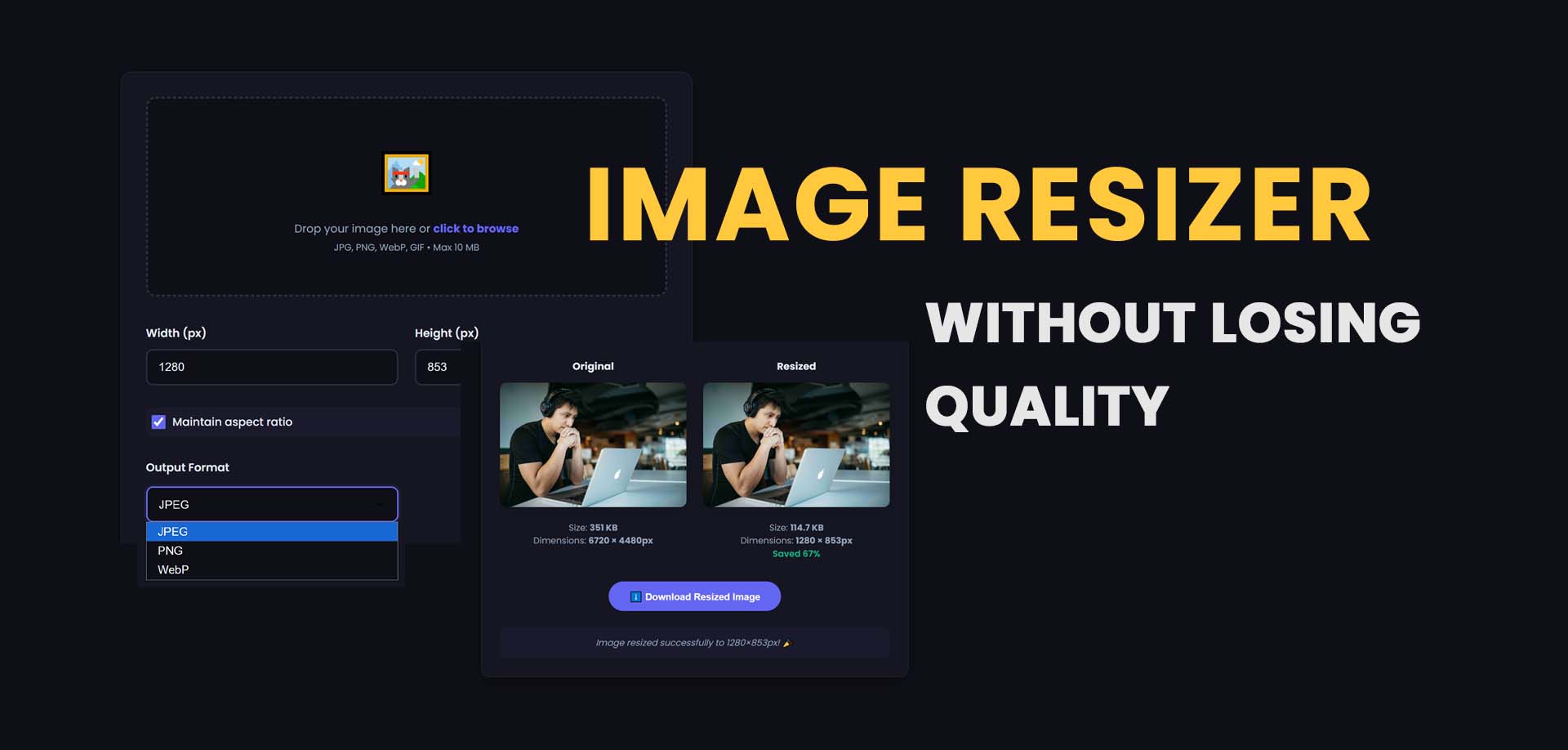
Our free image size reducer handles this friction for you. It strips metadata, optimizes the color palette, and resizes the pixel grid in a single action.
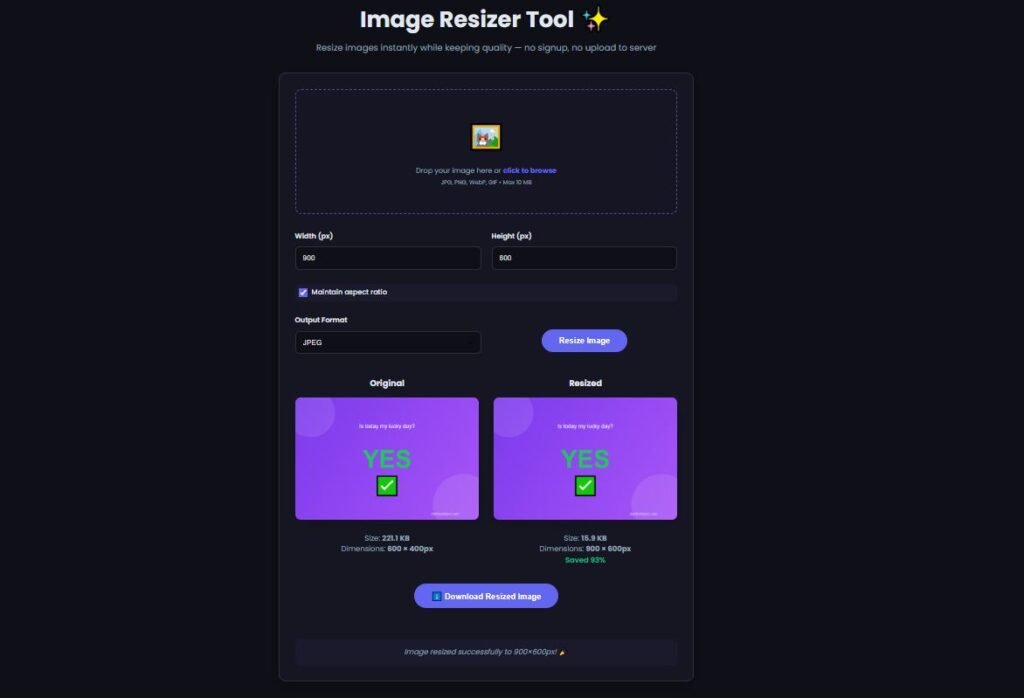
The interface gives you direct control over the final file size in kilobytes without forcing you to calculate pixel ratios. You see the estimated output weight before you download, so you know immediately if you'll hit that 100KB limit. There's no guesswork, and it processes batches, so you're not stuck resizing images one at a time.
Advanced Tips for Consistent Image Optimization
- Use the "Just Noticeable Difference" Threshold: Place the original and compressed versions side by side. If you can't tell which is which within five seconds, you've hit the perfect compression ratio. Numbers on a slider matter less than your visual perception.
- Replace Animated GIFs with Video Formats: If you embed simple animations in blog posts, convert them to WebM or MP4 instead of GIF. A 10-second GIF often weighs 5MB; the equivalent video file can weigh 800KB.
- Rasterize Vector Graphics Correctly: If you convert an SVG logo to a PNG for email signatures, don't save it at 300 DPI. 72 DPI is the standard screen resolution. The "DPI" metadata field bloats the file without improving screen display at all.
- Leverage Lazy Loading: If you run a website, compressing images with an image size reducer is step one. Step two is adding the loading="lazy" attribute to your image tags so browsers only download images as users scroll to them. This cuts initial page weight instantly.
Frequently Asked Questions About Reducing Image Size
How do I reduce the KB size of an image?
Upload your image to a compression tool or photo resizer that strips EXIF metadata and reduces file weight. Adjust the quality slider to 70% for a strong reduction with minimal visual change, then download the compressed version.
What's the difference between reducing file size and reducing dimensions?
Reducing file size (KB) shrinks storage weight via compression without changing the photo's visual size. Reducing dimensions changes the pixel grid (width x height). Both can reduce the overall MB footprint, but compression targets weight while resizing targets scale.
How does the image size reducer work without losing any quality?
Lossless compression retains every pixel of original data, but the size reduction is modest, usually 20% at most. Visually lossy compression can shrink files by 90% while appearing identical on screen. For web and email, visually lossy compression is the practical standard.
How do I resize an image to exactly 20KB?
You'll need a tool that estimates output size in real time. First, scale down the pixel dimensions to a smaller grid, then adjust the compression quality slider upward or downward until the estimated output reads exactly 20KB before you download.
Why does my image turn pixelated or blocky after compression?
This artifact appears when the compression ratio is too aggressive, usually below 40% quality. The algorithm begins merging large blocks of dissimilar colors into uniform squares. Increase the quality percentage incrementally until the blockiness disappears.
Which file type gives the smallest file size for photos?
WebP consistently produces files 25% to 35% smaller than JPEG at equivalent visual quality. If broad compatibility with older devices is required, an optimized JPEG saved at 70% to 80% quality remains the safest small-file option.
Does cropping an image reduce its file size?
Yes. Cropping physically removes pixel data from the image. Fewer total pixels result in less data to store. However, cropping changes the composition of the photo, while compression preserves the full scene.
Why are smartphone photos so large compared to downloaded images?
Smartphone cameras capture deep bit-depth data and multiple exposures fused into one file (computational photography). They also attach extensive metadata. Online images typically have this metadata stripped and use aggressive but clean JPEG compression.
How do I batch reduce picture sizes for a whole folder?
Use an online pic size reducer that supports batch upload. Drag an entire folder of images into the tool, set a universal quality or dimension cap, and download all optimized files as a single compressed archive.
Is it safe to compress images through an online tool?
Reputable tools process files directly in the browser using client-side JavaScript where possible, meaning your photos never leave your device. Check for a tool that states it does not upload files to a remote server for processing if privacy is a concern.
Related Image Compression Guides
An image size reducer can help make large image files smaller for websites, email, uploads, and storage. For a deeper explanation of the techniques behind reducing image size, see our Image Compression Guide. You can also learn how to reduce image size without losing quality, understand the difference between image size and resolution, or learn how to compress images before uploading.
Keep Your Images Light and Your Workflow Fast
Heavy image files are obstacles you don't need to tolerate. Every failed upload, every slow-loading webpage, and every bounced email leads back to the same root cause: unoptimized file weight that slipped through unchecked. Now you know that the fix isn't complicated. It's a deliberate sequence of stripping metadata, choosing the right format, and applying compression that respects visual clarity.
You don't need to memorize conversion charts or become a color profile expert. You just need to remember that before you hit send, submit, or publish, a quick pass through an image size reducer removes the invisible friction holding your content back. If you want that pass to happen in one click instead of several, our image size reducer is built exactly for that purpose. Otherwise, use the manual method outlined above and take control of your file sizes starting with the very next image you export.
Related Tools You May Find Useful
- Image Compressor — Targets file weight directly with advanced compression when you need the smallest possible KB without touching the pixel dimensions.
- Image Converter — Switches between JPEG, PNG, and WebP formats so you can choose the optimal compression container before resizing.
- Image Cropper — Removes unwanted background areas to reduce pixel count, which instantly lowers the base file size before any compression occurs.
- Background Remover — Isolates subjects from backgrounds cleanly; pairing this with a size reducer ensures the final cutout stays sharp and lightweight.
- PDF Compressor — Shrinks entire documents when your optimized images are embedded inside a PDF that's still too large for email attachment limits.
Related Resources
- Reduce Image Size: A Practical Guide — A walkthrough of manual and automated techniques to shrink file weight across multiple formats.
- Ultimate Guide to Image Compressor Tools — A comparison of compression engines and strategies to help you choose the right approach for web, print, and social media.
Last Updated: June 21, 2026
Share this article 👇


0 Comments