
Table of Contents
IP Address Conflict: Causes and Its Fixes
An IP address conflict happens when two devices on the same local network are assigned the same IP address. Because each device needs a unique local IP address to communicate properly, the conflict can cause connection problems, intermittent access, or a device to lose network connectivity.
Most IP address conflicts are caused by DHCP problems, manually assigned addresses that overlap with automatic assignments, or network configuration changes. The good news is that they are usually straightforward to resolve.
What Is an IP Address Conflict?
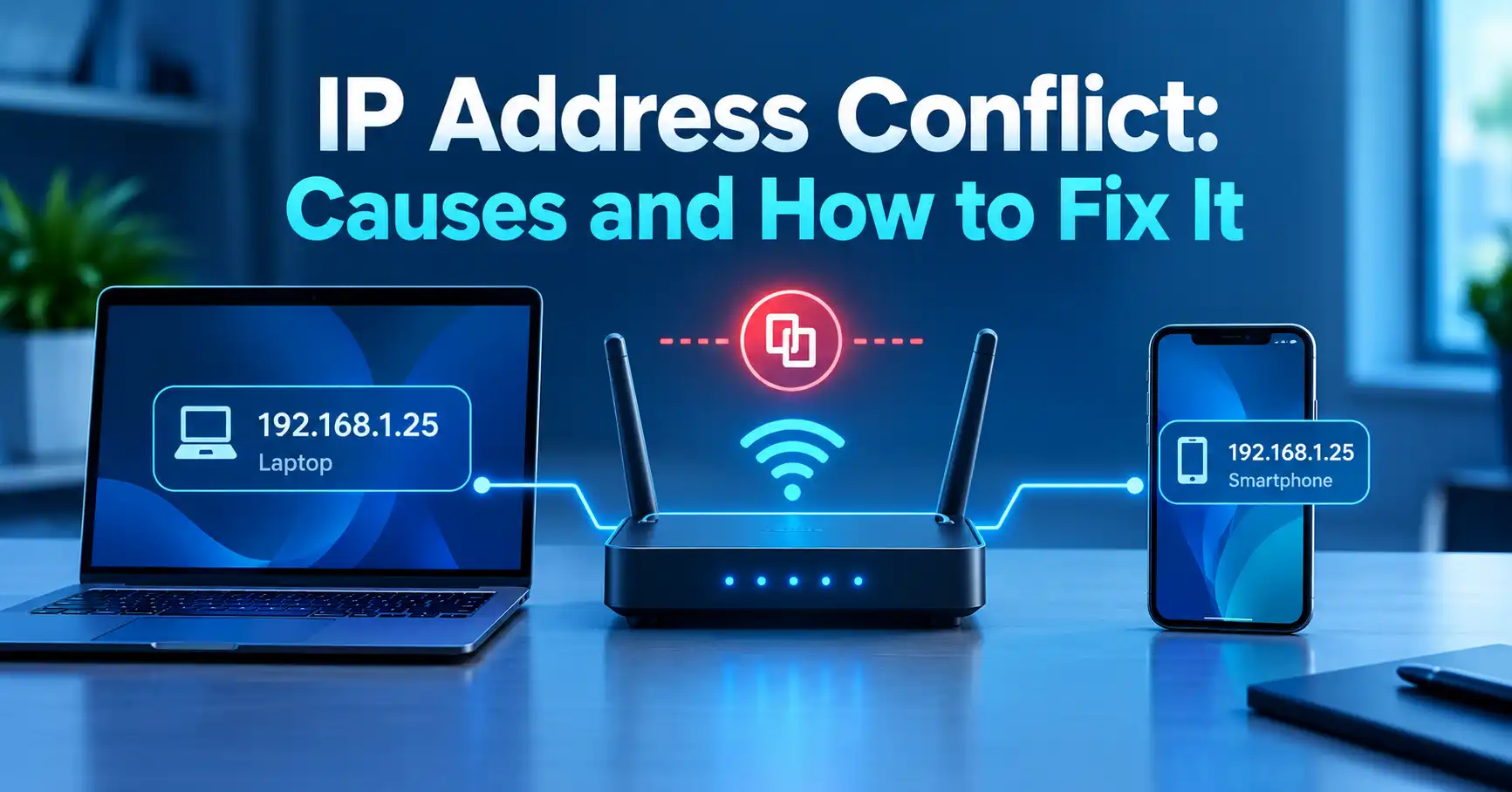
An IP address conflict occurs when two devices on the same network use the same private IP address.
For example, imagine a home network where:
- A laptop has
192.168.1.25 - A printer is also assigned
192.168.1.25
The router and other devices cannot reliably determine which device should receive traffic intended for that address. As a result, one or both devices may experience connectivity problems.
An IP address conflict usually involves private IP addresses inside a local network. It does not necessarily mean that two devices anywhere on the internet have the same public IP address.
If you need a broader explanation of how IP addresses work, the complete guide to IP addresses provides additional background on public and private addressing.
What Causes an IP Address Conflict?
Several situations can result in two devices receiving or using the same local IP address.
1. Two Devices Have the Same Manually Assigned IP
One common cause is manually configuring a static IP address on a device that is already being used by another device.
For example, suppose a router's DHCP server automatically assigns addresses from:
192.168.1.2 through 192.168.1.100
If someone manually configures a computer to use 192.168.1.25, the address could eventually be assigned to another device by DHCP.
The result is an IP address conflict.
2. A Static IP Overlaps With the DHCP Pool
Static IP addresses are not inherently a problem. The problem occurs when manually assigned addresses overlap with the range that the router uses for automatic DHCP assignments.
A safer network design normally separates manually assigned addresses from the DHCP pool.
For example:
| Purpose | Example range |
|---|---|
| Static devices | 192.168.1.2–192.168.1.20 |
| DHCP devices | 192.168.1.21–192.168.1.200 |
The exact ranges depend on the network configuration. The important point is to avoid assigning the same address to multiple devices.
3. DHCP Problems
DHCP, or Dynamic Host Configuration Protocol, allows a router or DHCP server to automatically assign IP addresses to devices.
Under normal conditions, DHCP keeps track of which addresses are in use. A configuration problem, unusual network behavior, or incorrectly configured equipment can interfere with that process.
Restarting the affected device and renewing its network configuration can often resolve a temporary conflict.
4. Two DHCP Servers Are Running
A home network generally expects one device to manage DHCP for the local network.
Problems can occur when another router, access point, or networking device is connected with its own DHCP server enabled.
For example, connecting a second router to an existing network without configuring it appropriately can create competing DHCP services.
This can result in devices receiving unexpected IP addresses, gateways, or other network settings.
5. Network Configuration Was Changed
An IP conflict can appear after changing routers, replacing networking equipment, restoring a configuration, or reorganizing a network.
A device that previously had a static address may suddenly overlap with a new DHCP configuration.
This is particularly relevant when an older network configuration is reused with new equipment.
6. Duplicate Network Settings on a Device
A device with manually configured network settings may continue using an address that was originally available but is now being used elsewhere.
This can happen with computers, printers, cameras, servers, smart devices, and other equipment that supports manual network configuration.
What Does an IP Address Conflict Look Like?
The exact symptoms depend on the operating system and network equipment, but common signs include:
- A device suddenly loses internet access.
- Local network connections stop working.
- A computer reports an IP address conflict.
- A printer becomes unreachable.
- Network access works intermittently.
- One device connects while another loses connectivity.
- A device receives an unexpected IP address.
- Restarting a device temporarily fixes the problem.
An IP address conflict is not automatically a sign that someone has hacked your network. In many cases, it is simply a network configuration problem.
How to Fix an IP Address Conflict
The best solution depends on how the address was assigned. Start with the simplest steps before changing network settings manually.
1. Restart the Affected Device
Start by restarting the computer, phone, printer, or other device showing the problem.
A restart can cause the device to request network configuration again and may resolve a temporary conflict.
If the problem returns immediately or keeps happening, continue troubleshooting.
2. Restart the Router
Restarting the router can refresh its network services, including DHCP.
Turn the router off, wait briefly, and turn it back on. Allow the network to become available again before reconnecting the affected devices.
If multiple devices experience the same problem, checking the router is particularly important.
3. Renew the Device's IP Address
If the device receives its address automatically through DHCP, renewing its network configuration can help it obtain a different available address.
On Windows, you can use Command Prompt to release and renew the DHCP-assigned address:
ipconfig /release
ipconfig /renew
After the renewal completes, check whether the device can communicate with the network again.
The exact process differs on macOS, Linux, Android, iPhone, and other platforms, so avoid applying Windows commands to other operating systems.
4. Check Whether the Device Uses a Static IP
If the conflict keeps returning, check whether the affected device has a manually configured IP address.
Look at the network settings and determine whether the device is configured to obtain its IP address automatically or whether an address has been entered manually.
If a static address is configured, verify that it does not overlap with another device or the router's DHCP range.
5. Check the Router's DHCP Settings
Log in to the router's administration interface and inspect its DHCP configuration.
Look for:
- DHCP enabled or disabled status
- DHCP address range
- Connected devices
- Address reservations
- Manually assigned addresses
- Multiple networking devices providing DHCP
The exact interface varies between router manufacturers, so menu names will differ.
If you have recently replaced a router or added another networking device, pay particular attention to DHCP configuration.
6. Check for a Second Router or DHCP Server
If the network contains two routers, access points, or other devices capable of assigning IP addresses, check whether both are acting as DHCP servers.
A second router can be useful, but its configuration needs to match the intended network design.
For example, an additional router may need to operate in an appropriate access-point or bridge configuration rather than independently assigning addresses to the same LAN.
7. Forget and Reconnect to the Network
On Wi-Fi devices, forgetting the wireless network and reconnecting can refresh the device's network configuration.
This is especially useful when the device appears to have retained outdated network information.
After reconnecting, check whether it receives a valid private IP address and can communicate with the router.
How Do You Know Which IP Address Your Device Is Using?
You can inspect the network settings on the affected device to find its current local IP address.
For example, a typical home network might use a private IPv4 address such as:
192.168.1.42
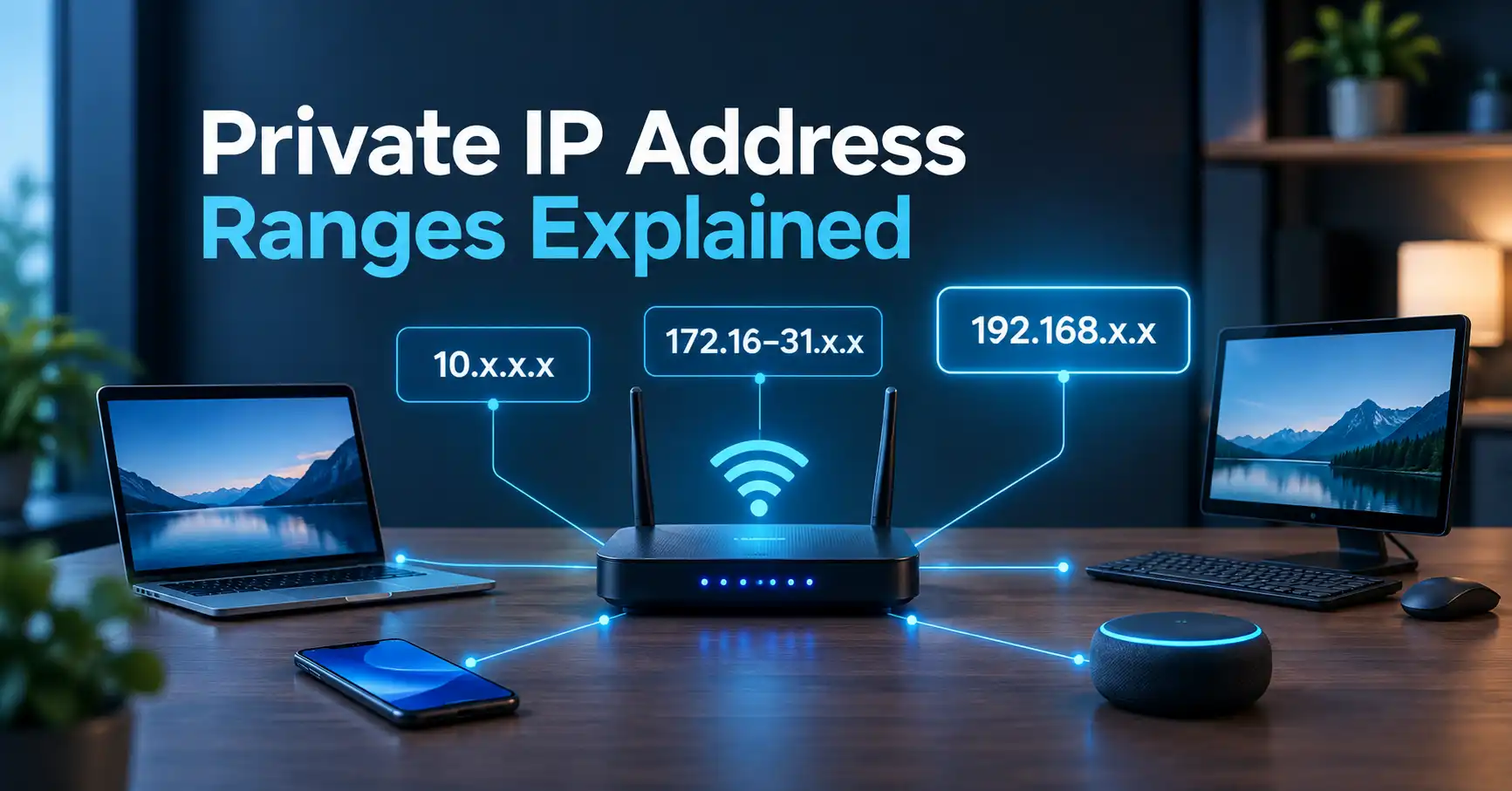
Other private IPv4 ranges include:
10.0.0.0through10.255.255.255172.16.0.0through172.31.255.255192.168.0.0through192.168.255.255
These addresses are reserved for private networks.
If you want to understand these ranges in more detail, see our guide to private IP address ranges.
It is also important to distinguish the device's private IP address from the public IP address visible to internet services. A private address is used inside the local network, while the public address represents the network's internet-facing connection.
Does an IP Address Conflict Affect Your Public IP Address?
Usually, an IP address conflict on a home or office LAN involves private IP addresses, not the public IP address assigned to the internet connection.
For example:
- Laptop:
192.168.1.25 - Phone:
192.168.1.26 - Printer:
192.168.1.27
These addresses can coexist because they are different private addresses within the same network.
The router may also have a separate public IP address provided by the ISP.
If you want to see the public IP address currently associated with your internet connection, you can check your current public IP address with MiniToolsPro's free IP address tool.
Can an IP Address Conflict Be Caused by a Hacker?
An IP address conflict by itself does not prove that someone has hacked your network.
The much more common explanations are configuration issues, DHCP problems, manually assigned addresses, duplicate network settings, or multiple DHCP servers.
If you see an IP conflict, troubleshoot the network configuration first. If there are additional signs of unauthorized access, such as unknown devices, unexplained router settings changes, or unfamiliar administrator accounts, those issues should be investigated separately.
An IP address also does not uniquely identify a person or provide an exact physical address. IP-based information should be interpreted in the context of the network and other available information.
IP Address Conflict vs. No Internet Connection
An IP conflict and a general internet connection problem are not necessarily the same thing.
| Problem | Possible cause |
|---|---|
| Two devices report an address conflict | Duplicate private IP address |
| Device has no valid local address | DHCP or network configuration problem |
| Device connects to Wi-Fi but has no internet | Router, DNS, ISP, or gateway issue |
| Internet works but one local device is unreachable | Local addressing or device configuration |
| Problem appears after adding a router | Possible DHCP or network configuration conflict |
This distinction matters because changing DNS settings, replacing cables, or changing the public IP address will not necessarily fix a duplicate private IP address.
How to Prevent IP Address Conflicts
Once the immediate problem is fixed, a few configuration practices can reduce the chance of it returning.
Keep Static Addresses Outside the DHCP Pool
If you manually assign IP addresses, use a range that does not overlap with the router's DHCP pool.
Use DHCP Reservations When Available
For devices that need a consistent local address, such as printers or servers, a DHCP reservation can be easier to manage than manually configuring a static address on the device.
The router associates a particular device with a specific address while continuing to manage the assignment centrally.
Avoid Multiple Unplanned DHCP Servers
If you add another router or networking device, make sure you understand whether it is providing DHCP.
Two independent DHCP servers on the same LAN can create confusing and unpredictable network configurations.
Document Important Static Addresses
For larger home networks or small offices, keeping a simple record of manually assigned addresses can prevent accidental duplication.
Frequently Asked Questions
What is an IP address conflict?
An IP address conflict occurs when two devices on the same local network use the same IP address. The duplicate address can prevent the devices from communicating correctly.
Is an IP address conflict dangerous?
An IP address conflict is usually a network configuration problem rather than a security incident. It can interrupt connectivity, but the conflict itself does not prove that the network has been compromised.
Why does my computer say another device is using my IP address?
Your computer may display this message when another device on the same network is using the same private IP address. Common causes include a manually assigned address overlapping with DHCP or a problem with network configuration.
Can restarting my router fix an IP conflict?
Yes, restarting the router can resolve some temporary IP conflicts by refreshing its network services and DHCP state. If the conflict returns, the underlying configuration should be checked.
Can two devices have the same IP address?
Two devices should not use the same private IP address on the same local network. Duplicate addresses can cause communication problems and intermittent connectivity.
Final Takeaway
An IP address conflict usually means that two devices on the same local network have been assigned or configured with the same private IP address. The most common causes include overlapping static and DHCP addresses, DHCP configuration problems, duplicate network settings, and multiple DHCP servers.
Start by restarting the affected device and router, then check whether the device is using DHCP or a manually configured address. If the problem keeps returning, inspect the router's DHCP range and look for another device providing DHCP services.
Understanding the difference between private and public IP addresses also makes these problems much easier to diagnose. For a broader explanation, you can read the complete IP address guide or use the MiniToolsPro IP address checker to view your current public IP address.
Share this article 👇

0 Comments