
Table of Contents
How to Find My IP Address on Any Device Explained:
If you want to know how to find your IP address, the method depends on whether you need your public IP address or the private IP address assigned to your device on your local network. You can usually find your private IP in your device's network settings, while your public IP can be checked quickly with an online IP lookup tool.
Public IP vs. Private IP: Which One Are You Looking For?
Before checking your IP address, it helps to know that your device can be associated with more than one IP address.
A public IP address is the address your internet connection presents to websites and online services. It is generally assigned or managed by your internet service provider (ISP).
A private IP address is used inside your local network. Your router typically assigns private addresses to devices such as computers, phones, tablets, printers, and smart TVs.
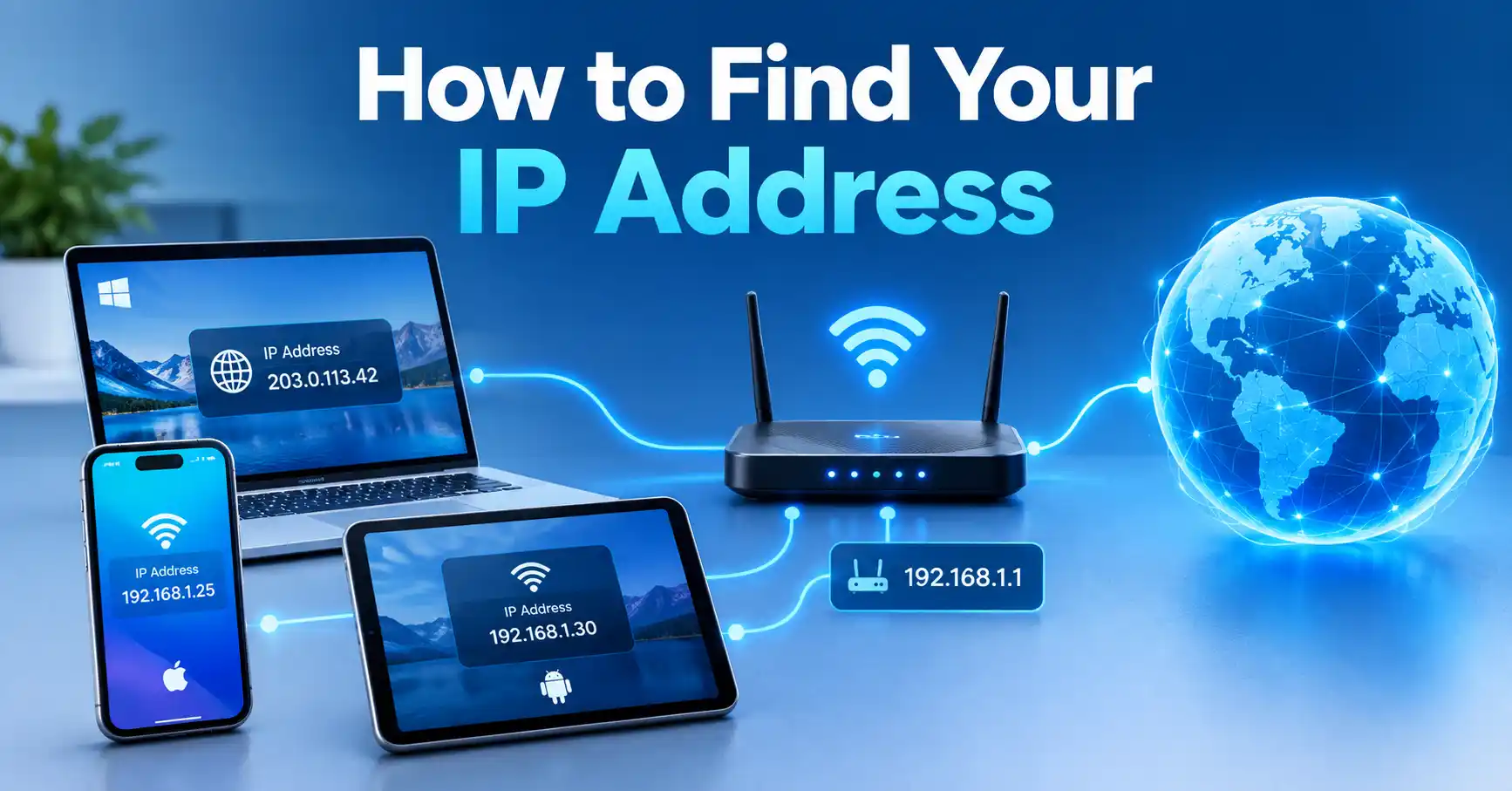
For example, a home network might look like this:
| Address | What it represents |
|---|---|
203.0.113.42 | Example public IPv4 address |
192.168.1.25 | Example private IPv4 address for a device |
192.168.1.1 | Example private address for a router |
The public address is what internet services generally see from your connection, while the private address identifies the device within your local network.
If you want a broader explanation of how IP addresses work, see our complete guide to IP addresses.
How to Find Your Public IP Address
The easiest way to find your public IP address is to use an IP lookup tool.
Your browser and the websites you visit can generally see the public-facing IP address associated with your connection. A tool such as MiniToolsPro's What Is My IP Address tool can show the public IP address detected for your current internet connection.
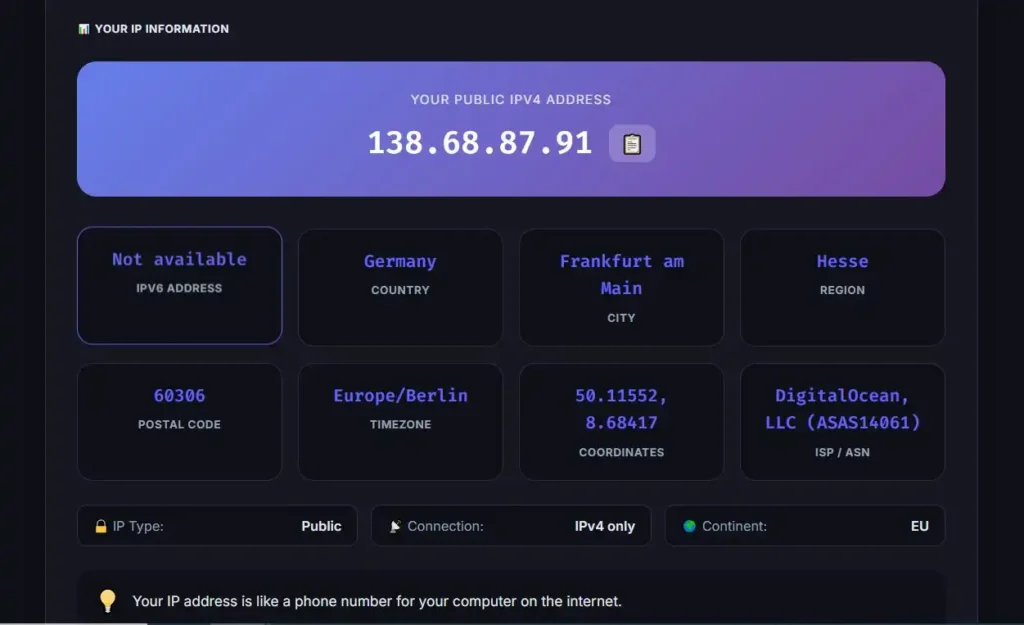
This method is useful when you need your public IP for:
- Checking what IP address websites see
- Troubleshooting an internet connection
- Setting up certain network services
- Checking whether your VPN is presenting a different IP
- Providing an IP address to a network administrator
- Comparing your connection before and after changing networks
Keep in mind that your public IP can change, particularly when your ISP uses dynamic addressing.
How to Find Your IP Address on Windows
Windows provides the IP address of your current network connection directly in Settings.
Windows 11
- Open Settings.
- Select Network & internet.
- Choose Wi-Fi if you are connected wirelessly, or Ethernet if you are using a wired connection.
- Select the network you are currently connected to.
- Look for IPv4 address.
Microsoft's current Windows documentation identifies the IPv4 address in the properties of the connected Wi-Fi or Ethernet network.
You may also see an IPv6 address if IPv6 is enabled on your network.
Using Command Prompt
Windows also provides a quick command-line method.
- Open Command Prompt.
- Type:
ipconfig
- Press Enter.
- Find the network adapter you are currently using.
- Look for IPv4 Address.
You may also see entries for the subnet mask and default gateway.
The address shown here is normally your private/local IP address, not necessarily the public IP address that websites see.
What if Windows shows several IP addresses?
This is normal.
A computer can have several network interfaces, including:
- Wi-Fi
- Ethernet
- VPN adapters
- Virtual network adapters
- Other network connections
Look for the adapter that corresponds to the connection you are actually using.
How to Find Your IP Address on a Mac
On current versions of macOS, you can find the IP address through Network settings.
Find the IP address over Wi-Fi
- Open the Apple menu.
- Select System Settings.
- Select Wi-Fi.
- Find the network you are currently connected to.
- Click Details.
- Look for the IP address.
Apple's current Mac documentation lists the IP address and router address in the details for the connected Wi-Fi network.
Find the IP address over Ethernet
If your Mac is connected with an Ethernet cable:
- Open System Settings.
- Select Network.
- Select the Ethernet connection.
- Click Details.
- Select TCP/IP.
- Look for the IPv4 or IPv6 address.
macOS supports both IPv4 and IPv6, and the available network settings depend on the connection being configured.
The address shown in these settings is the address used by your Mac on that network. It is not necessarily the same as your public IP address.
How to Find Your IP Address on an iPhone or iPad
If your iPhone or iPad is connected to Wi-Fi, you can view network information from the Wi-Fi settings.
- Open Settings.
- Tap Wi-Fi.
- Tap the information button next to the connected network.
- Review the network information, including the IP configuration.
The exact information displayed can vary depending on the network and iOS/iPadOS version.
Apple also provides network privacy controls such as Limit IP Address Tracking, which can affect how your IP address is exposed to certain services.
If you simply want to know the public IP address that your current internet connection presents to websites, checking it with an online IP lookup tool is usually easier.
How to Find Your IP Address on Android
Android network settings can vary between manufacturers, so the exact menu names may differ between Samsung, Google Pixel, Xiaomi, OnePlus, and other devices.
A common approach is:
- Open Settings.
- Go to Network & internet or Connections.
- Open Wi-Fi or Internet.
- Select the Wi-Fi network you are connected to.
- Open its network details.
- Look for the IP address.
On some phones, you may need to tap an additional Advanced, Network details, or information option.
Google's Android documentation notes that network settings can differ depending on the device manufacturer, and provides network-management options under Settings > Network & internet on supported Android devices.
If you cannot find the address through your phone's menus, use the Settings search function and search for IP address.
How to Find Your IP Address on a Chromebook
Chromebooks provide the IP address directly through the Wi-Fi connection information.
- Sign in to your Chromebook.
- Select the time in the bottom-right corner.
- Select the connected Wi-Fi network.
- Select Information.
- Look for the Chromebook's IP address and IPv6 address.
Google's Chromebook documentation specifically lists these steps for finding the device's IP and IPv6 addresses.
Chromebooks can also use IP information as one input when estimating an approximate location, which is another reason an IP address should not be confused with precise GPS location.
How to Find Your IP Address on Linux
Linux distributions can use different desktop environments, so the graphical steps vary. The terminal provides a more consistent method.
Open a terminal and run:
ip addr
Look for the active network interface, such as a Wi-Fi or Ethernet interface, and find its inet address.
For example:
inet 192.168.1.24/24
Here, 192.168.1.24 is the device's local IPv4 address.
You can also use:
hostname -I
on many Linux systems to display assigned local IP addresses.
For the public IP address, an online IP lookup is generally simpler because the local address shown by Linux does not necessarily represent the address visible to websites.
How to Find Your IP Address on a Router
Sometimes the IP address you actually need belongs to the router rather than your computer or phone.
A typical home router has at least two relevant sides:
- LAN side: the router's private address used inside your home network
- WAN side: the address or connection information associated with the internet-facing side
A common router address is 192.168.1.1, but this is only an example. Other private ranges are also widely used.
The three IPv4 private-use ranges defined for private networks are:
10.0.0.0through10.255.255.255172.16.0.0through172.31.255.255192.168.0.0through192.168.255.255
These ranges are reserved for private networks and are not globally routable on the public Internet.
If you need the router's address, look for the Default Gateway on Windows or the Router entry in macOS network details.
How to Tell Whether an IP Address Is Public or Private
For IPv4, the easiest way is to check whether the address falls within one of the private-use ranges.
| IPv4 range | Purpose |
|---|---|
10.0.0.0 – 10.255.255.255 | Private network |
172.16.0.0 – 172.31.255.255 | Private network |
192.168.0.0 – 192.168.255.255 | Private network |
For example:
192.168.1.20→ private IPv4 address10.0.0.15→ private IPv4 address172.20.5.10→ private IPv4 address8.8.8.8→ not in the RFC 1918 private-use ranges
IANA maintains the current registry of special IPv4 address blocks and identifies the RFC 1918 ranges as private-use networks.
There are other special-purpose address ranges as well, so simply assuming that every address outside these three ranges is a normal public address is not always appropriate.
Why Do I See Both IPv4 and IPv6?
You may find more than one IP address on the same device because modern networks can support both IPv4 and IPv6.
IPv4 addresses use a familiar dotted format such as:
192.168.1.25
IPv6 addresses are much longer and use hexadecimal characters separated by colons, such as:
2001:db8:1234::25
Seeing both does not necessarily indicate a problem. A device can have IPv4 and IPv6 connectivity at the same time.
Apple's networking documentation, for example, distinguishes IPv4 addresses from the longer hexadecimal format used by IPv6.
Why Is My IP Address Different From What I Expected?
There are several normal reasons an IP address may not match what you expected.
You are checking the private IP instead of the public IP
Your device may show something like:
192.168.1.25
while an online service sees a completely different public IP.
That is expected on a typical home network using a router and private addressing.
You changed networks
Your IP information can change when you switch between:
- Home Wi-Fi
- Office Wi-Fi
- Public Wi-Fi
- Mobile data
- A different ISP
- A VPN connection
The address associated with the new connection may be different.
Your ISP uses dynamic addressing
Many internet connections use dynamic IP addressing. This means the public IP associated with your connection can change rather than remaining permanently fixed.
A change does not automatically indicate a security problem.
A VPN is active
When a VPN is connected, websites may see an IP address associated with the VPN service rather than the address your ISP normally presents directly.
This can make the public IP shown by an online lookup different from the one you saw earlier.
Does an IP Address Show My Exact Location?
No. An IP address should not be treated as a precise physical location.
IP-based geolocation can often provide an approximate geographic association such as a country, region, city, ISP, or organization, but the accuracy varies.
Google explains that IP addresses are roughly based on geography and can be used to estimate a user's general area.
That means an IP address generally should not be interpreted as:
- Your exact home address
- Your exact GPS coordinates
- Proof of your identity
- A guaranteed physical location
If an IP lookup shows a city that is different from where you actually are, that does not necessarily mean the IP address is wrong. The geolocation database may simply associate the address with a different location.
For more detail, see our guide on why an IP address can show the wrong location.
Is It Safe to Check My IP Address?
Yes. Simply looking up your own IP address is a normal networking task.
The more important point is understanding what the address represents.
A public IP address is not, by itself, a complete identity record. Websites and online services can combine IP information with other data, but an IP address alone does not automatically reveal your exact home address or prove who is using the connection.
Likewise, knowing someone's IP address does not automatically mean an attacker can hack their device.
Your broader security depends on factors such as device security, exposed services, software vulnerabilities, account protection, router configuration, and other circumstances.
What Is the Easiest Way to Find My IP Address?
If you only need the public IP address visible to websites, the simplest approach is to use an online IP lookup tool.
If you need the private IP address of a specific device, use that device's network settings.
A useful rule is:
- Want to know what the internet sees? Check your public IP.
- Want to configure or troubleshoot your device on your home network? Check its private IP.
- Want to configure your router? Look for its router or gateway address.
- Want to identify a network adapter? Check the IP information for that specific interface.
If you want to check your current public address now, you can use MiniToolsPro's What Is My IP Address tool.
Frequently Asked Questions
How do I find my IP address quickly?
For your public IP address, use an online IP lookup tool. For your device's private IP address, open the network settings for the active Wi-Fi or Ethernet connection.
What is the difference between my public IP and private IP?
Your public IP is associated with your internet-facing connection and can generally be seen by websites and online services. Your private IP is used to communicate with your device inside a local network.
Can my IP address change?
Yes. Your public IP can change when your ISP assigns addresses dynamically, when you change networks, or when your connection is routed through a VPN or other service. Your private IP can also change when your router assigns a different local address.
Does my IP address reveal my exact location?
No. IP-based geolocation provides an estimate and may identify a general area, ISP, or organization rather than your exact physical location.
Why does my computer have more than one IP address?
A device can have multiple network interfaces and can use both IPv4 and IPv6. It may also have separate addresses for Wi-Fi, Ethernet, VPN connections, or virtual network adapters.
Final Takeaway
Finding your IP address is usually straightforward once you know which address you actually need.
For a public IP address, an online lookup tool is usually the fastest option. For a private IP address, check the network settings on your Windows PC, Mac, iPhone, Android phone, Chromebook, or Linux computer.
The distinction matters because the address shown by your device is often not the same address that websites see. Understanding that difference makes it much easier to troubleshoot networks, configure devices, check VPN connections, and understand what your IP address actually tells you.
Share this article 👇
0 Comments