
Table of Contents
Transparent PNG vs White Background
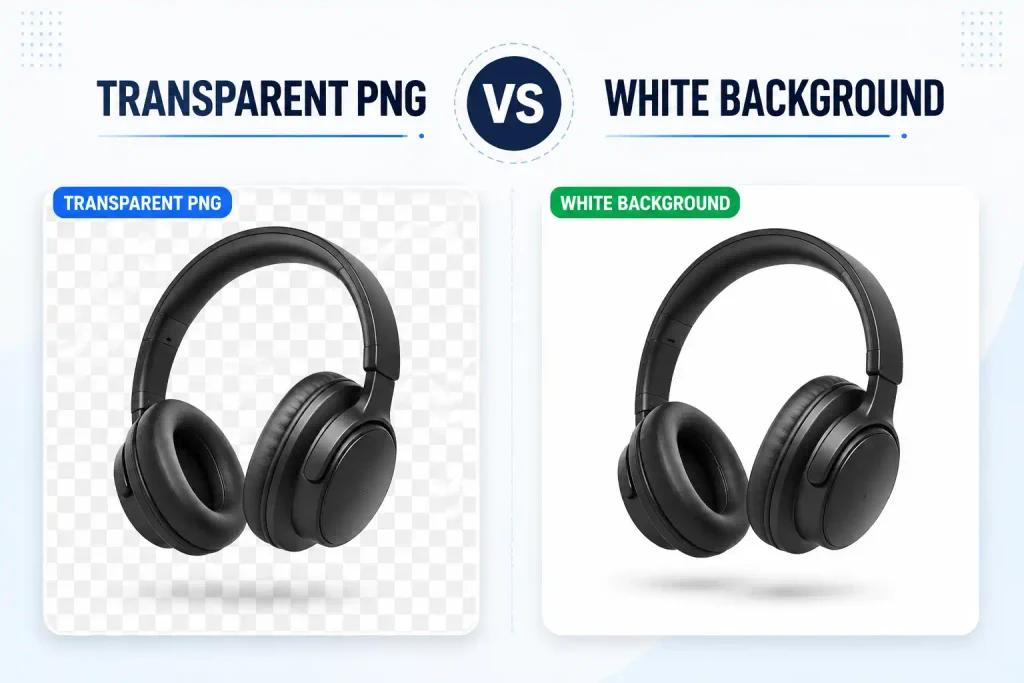
A transparent PNG keeps the background invisible so the subject can sit on any surface. A white background is a solid, opaque layer of white behind the subject. The right choice depends entirely on how and where you'll use the image. Get this wrong, and you'll end up with black boxes on websites, visible edges in designs, or files that don't meet platform requirements.
This guide explains the key differences, walks through common use cases, and gives you a simple decision framework for choosing between transparent and white backgrounds.
What Is a Transparent PNG?
A transparent PNG is an image file where the background pixels have no color value. Instead of showing white, gray, or any other color, those pixels are simply empty. When you place the PNG on a website, in a design tool, or on a colored surface, the background shows through.
PNG is the most common format that supports transparency. WebP also supports transparency and offers smaller file sizes, but PNG remains the most universally compatible choice. JPG does not support transparency at all — if you save a transparent image as JPG, the transparent areas become solid white.
Transparent PNGs are essential for:
- Logos that need to sit on different backgrounds
- Product images that will be placed on varied surfaces
- Icons and UI elements
- Design assets that designers will manipulate
- Images that need to blend seamlessly with website backgrounds
What Is a White Background?
A white background is exactly what it sounds like: a solid white layer behind the image's subject. The background isn't empty — it's filled with white pixels. The image is opaque, meaning you can't see through it.
White backgrounds are standard for:
- Marketplace product photos (Amazon, eBay, etc.)
- Professional headshots
- Catalog images
- Print materials
- Any context where the image stands alone and doesn't need to blend with surrounding elements
White backgrounds are simple, consistent, and universally understood. They don't require special file formats or design knowledge to use properly.
The Core Difference
The fundamental difference is flexibility. A transparent PNG gives you the ability to change the background later — to any color, gradient, pattern, or photo. A white background is fixed. What you see is what you get.
This flexibility comes with a trade-off. Transparent PNGs are typically larger files than comparable white-background JPGs. They also require a bit more care when used. Not every platform handles transparency well, and displaying a transparent PNG on a dark background produces a very different result than displaying it on a light one.
A white background, by contrast, is predictable. It looks the same everywhere. There are no surprises, no compatibility issues, and no need to think about what's behind the image.
When to Use a Transparent PNG
Logos and brand assets
Your logo needs to work on white business cards, dark website headers, colored packaging, and social media avatars. A transparent PNG is the only format that handles all of these contexts gracefully. Always keep a transparent version of your logo as the master file.
Product photos for your own website
If your website has a non-white background, transparent product images let the background show through naturally. This is especially important for e-commerce sites with colored or textured backgrounds behind product grids.
Design projects
When you're creating social media graphics, email headers, or marketing materials, transparent PNGs give you the freedom to place subjects on any background. You can change the background color, add gradients, or composite multiple elements together.
Icons and UI elements
Icons, buttons, and interface elements need transparency to sit correctly on different parts of a website or app. A white background behind an icon creates a visible white box that looks unprofessional.
Images destined for unknown backgrounds
If you don't know where an image will be used, choose transparency. You can always add a white background later. Going the other direction — removing a white background — requires additional processing.
When to Use a White Background
Amazon and marketplace listings
Amazon requires pure white backgrounds for main product images. eBay strongly recommends them. Most other marketplaces either require or prefer white backgrounds because they create a consistent shopping experience. If you're selling on these platforms, white is not optional.
Professional headshots
LinkedIn, corporate websites, and email signatures typically use headshots on white or light neutral backgrounds. A white background looks clean and professional, and it avoids the awkward black-box effect that can happen when transparency isn't supported.
Print materials
Brochures, catalogs, flyers, and business cards typically work best with images on white or solid backgrounds. Print layouts are usually designed with white space, and white-background images blend in seamlessly.
Email marketing
Many email clients don't handle transparency well. A transparent PNG in an email may display with a black or dark gray background in some clients. For email, white background JPGs are the safer choice.
Images that won't be edited
If an image is final — it will be used as-is without further modification — a white background is often the simpler choice. It's smaller, more compatible, and doesn't require any special handling.
Side-by-Side Comparison
| Factor | Transparent PNG | White Background |
|---|---|---|
| Background | Invisible/empty | Solid white |
| Flexibility | High — can place on any background | Low — fixed white |
| File size | Larger | Smaller (especially as JPG) |
| Format support | PNG, WebP | JPG, PNG, WebP |
| Email compatibility | Risky — may show black background | Excellent |
| Marketplace compliance | Not accepted for main images | Required by most platforms |
| Best for | Logos, design assets, website images | Marketplaces, headshots, print |
How to Convert Between the Two
The good news: you don't have to choose permanently. If you have a transparent PNG and need a white background, you can add white in any design tool. If you have a white background and need transparency, you can remove the background with an online tool.
From transparent to white
Open the transparent PNG in any design tool. Add a white layer behind the subject. Export as JPG for the smallest file size or PNG if you need to preserve quality and don't mind the larger file. This takes seconds and works perfectly every time.
From white to transparent
Use a background remover to strip the white background from your image. The tool detects the subject and removes the white pixels, producing a transparent PNG. Quality depends on the contrast between subject and background — a dark product on a white background usually processes cleanly, while a white product on a white background can be challenging.
Common Mistakes to Avoid
Uploading transparent PNGs to marketplaces
Amazon and other marketplaces want white backgrounds, not transparency. Some platforms will reject transparent images outright. Others will render them with black or gray backgrounds, making your product look unprofessional. Always convert to white before uploading.
Using white-background images on colored websites
If your website has a beige, gray, or colored background, white-background product photos will appear as white boxes. This looks amateur and breaks the visual flow. Use transparent PNGs or match the image background to your site's background color.
Sending transparent PNGs in email
Some email clients — particularly older versions of Outlook — don't support PNG transparency. The transparent areas may render as black. For email marketing, use JPGs with white or solid backgrounds.
Keeping only the white version
Always keep the transparent PNG as your master file, even if you're currently using white backgrounds. You can create a white version from a transparent one in seconds. Going the other way requires background removal, which may not be perfect.
Using JPG for images that need transparency
JPG doesn't support transparency. If you save a transparent image as JPG, the transparent areas become solid white. If you think you might need transparency later, keep the PNG version.
A Simple Decision Framework
Ask yourself three questions:
- Will this image be placed on different backgrounds? If yes, use transparent PNG.
- Is this image for a marketplace, email, or print? If yes, use white background.
- Do I need to edit or recompose this image later? If yes, keep a transparent PNG as the master.
In most professional workflows, the answer is to keep both. Maintain a transparent PNG as your master file, then create white-background versions for specific uses like marketplace listings or email campaigns. This approach gives you maximum flexibility without sacrificing compatibility.
How to Remove the Original Background
If you haven't removed the original background yet, you can start with our step-by-step guide to removing an image background online. It covers the basic process before you decide whether a transparent PNG or white background is right for your image.
Frequently Asked Questions
Can I turn a white background into a transparent one?
Yes. Use a background remover to strip the white background from your image. The tool detects the subject and makes the white pixels transparent. Results are best when the subject contrasts clearly with the white background.
Can I turn a transparent PNG into a white background?
Yes, and it's easy. Open the transparent PNG in any design tool, add a white layer behind the subject, and export. The result is a standard white-background image suitable for marketplaces, email, and print.
Why do transparent PNGs sometimes show black backgrounds?
Some programs and email clients don't support PNG transparency and render transparent areas as black. This is a display issue, not a problem with the file itself. To avoid it, use white-background JPGs for email and other contexts with limited transparency support.
Which format is smaller: transparent PNG or white JPG?
White-background JPGs are significantly smaller than transparent PNGs in most cases. JPG uses lossy compression, which produces much smaller files. PNG uses lossless compression and must store alpha channel data for transparency, resulting in larger files.
Should I keep the transparent version if I'm using white backgrounds?
Yes. Always keep the transparent PNG as your master file. You can create white versions from it whenever needed. If you only keep the white version and later need transparency, you'll have to remove the background again, which may not produce perfect results.
Does WebP support transparency?
Yes. WebP supports both lossy and lossless compression with transparency. It produces smaller files than PNG for most images. However, PNG remains more universally compatible, especially with older software and some email clients.
Choosing the Right Format for Your Workflow
Transparent PNGs and white backgrounds serve different purposes, and most professional workflows use both. Keep transparent PNGs for design work, logos, and website images that need flexibility. Create white-background versions for marketplaces, email, and print where consistency and compatibility matter more.
If you have an image with a busy or unwanted background, start by removing the background to get a transparent PNG. From there, you can keep the transparent version for flexible use or add white for marketplace-ready product photos. Having both gives you the right image for every context.
Automatic tools can make this process much faster, especially when you're working with multiple images. If you're curious about what happens behind the scenes, see our guide on how AI background removal works.
Share this article 👇
0 Comments