
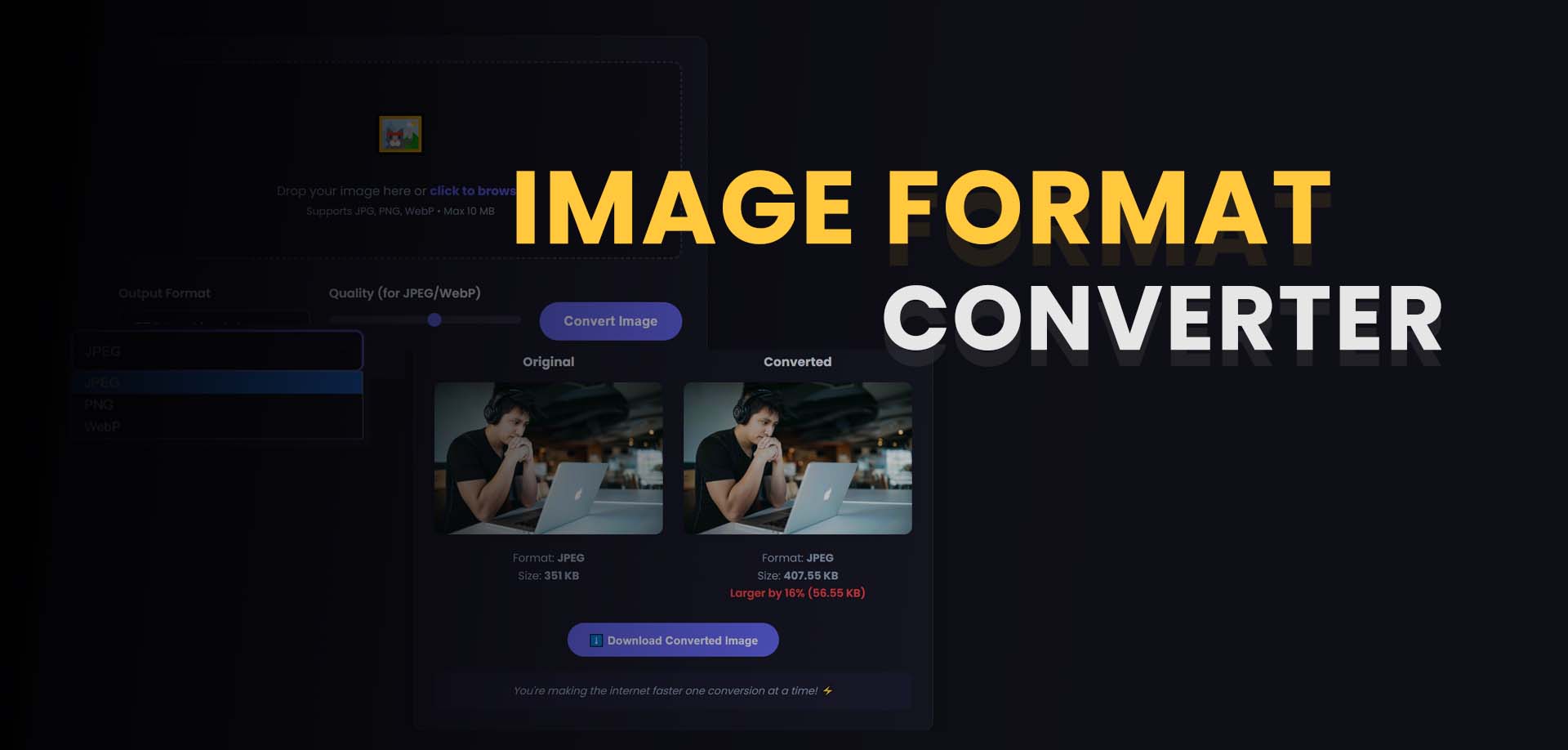
Image Converter Ultimate Guide: Transform Any Image Format Instantly 🔗
Meta Description: Learn everything about image conversion with our ultimate guide. Discover how to convert between JPG, PNG, WebP, GIF, and other formats while preserving quality. Use our free online image converter tool for instant results. Focus Keyword: image converter Secondary Keywords: convert image, JPG to PNG, PNG to JPG, WebP converter, image format converter, photo converter, batch image converter, PNG to WebP, JPG to WebP, convert to JPG, convert to PNG, image file converter, picture converter---
Introduction: Why You Need an Image Converter 🔗
In today's digital ecosystem, images come in countless formats—each with its own strengths, weaknesses, and ideal use cases. A photo captured on your smartphone might be in HEIC format, while a website requires WebP for optimal performance. A logo designed in PNG with transparency needs conversion for social media, while a scanned document in TIFF demands JPEG for easy sharing.
Did you know that WebP images are 25-35% smaller than JPEGs at the same quality? Or that PNG files can be up to 5 times larger than JPEGs for photographs? With over 1.8 billion images uploaded daily across platforms, choosing and converting the right format has become essential for performance, compatibility, and quality.
Enter the image converter—your essential tool for transforming images between formats, ensuring your visuals are always optimized for their intended purpose, whether it's web display, print production, social sharing, or archival storage.
What is an Image Converter? 🔗
An image converter is a tool that transforms digital images from one file format to another. Unlike editing tools that modify content, converters focus on changing the underlying file structure, compression method, and feature set while preserving the visual appearance as faithfully as possible.
Understanding Image Formats 🔗
Raster Formats (Pixel-Based) 🔗
| Format | Best For | Key Features | |--------|----------|--------------| | JPEG/JPG | Photographs, web images | Lossy compression, small file size, universal compatibility | | PNG | Graphics, logos, screenshots | Lossless compression, transparency support, sharp text | | GIF | Animations, simple graphics | 256 colors, animation support, lossless compression | | WebP | Modern web images | Lossy and lossless modes, transparency, 25-35% smaller than JPEG | | BMP | Windows applications | Uncompressed, large file size, legacy support | | TIFF | Print, archival, professional | Lossless, high quality, large file size, multi-page support | | HEIC/HEIF | Apple devices | Advanced compression, better quality than JPEG, limited compatibility |
Vector Formats (Scalable) 🔗
| Format | Best For | Key Features | |--------|----------|--------------| | SVG | Logos, icons, illustrations | Scalable, code-based, animation support | | EPS | Print graphics | Professional vector format, legacy support | | AI | Adobe Illustrator | Native Illustrator format, editing capabilities |
Why You Need an Image Converter 🔗
🌐 1. Web Performance Optimization 🔗
Modern websites demand efficiency:
| Format | File Size (1MP image) | Use Case | |--------|----------------------|----------| | JPEG | 200-300 KB | Photos, blog images | | PNG | 500-800 KB | Logos, graphics, transparent elements | | WebP | 150-220 KB | All web images, modern browsers | | AVIF | 100-150 KB | Next-generation web images |
Converting to WebP can reduce image weight by 25-35%, significantly improving page load speed and Core Web Vitals scores.
📱 2. Platform Compatibility 🔗
Different platforms require different formats:
- Instagram: JPEG recommended, PNG supported
- Twitter/X: JPEG, PNG, GIF supported
- LinkedIn: JPEG, PNG preferred
- Amazon: JPEG required for product listings
- Email clients: JPEG most reliable, PNG supported in modern clients
- Print services: TIFF, PDF, or high-quality JPEG
An image converter ensures your images work everywhere.
🎨 3. Transparency Requirements 🔗
When you need transparent backgrounds:
- PNG: Best quality, full transparency
- WebP: Good alternative, smaller files
- GIF: Limited transparency (binary on/off)
- JPEG: No transparency support
Convert to PNG or WebP when you need logos, product images, or graphics with transparent backgrounds.
🖨️ 4. Print Production 🔗
Print demands high-quality formats:
- TIFF: Lossless, professional standard
- PDF: Multi-page, vector support
- High-quality JPEG: Acceptable for many print applications
- EPS/AI: Vector formats for professional printing
📦 5. Storage and Archiving 🔗
Balance quality and storage space:
- Lossless formats (PNG, TIFF): Best for archival
- Lossy formats (JPEG, WebP): Better for active use
- Convert between formats to optimize storage strategy
🔧 6. Editing and Workflow 🔗
Different tools work best with different formats:
- Photoshop: PSD, TIFF, PNG
- Canva: PNG, JPG preferred
- Figma: SVG, PNG, JPG
- Microsoft Office: PNG, JPG most compatible
How to Use Our Image Converter: Step-by-Step Guide 🔗
Our free online image converter makes format transformation simple and precise:
Step 1: Access the Tool 🔗
Visit our Image Converter Tool - completely free, no registration required.
Step 2: Upload Your Images 🔗
- Drag and drop files into upload area
- Click to browse from your device
- Supports 50+ formats: JPG, PNG, WebP, GIF, BMP, TIFF, HEIC, SVG, and more
- Batch convert: Up to 50 images at once
- Maximum file size: 100MB per image
Step 3: Select Output Format 🔗
Web Formats:- WebP: Best for modern websites (smallest size, good quality)
- JPEG: Best for photos, universal compatibility
- PNG: Best for graphics, transparency, sharp text
- AVIF: Next-generation compression
- TIFF: Highest quality, lossless, professional
- PDF: Multi-page documents, vector support
- BMP: Uncompressed, Windows compatible
- GIF: Animations, simple graphics
- SVG: Vector conversion (for simple graphics)
- ICO: Windows icons
- HEIC: Apple format conversion
Step 4: Configure Conversion Settings 🔗
Quality Settings:- High (90-100%): Maximum quality, larger files
- Medium (70-85%): Balanced, recommended for web
- Low (50-65%): Smaller files, acceptable for thumbnails
- Preserve transparency: Maintain alpha channels (PNG, WebP)
- Maintain aspect ratio: Keep proportions
- Resize during conversion: Set dimensions
- Preserve metadata: Keep EXIF, copyright, camera data
- Strip metadata: Remove for privacy, smaller files
- Auto-orient: Fix rotation based on EXIF
Step 5: Convert and Download 🔗
- Click "Convert All" to process
- Real-time progress for each image
- Download individually or all as ZIP
- High-speed processing, instant results
Common Image Conversion Scenarios 🔗
Scenario 1: WebP Conversion for Website 🔗
Goal: Convert product photos to WebP for faster loading| Step | Action | |------|--------| | 1 | Upload 100 JPEG product images | | 2 | Select WebP output format | | 3 | Set quality to 80% | | 4 | Resize to max 1200×1200 px | | 5 | Strip metadata for privacy | | 6 | Download all as ZIP |
Results:- Original: 5.2 MB total
- After: 1.8 MB total
- 65% file size reduction
Scenario 2: PNG to JPEG for Email 🔗
Goal: Convert newsletter graphics to JPEG for email compatibility| Step | Action | |------|--------| | 1 | Upload PNG graphics with solid backgrounds | | 2 | Select JPEG output | | 3 | Set quality to 85% | | 4 | Convert to RGB color profile | | 5 | Download individually |
Results:- Original: 2.3 MB total (PNG)
- After: 480 KB total (JPEG)
- 79% file size reduction
Scenario 3: HEIC to JPG for Social Media 🔗
Goal: Convert iPhone photos for universal sharing| Step | Action | |------|--------| | 1 | Upload HEIC photos from iPhone | | 2 | Select JPEG output | | 3 | Set quality to 90% | | 4 | Auto-orient based on EXIF | | 5 | Preserve color profile | | 6 | Download converted images |
Results:- Original: 12.3 MB total (HEIC)
- After: 8.1 MB total (JPEG)
- 34% size reduction, universal compatibility
Scenario 4: Vector to Raster for Web 🔗
Goal: Convert SVG logo to PNG for website| Step | Action | |------|--------| | 1 | Upload SVG logo file | | 2 | Select PNG output | | 3 | Set dimensions to 500×500 px | | 4 | Preserve transparency | | 5 | Maintain sharp edges | | 6 | Download PNG with alpha channel |
Format Comparison Guide 🔗
JPEG vs. PNG vs. WebP 🔗
| Feature | JPEG | PNG | WebP | |---------|------|-----|------| | Compression | Lossy | Lossless | Both | | Transparency | ❌ No | ✅ Yes | ✅ Yes | | Animation | ❌ No | ❌ No | ✅ Yes | | File Size (Photo) | Small | Large | Very Small | | File Size (Graphic) | Large | Medium | Small | | Browser Support | 100% | 100% | 95%+ | | Best For | Photos | Graphics, logos | Modern web |
When to Use Each Format 🔗
| Use Case | Recommended Format | Alternative | |----------|-------------------|-------------| | Website hero images | WebP (80% quality) | JPEG (85% quality) | | Product photos | WebP or JPEG | PNG if transparency needed | | Company logo | SVG (vector) or PNG | WebP with transparency | | Screenshots | PNG | WebP lossless | | Email marketing | JPEG | PNG for graphics | | Print brochure | TIFF or PDF | High-quality JPEG | | Social media | JPEG | PNG for graphics | | Animations | GIF or WebP | APNG | | Archival | TIFF or PNG | JPEG (max quality) |
Advanced Conversion Techniques 🔗
Batch Conversion for Workflow Efficiency 🔗
Use Case: E-commerce Product Upload- Upload 200 product images
- Create three versions:
- Main: WebP, 1200×1200 px, 80% quality - Thumbnail: WebP, 300×300 px, 75% quality - Zoom: JPEG, 2000×2000 px, 90% quality
- Download organized by folder
- Ready for platform upload
Lossless vs. Lossy Conversion 🔗
Lossless (No Quality Loss):- PNG to TIFF
- PNG to WebP (lossless mode)
- BMP to PNG
- Use for: Archival, professional graphics, text-heavy images
- PNG to JPEG
- TIFF to WebP
- HEIC to JPEG
- Use for: Web optimization, sharing, storage reduction
Color Profile Management 🔗
Different uses require different color spaces:
| Color Space | Use Case | Convert From | |-------------|----------|--------------| | RGB | Web, digital displays | Any format | | CMYK | Professional print | RGB images | | sRGB | Web, social media | Wide gamut formats |
Troubleshooting Common Issues 🔗
Image Quality Degrades After Conversion 🔗
Causes:- Converting lossy to lossy repeatedly
- Excessive compression settings
- Format incompatibility (color depth, transparency)
- Start with highest quality source
- Use lossless formats for intermediate steps
- Set quality to 85% or higher
- Convert directly, not through multiple steps
Transparency Lost After Conversion 🔗
Causes:- Converting to format without alpha channel support
- Compression settings removing transparency
- Convert to PNG, WebP, or GIF for transparency
- Ensure transparency is enabled in settings
- Check output format supports alpha channel
Colors Look Different 🔗
Causes:- Color profile mismatch
- Format limitations (256 colors in GIF)
- Compression artifacts
- Preserve color profiles during conversion
- Use sRGB for web applications
- Convert GIF to PNG for better color accuracy
File Size Not Reduced Enough 🔗
Solutions:- Increase compression level
- Convert to WebP or JPEG instead of PNG
- Resize dimensions before conversion
- Remove metadata and thumbnails
- Use lossy compression for photos
HEIC Files Won't Convert 🔗
Causes:- Unsupported format in some tools
- Corrupted files
- Our tool fully supports HEIC conversion
- Ensure files are not DRM protected
- Check file integrity before upload
Image Converter vs. Other Image Tools 🔗
| Tool | Primary Function | Best Use | |------|------------------|----------| | Image Converter | Change file format | Compatibility, optimization | | Image Resizer | Change dimensions | Platform requirements | | Image Compressor | Reduce file size | Web performance | | Image Editor | Modify content | Adjustments, effects, retouching | | Image Optimizer | Optimize for web | Combined resize + compress + convert |
Frequently Asked Questions 🔗
Is image conversion free? 🔗
Yes! Our image converter is completely free with no limits, no watermarks, and no registration required.
What's the best format for web images? 🔗
WebP is currently the best balance of quality and file size for modern browsers. For maximum compatibility, use JPEG for photos and PNG for graphics.Does converting an image reduce quality? 🔗
Converting between lossless formats (PNG to TIFF) preserves quality. Converting from lossless to lossy (PNG to JPEG) reduces quality but reduces file size. Converting from lossy to lossy multiple times progressively degrades quality.
Can I convert images with transparent backgrounds? 🔗
Yes! Convert to PNG or WebP to preserve transparency. JPEG does not support transparency.
What's the difference between JPG and JPEG? 🔗
There is no difference. JPG is simply a three-letter file extension variant of JPEG (Joint Photographic Experts Group).
Can I convert vector files like SVG? 🔗
Yes! Our tool converts SVG to raster formats (PNG, JPG, WebP). For vector-to-vector conversion, specialized vector tools are recommended.
How do I convert HEIC images from iPhone? 🔗
Upload your HEIC files to our converter and select your desired output format (JPEG, PNG, WebP). Our tool handles HEIC conversion automatically.
What's the maximum file size for conversion? 🔗
Our free tool supports images up to 100MB per file. For larger files, contact us for enterprise solutions.
The Future of Image Formats 🔗
Next-Generation Formats 🔗
| Format | Advantage | Adoption | |--------|-----------|----------| | AVIF | 30-50% smaller than WebP | Growing, supported in modern browsers | | JPEG XL | Excellent quality, backward compatible | Emerging, limited support | | WebP 2 | Improved compression over WebP | In development |
AI-Powered Conversion 🔗
- Intelligent format selection: Automatically choose optimal format
- Content-aware optimization: Adjust settings based on image type
- Quality prediction: Preview results before conversion
Cloud-Based Workflows 🔗
- Automated conversion pipelines: Convert at scale
- Real-time conversion: On-demand format delivery
- Integrated CDN: Global optimization
Conclusion: Master Your Image Format Strategy 🔗
An image converter is an indispensable tool in today's multi-platform digital world. Whether you're optimizing a website for speed, preparing images for social media, archiving photos, or preparing files for print, the ability to convert between formats gives you the flexibility to use the right format for every purpose.
By using our free image converter, you can:
- Ensure compatibility across all platforms and devices
- Optimize performance with modern formats like WebP
- Preserve quality with intelligent conversion algorithms
- Save storage space with efficient compression
- Work efficiently with batch conversion capabilities
Whether you're a web developer, photographer, marketer, or casual user, our image converter gives you the power to transform any image into exactly the format you need, when you need it.
Ready to convert your images? Try our image converter tool now and experience seamless format transformation.---
Convert your images now: Start transforming formats →