
Table of Contents
How to Find Router IP Address on Any Device
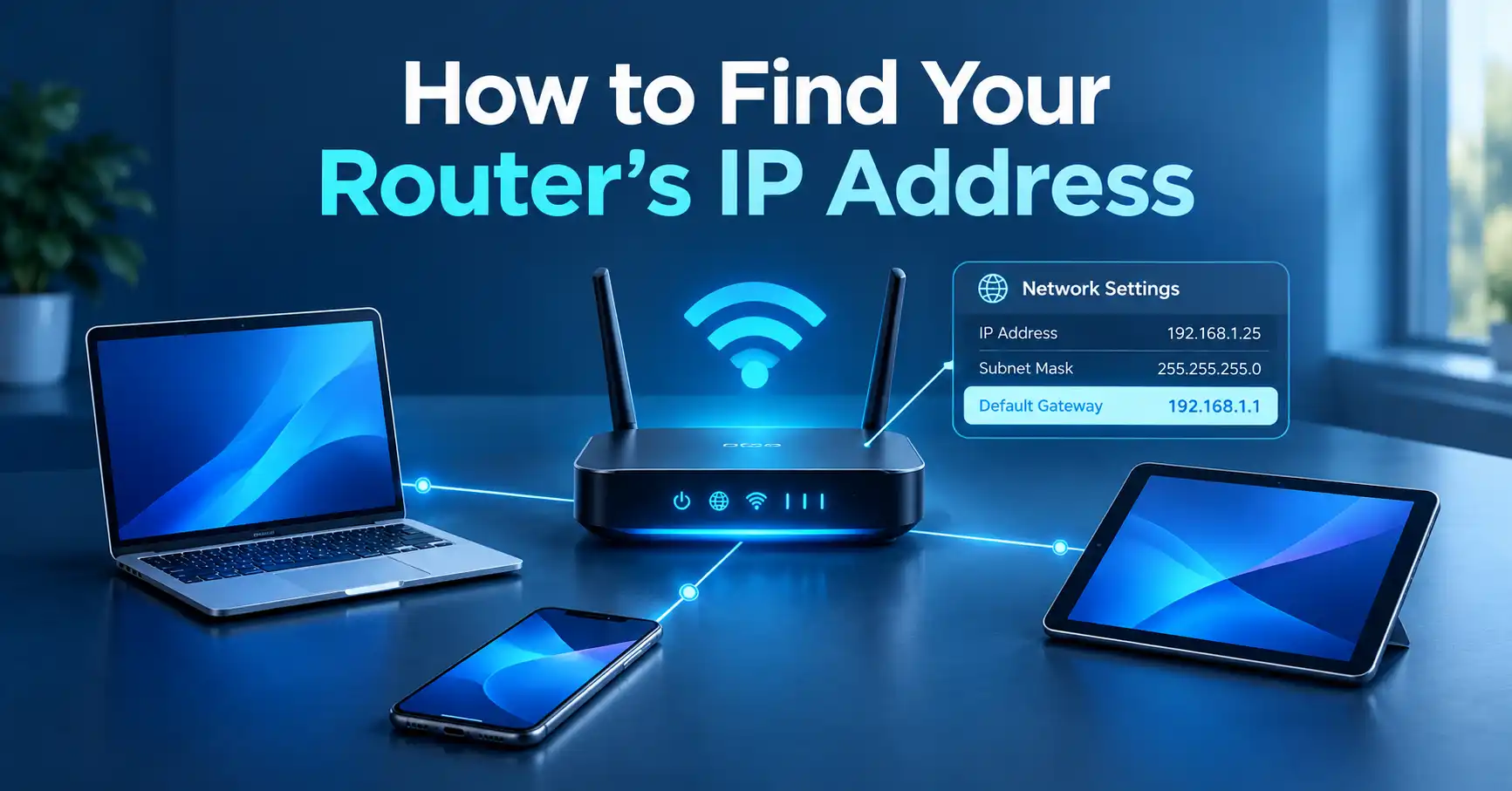
If you need to find your router’s IP address, the easiest method is to check your device’s network information and look for the Default Gateway or Router address. On most home networks, this is the local IP address your device uses to communicate with the router.
The exact steps depend on whether you are using Windows, macOS, iPhone, Android, or Linux.
What Is a Router’s IP Address?
A router’s IP address is the local network address used to communicate with the router from devices connected to the same network.
You may see it called:
- Default Gateway
- Gateway
- Router
- Router Address
For example, a home router might use an address such as 192.168.1.1 or 192.168.0.1. These are examples, not universal addresses. Your router may use a different private IP address.
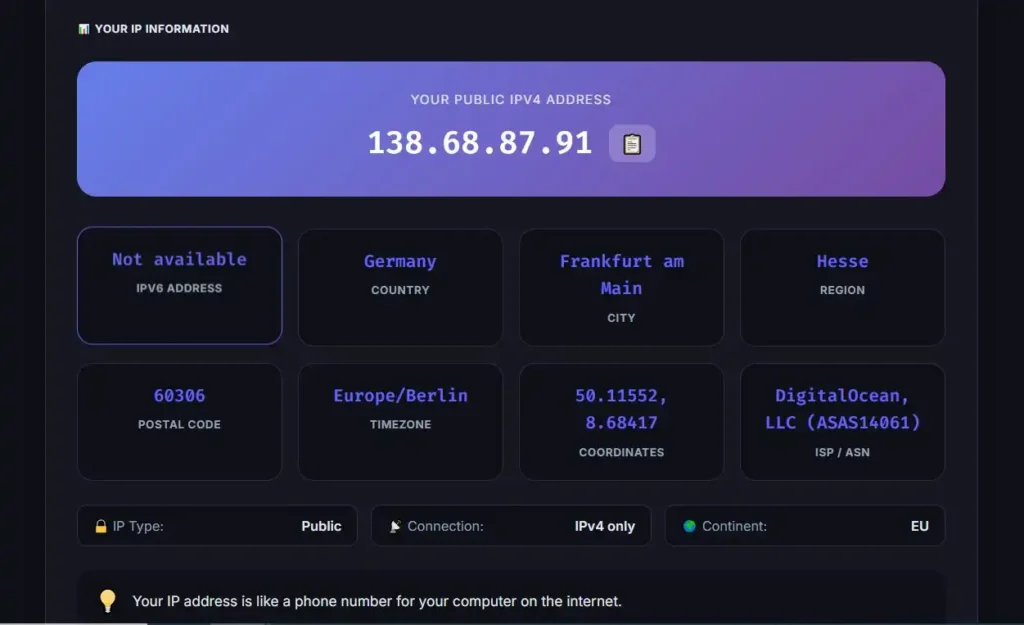
The router's local address is different from your public IP address. Your public IP is associated with your internet connection, while the router's private address is used inside your local network.
If you want to understand the difference between these addresses, see our complete guide to IP addresses.
How to Find Your Router’s IP Address in Windows
Windows normally displays the router's local address as the Default Gateway.
Method 1: Use Command Prompt
This is one of the quickest ways to find it.
- Open the Start menu.
- Search for Command Prompt.
- Open Command Prompt.
- Type:
ipconfig
- Press Enter.
- Find the network connection you are currently using.
- Look for Default Gateway.
You should see something similar to:
Default Gateway . . . . . . . . . : 192.168.1.1
The number shown next to Default Gateway is normally the router's local IPv4 address.
Microsoft's current Windows networking guidance also uses ipconfig and the Default Gateway field to identify the address of the Wi-Fi router.
Method 2: Use Windows Network Settings
You can also inspect your active network connection through Windows Settings.
Go to:
Settings → Network & internet → Wi-Fi
Then open the properties for the connected Wi-Fi network.
For Ethernet, select:
Settings → Network & internet → Ethernet
Windows displays network information for the active connection, including its IP configuration.
If you specifically need the router address and cannot see it clearly in Settings, ipconfig is usually the simpler method.
How to Find Your Router’s IP Address on a Mac
macOS provides the router address through the network connection's TCP/IP information.
- Open the Apple menu.
- Select System Settings.
- Select Network.
- Choose your active connection, such as Wi-Fi.
- Click Details.
- Open TCP/IP.
- Look for Router.
The address shown beside Router is the local router address for that network connection.
For example:
Router: 192.168.1.1
Apple's current macOS documentation places the router address within the connection's TCP/IP settings.
How to Find Your Router’s IP Address on iPhone or iPad
On an iPhone or iPad, start with the Wi-Fi network you are currently connected to.
- Open Settings.
- Tap Wi-Fi.
- Tap the information button next to the connected network.
- Review the network details.
Depending on your iOS version and network configuration, the network information can include IP configuration details such as the IP address, subnet information, and router information.
Apple's current iPhone documentation confirms that network-specific settings are accessed through Settings → Wi-Fi → Info for the connected network.
If the router address is not displayed where expected, the network administrator or router manufacturer's app may provide the information.
How to Find Your Router’s IP Address on Android
Android network menus can vary between manufacturers and Android versions, so there is not one universal menu path for every phone.
A common approach is:
- Open Settings.
- Open Network & internet or Connections.
- Select Internet or Wi-Fi.
- Tap the Wi-Fi network you are currently connected to.
- Open its network details or advanced information.
- Look for Gateway, Router, or similar network information.
On some phones, you may need to tap an additional settings or information icon.
Google's current Android documentation uses Settings → Network & internet → Internet to manage connected Wi-Fi networks, but manufacturers can change the exact interface and available network details.
If you cannot find a Gateway or Router field, check your phone manufacturer's networking documentation or use the router's own management app.
How to Find Your Router’s IP Address on Linux
Linux provides a straightforward command-line method.
Open a terminal and run:
ip route
Look for a line beginning with:
default via
For example:
default via 192.168.1.1 dev wlan0
In this example, 192.168.1.1 is the default gateway.
You can also use:
ip route show
The Linux networking tools use the default route to identify the gateway through which traffic is sent when no more specific route exists.
What Does “Default Gateway” Mean?
A default gateway is the network device that your computer or other device uses when it needs to communicate outside its local network.
In a typical home network, the router performs this role.
For example, imagine your laptop has:
Device IP:       192.168.1.25
Subnet:          192.168.1.0/24
Default Gateway: 192.168.1.1
Your laptop uses the router at 192.168.1.1 as the gateway for traffic that needs to leave the local network.
That is why checking the Default Gateway is such a reliable way to find your router's local IPv4 address.
Common Router IP Addresses
You may encounter addresses such as:
| Example address | Typical role |
|---|---|
192.168.0.1 | Possible router address |
192.168.1.1 | Possible router address |
192.168.1.254 | Possible router address |
10.0.0.1 | Possible private-network gateway |
These are only examples. There is no single router IP address that applies to every network.
The IPv4 private-use ranges include:
10.0.0.0through10.255.255.255172.16.0.0through172.31.255.255192.168.0.0through192.168.255.255
These ranges are reserved for private networks and are not publicly routable on the internet.
Router IP Address vs Public IP Address
One of the most common mistakes is confusing the router's local IP address with the public IP address of the internet connection.
They serve different purposes.
| Router's local IP | Public IP address |
|---|---|
| Used inside your local network | Used for internet-facing communication |
| Often a private IPv4 address | Assigned to your internet connection |
| Can be used to access router settings | Can be visible to internet services |
| Usually acts as the local gateway | Identifies the internet-side connection |
For example, your router might have a local address of:
192.168.1.1
while your internet connection has a completely different public IP address.
If you want to check your current public IP address, you can use the MiniToolsPro What Is My IP Address tool.
What Can You Do With Your Router’s IP Address?
Knowing the router's local IP address can be useful for several tasks.
Access Router Settings
Many routers provide a web-based administration interface. You can enter the router's local address into a web browser while connected to the appropriate network.
For example:
http://192.168.1.1
However, do not assume that address will work for your router. Use the actual gateway address shown by your device or supplied by the router manufacturer.
You may be asked for the router's administrator credentials.
Troubleshoot Network Problems
The router's IP address can also help when diagnosing connection problems.
For example, Windows can use the Default Gateway address in a ping test to check whether the device can communicate with the local router.
If your computer cannot communicate with the gateway, the problem may involve the Wi-Fi connection, Ethernet connection, local network configuration, router, or another networking component.
Configure Port Forwarding and Other Network Settings
Advanced users may need the router's address when configuring:
- Port forwarding
- DHCP settings
- DNS settings
- Firewall rules
- Wi-Fi configuration
- Local network settings
- Firmware updates
The exact options depend on the router model and manufacturer.
What If You Can’t Find Your Router’s IP Address?
If the router address is missing, try these steps.
1. Make Sure You Are Connected to the Correct Network
Your device may be connected to:
- A guest Wi-Fi network
- A mobile hotspot
- A different Wi-Fi network
- Ethernet instead of Wi-Fi
- A VPN or managed network
Check the active connection before looking for the gateway.
2. Restart the Network Connection
Disconnect from the network and reconnect.
If necessary, restart the router and then reconnect your device.
3. Check the Default Gateway
On Windows, run:
ipconfig
Then check the Default Gateway.
On Linux, run:
ip route
Then check the address after default via.
4. Check the Router Manufacturer's Documentation
Some routers use unusual local addresses or require a manufacturer's mobile app instead of a traditional browser-based management page.
The router's label, manual, setup guide, or official app may provide the appropriate method.
5. Check Whether Another Device Is Acting as the Gateway
Some home networks contain multiple networking devices, such as:
- A modem/router combination
- A separate Wi-Fi router
- A mesh Wi-Fi system
- A network extender
- A business firewall
- Another router behind the primary router
In these setups, the device your computer identifies as the default gateway may not be the physical device you expected.
Is the Router IP Address the Same on Every Device?
Usually, devices connected to the same local network will use the same local gateway, but network architecture can make this more complicated.
Different networks, VLANs, guest networks, mesh configurations, and routing arrangements can have different gateways.
For that reason, it is better to check the network information on the device you are troubleshooting instead of assuming the gateway address from another device.
Does a Router IP Address Reveal Your Exact Location?
No.
A local router address such as 192.168.1.1 does not reveal your exact physical location. Private IP addresses are reused across countless independent networks.
For example, two completely unrelated homes can both use:
192.168.1.1
The address only has meaning within the relevant local network.
Your public IP address is different and can sometimes be associated with an approximate geographic location, ISP, or organization. Even then, IP-based geolocation should not be treated as an exact GPS location or home address.
Router IP Address: Quick Reference
| Device | Where to look |
|---|---|
| Windows | ipconfig → Default Gateway |
| Mac | Network → Details → TCP/IP → Router |
| iPhone/iPad | Settings → Wi-Fi → Info → network details |
| Android | Wi-Fi network details → Gateway/Router |
| Linux | ip route → default via |
Frequently Asked Questions
What is my router’s IP address?
Your router's local IP address is usually shown as Default Gateway, Gateway, or Router in your device's network settings. The exact address depends on your network configuration.
Is 192.168.1.1 always my router's IP address?
No. 192.168.1.1 is a common example of a private router address, but routers can use other private addresses. Check your device's Default Gateway or Router field to determine the actual address.
How do I find my router IP address without accessing the router?
You normally do not need to log into the router. Check your connected device's network information. On Windows, ipconfig shows the address beside Default Gateway, while Linux can show it with ip route.
Is my router IP address the same as my public IP?
No. A router's local IP address is used within the local network. Your public IP address is associated with your internet connection and is used for communication beyond the local network.
Can I use my router IP address to open router settings?
Often, yes. If your router provides a web-based management interface, entering its local IP address in a browser while connected to the network may open the login page. The exact process depends on the router manufacturer and configuration.
Final Takeaway
The simplest way to find your router's IP address is to look for the Default Gateway or Router entry in your device's network information.
On Windows, run ipconfig and check Default Gateway. On macOS, open the connection's TCP/IP settings and look for Router. Linux users can run ip route and look for default via. Mobile devices provide the information through their Wi-Fi network details, although Android menus vary by manufacturer.
Remember that the router's local IP address is not the same as your public IP address. If your goal is to see the public IP address used by your internet connection, use MiniToolsPro's What Is My IP Address tool instead.
Share this article 👇


0 Comments