
Table of Contents
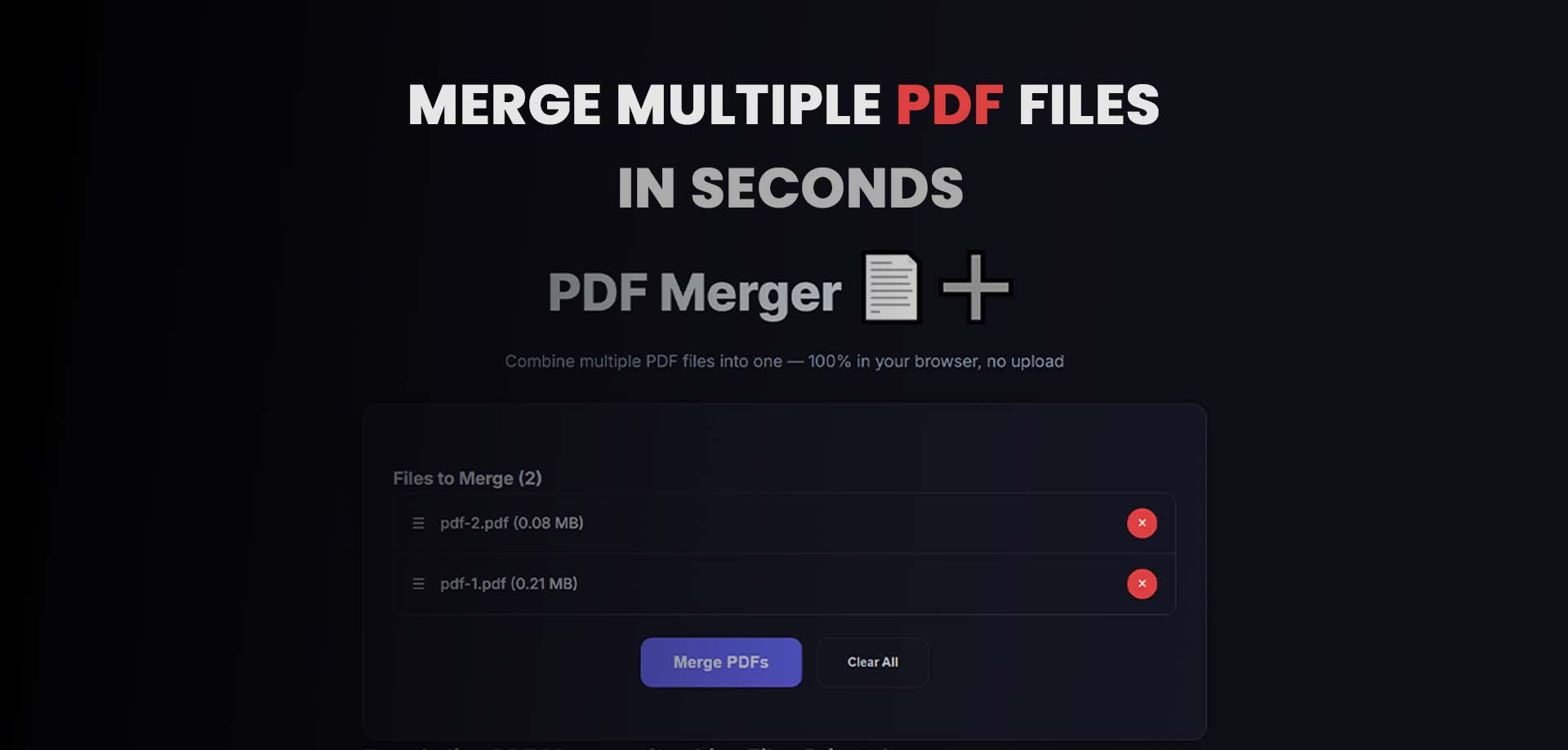
How to Merge PDF Documents Online for Free in Minutes
Tired of juggling multiple PDF files that belong together? Whether you're compiling reports, organizing contracts, or gathering study materials, learning to merge PDF documents can save you hours of frustration.
Instead of emailing back and forth or dealing with clunky software, you can combine PDF files quickly and securely right in your browser. No downloads, no signups, and best of all — it's completely free.
In this guide, you'll discover exactly how to merge PDF documents, why it matters, and the best tool to get the job done without losing formatting or quality. Ready to simplify your documents?
Try MiniToolsPro PDF Merger Now — it’s fast, private, and works on any device.
What Does It Mean to Merge PDF Documents?
Merging PDF documents simply means combining two or more separate PDF files into one single, cohesive document. The pages stay in the order you choose, and the result is one easy-to-manage file.
Think of it like putting chapters of a book together. Instead of handing someone five different files, you give them one organized PDF that flows naturally from start to finish.
This process works for everything from scanned receipts to professional reports. You can merge multiple PDF files of any size, rearrange pages if needed, and keep everything looking professional.
In short: Merging turns scattered documents into one polished, ready-to-share file.
Why People Need to Merge PDF Documents
Life throws different PDFs at us constantly. Here’s why so many people search for ways to combine PDF documents:
- Students: Combining lecture notes, assignment sheets, and research papers into one study guide.
- Business professionals: Joining quarterly reports, invoices, and meeting minutes for client presentations.
- Freelancers: Creating a single portfolio or proposal from multiple project samples.
- Job seekers: Merging resume, cover letter, references, and certificates for applications.
- Home and personal use: Organizing tax documents, medical records, or legal contracts.
Merging saves time, reduces email attachments, and makes sharing cleaner. No more “Which file was that in again?” moments. One clean document does the job.
Real example: A small business owner once spent 30 minutes explaining which PDF contained which invoice. After merging them, the client received everything in one professional file and responded in minutes.
How to Merge PDF Documents Online (Step-by-Step)
Here’s the easiest way to merge PDF documents using a reliable online tool. No software installation required.
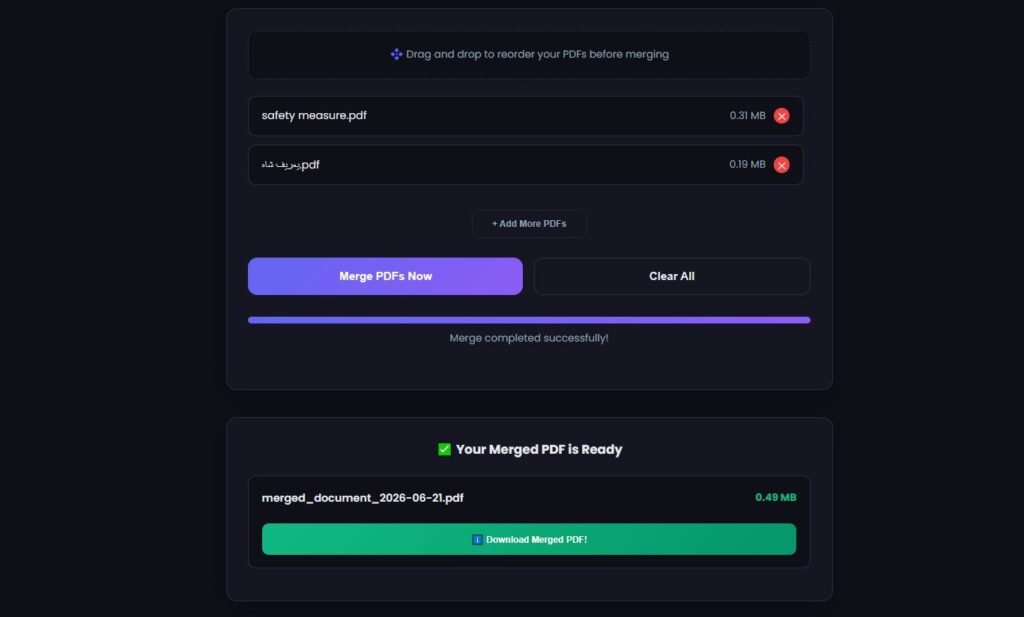
Step 1: Choose Your Tool
Head to a trusted free online PDF merger. MiniToolsPro PDF Merger is an excellent choice — it’s fast, requires no signup, and processes everything securely.
Step 2: Upload Your Files
Click the upload area or drag and drop your PDF files. You can select multiple files at once. The tool supports various sizes and types, including scanned PDFs.
Step 3: Arrange the Order
Preview your files and drag them into the perfect sequence. This is crucial for contracts, reports, or manuals where order matters.
Step 4: Merge the Documents
Hit the “Merge” button. The tool combines everything into one PDF while preserving original formatting, fonts, and layouts.
Step 5: Download and Verify
Download your new combined file. Open it to double-check everything looks right, then share or store it.
The whole process usually takes under a minute for most users.
Start Merging Your PDFs Now — completely free and no account needed.
Benefits of Merging PDF Documents
Combining your PDFs offers real advantages:
- Better organization — One file instead of many scattered ones.
- Easier sharing — Send a single link or attachment.
- Reduced digital clutter — Cleaner folders and drives.
- Professional presentation — Looks polished and put-together.
- Improved productivity — Spend less time searching and more time working.
- Better file management — Easier to archive, back up, and search within one document.
Many users report cutting their document-related admin time in half after adopting regular merging habits.
How to Merge PDF Documents Without Losing Formatting
Worried about broken layouts or missing images? Here’s how to keep quality intact:
- Use a modern browser-based tool that processes files locally when possible or with strong rendering engines.
- Avoid very old or heavily compressed source files when possible.
- Check page orientation and margins before uploading.
- Merge similar documents (e.g., all standard reports) first.
- Test with one or two files if you’re merging dozens.
Pro tip: Tools like MiniToolsPro are designed to maintain high fidelity. They preserve text, images, hyperlinks, and bookmarks in most cases.
For scanned PDFs, the tool handles them well without extra OCR steps in basic merging.
Is It Safe to Merge PDF Documents Online?
Security is a top concern — and rightly so. Good online tools prioritize privacy:
- Files are processed securely and often deleted automatically after a short time.
- Many tools (including MiniToolsPro) emphasize no storage of your documents.
- Browser-based processing minimizes server exposure in some cases.
- No signup means less personal data shared.
Always choose reputable tools with clear privacy policies. Avoid sites that feel sketchy or push excessive ads. MiniToolsPro focuses on being a secure, user-friendly option for everyday needs.
Common Problems When Merging PDFs (And Solutions)
Even simple tasks can have hiccups. Here’s how to fix them:
- File too large: Compress individual PDFs first using a PDF compressor tool before merging.
- Upload errors: Check file size limits (most good tools handle large files) and try a different browser.
- Wrong page order: Most tools let you drag to reorder — double-check before merging.
- Formatting issues: Merge compatible files and verify source PDFs aren’t corrupted.
- Password-protected PDFs: Remove passwords from protected files first or use tools that support them.
For very large batches, merge in smaller groups, then combine the results.
Best Practices Before You Merge PDF Documents
- Name files clearly (e.g., Report_Part1.pdf) so the order is obvious.
- Review each document for sensitive info.
- Back up originals just in case.
- Decide on the final page order in advance.
- Test the merged file on different devices if sharing widely.
These habits make the process smoother every time.
Merge PDF Documents on Mobile vs Desktop
Desktop offers more screen space for dragging pages and previewing long documents. Great for complex reports.
Mobile shines for quick jobs on the go — upload from your phone, merge, and email instantly. MiniToolsPro works smoothly on both Android and iOS browsers.
Most users prefer desktop for 10+ files and mobile for 2–5 quick merges. The best PDF merger tools adapt to any screen size.
Why Use MiniToolsPro PDF Merger?
When you need to merge pdf documents reliably, MiniToolsPro stands out:
- 100% Free — No hidden limits or premium upsells for basic use.
- Lightning Fast — Merge in seconds, not minutes.
- No Signup Required — Start instantly.
- Secure & Private — Your files aren’t stored longer than needed.
- Beginner-Friendly — Clean interface anyone can use.
- Works Everywhere — Desktop, tablet, or phone.
- High Quality — Maintains formatting without issues.
Thousands of users choose it for everyday document tasks because it just works.
Combine Your PDFs with MiniToolsPro Today
Frequently Asked Questions
How do I merge PDF documents for free?
Upload your files to a free online tool like MiniToolsPro, arrange them, and click merge. No payment or signup needed.
What is the best PDF merger?
For most people, a fast, free, no-signup tool like MiniToolsPro offers the best balance of simplicity and reliability.
Can I merge PDFs without software?
Yes — online tools let you merge directly in your browser.
Is online PDF merging safe?
It is when using reputable tools with strong privacy practices. Files are typically deleted automatically.
How do I combine multiple PDF files?
Select files, reorder if needed, merge, and download the single document.
Can I merge PDFs on mobile?
Absolutely. Modern tools work great on phones and tablets.
Will merging reduce quality?
High-quality tools preserve original formatting and resolution.
Can I rearrange pages before merging?
Yes — most good mergers let you drag and drop to set custom order.
How to merge scanned PDF files?
The process is the same. Good tools handle image-based scanned documents effectively.
Can I merge large PDF files?
Yes, though very large batches may work better in smaller groups.
Final Thoughts
Learning to merge PDF documents is one of the simplest ways to get organized and work more efficiently. Whether you handle one merge a week or dozens daily, having a reliable method removes unnecessary stress from document management.
Stop struggling with scattered files. Combine PDF documents into professional, easy-to-share packages with just a few clicks.
Ready to try it yourself? Go to MiniToolsPro PDF Merger and merge your first set of documents right now — it’s free, fast, and incredibly straightforward.
Your documents will thank you.
Share this article 👇
0 Comments