
Table of Contents
Image converter tools have become essential in today’s digital world where images are used everywhere—from websites and social media to e-commerce and mobile apps. Different platforms require different formats, and using the wrong one can lead to poor quality, large file sizes, or compatibility issues.
In this complete guide, you will learn everything about image conversion, the best formats to use, how to convert images without losing quality, and how to use the MiniToolsPro Image Converter for fast and free conversions.
Quick Answer: What is an Image Converter?
An image converter is an online or offline tool that changes an image from one file format to another (such as JPG to PNG or PNG to WebP) while preserving quality and compatibility for different use cases like web, print, or social media.
Key Benefit: Image converters help reduce file size, improve website speed, and ensure compatibility across devices and platforms.
Try Free Image Conversion Tool
Use our fast and free tool to convert images instantly with no quality loss.
👉 Open MiniToolsPro Image Converter
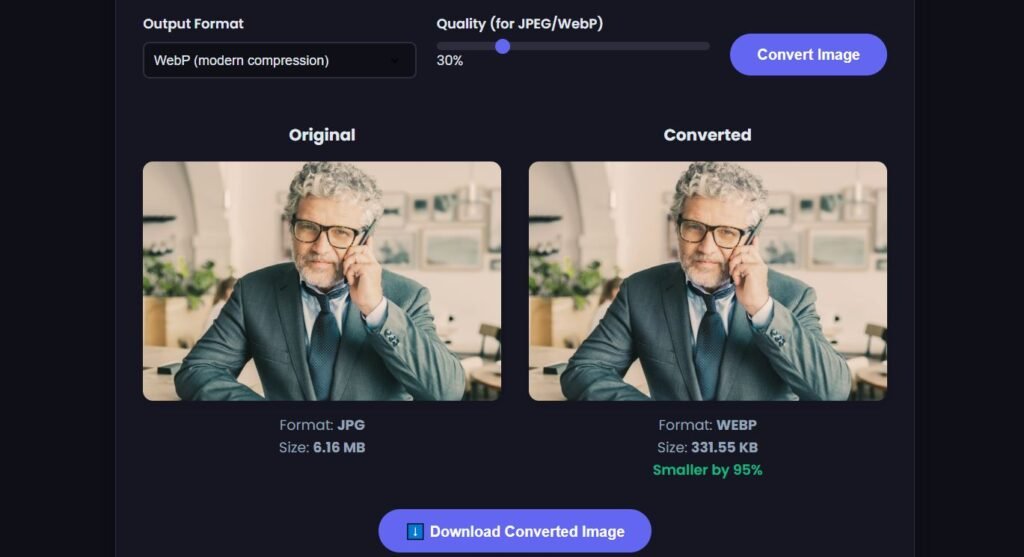
Why Image Conversion Matters
Every image format serves a different purpose. Choosing the right format improves performance, quality, and usability.
- Website speed: Smaller formats like WebP improve loading time
- Compatibility: Some platforms only support JPG or PNG
- Quality control: Prevent unnecessary compression loss
- Storage optimization: Reduce file sizes significantly
Common Image Formats Explained
JPG (JPEG)
Best for photographs. It uses lossy compression to reduce file size.
PNG
Best for graphics, logos, and images requiring transparency.
WebP
Modern format offering better compression and quality balance for web usage.
GIF
Used for simple animations and low-color graphics.
HEIC
Apple’s image format, used on iPhones, requires conversion for compatibility.
Best Image Format Comparison
| Format | Best Use | File Size | Transparency |
|---|---|---|---|
| JPG | Photos | Small | No |
| PNG | Graphics & Logos | Medium | Yes |
| WebP | Web Optimization | Very Small | Yes |
| GIF | Animations | Large | Limited |
How to Use Image Converter (Step-by-Step)
- Open the Image Converter Tool
- Upload your image (JPG, PNG, WebP, HEIC, etc.)
- Select output format
- Adjust quality settings if needed
- Click convert
- Download your converted image instantly
Best Practices for Image Conversion
- Use WebP for websites whenever possible
- Keep original files for backup
- Avoid multiple conversions (loss of quality)
- Use PNG for transparency needs
- Compress images before conversion for better results
Common Use Cases
1. Website Optimization
Convert images to WebP to improve loading speed and SEO ranking.
2. Social Media Uploads
Convert HEIC or PNG to JPG for better compatibility.
3. E-commerce Stores
Optimize product images for fast browsing experience.
4. Email Marketing
Reduce image size for faster email delivery.
Internal Tools You Should Use
Common Mistakes to Avoid
- Converting repeatedly between lossy formats
- Using PNG for large photos unnecessarily
- Ignoring WebP for web optimization
- Uploading uncompressed images to websites
FAQ (Frequently Asked Questions)
What is the best image format for websites?
WebP is the best format for websites due to its small size and high quality.
Does image conversion reduce quality?
It depends on the format. Lossy formats like JPG may reduce quality slightly.
Can I convert images without losing quality?
Yes, using lossless formats like PNG or WebP (lossless mode) preserves quality.
Is WebP better than JPG?
Yes, WebP offers smaller file sizes with better quality compared to JPG.
Can I convert HEIC to JPG?
Yes, HEIC images from iPhones can be easily converted to JPG or PNG.
Is this image converter free?
Yes, MiniToolsPro Image Converter is completely free to use.
Can I convert multiple images at once?
Yes, batch conversion is supported for faster workflow.
Related Image Conversion Guides
Choosing the right image format depends on your quality, compatibility, and file-size requirements. Compare JPG, PNG, and WebP, learn how WebP compares with AVIF, or explore our guide to the best image format for websites. You can also learn about different image formats and follow step-by-step guides for converting HEIC to JPG, PNG to JPG, WebP to JPG, JPG to WebP, and JPG to PNG.
If you're concerned about what happens to image quality during conversion, see our guide to image quality after conversion. To understand the difference between changing a file format and reducing its size, read Image Conversion vs Compression.
Conclusion
An image converter is an essential tool for designers, developers, marketers, and everyday users. It helps you optimize images for speed, quality, and compatibility across platforms.
Whether you're converting JPG to PNG, PNG to WebP, or HEIC to JPG, using the right tool ensures better performance and user experience.
Try it now: Convert your images instantly using MiniToolsPro Image Converter.
👉 Start Converting Images
Share this article 👇
0 Comments