
Table of Contents
Image Conversion vs Compression
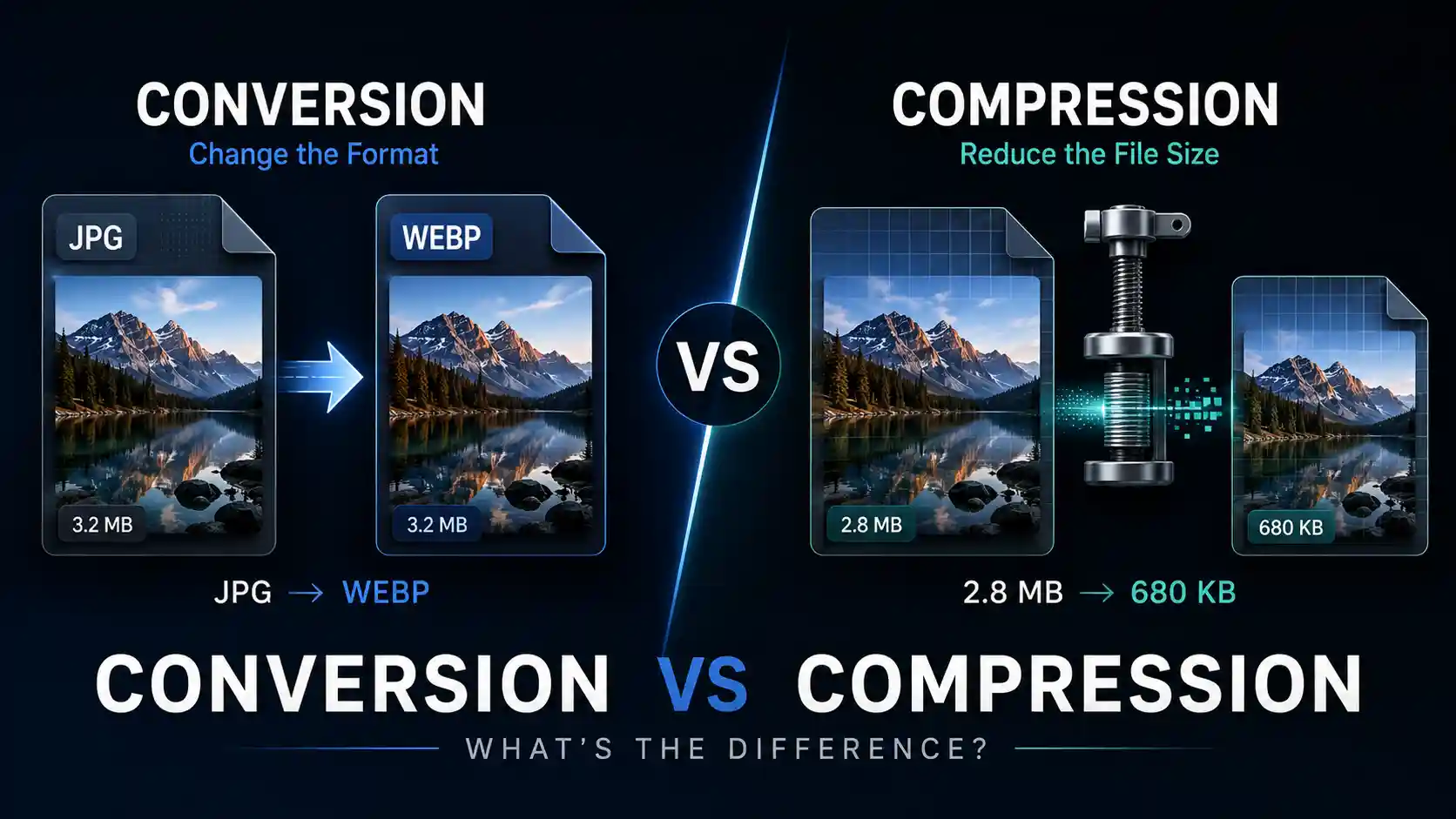
People often use the terms "image conversion" and "image compression" interchangeably, but they refer to different processes with different purposes. Understanding the distinction matters because choosing the wrong approach can lead to unexpected quality loss or files that are still too large.
Image conversion changes the file format—for example, turning a PNG into a JPG. Image compression reduces the file size by removing or reorganizing data. A conversion might incidentally reduce file size, and compression might happen during conversion, but they are not the same thing.
This article explains what each process does, when to use each one, and how to determine which approach solves your specific problem. If you need to change an image's format, use the MiniToolsPro image converter to convert it quickly.
What Is Image Conversion?
Image conversion is the process of changing an image from one file format to another. Common examples include converting JPG to PNG, PNG to WebP, HEIC to JPG, or WebP to AVIF. The image content—what you see—remains essentially the same, but the underlying file structure changes.
Conversion is typically done for compatibility reasons. A file format that works well in one context may not work in another. For example, HEIC images from iPhones often need conversion to JPG before they can be used in older software or uploaded to certain websites.
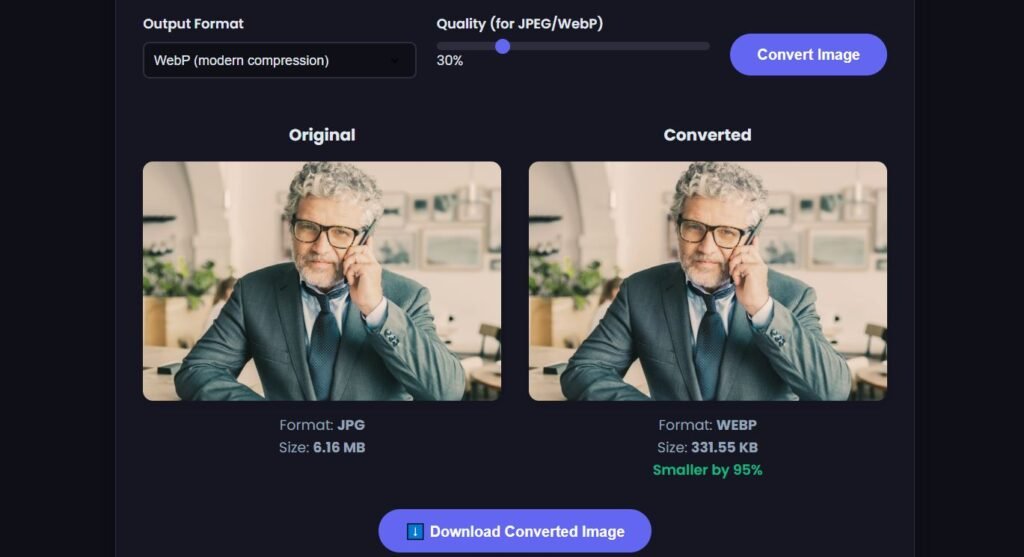
Conversion can also be done for optimization purposes. Converting a PNG photograph to WebP can significantly reduce file size because WebP uses more efficient compression algorithms. However, the file size reduction is a side effect of the format change, not the primary purpose of conversion.
During conversion, the image data is decoded from the source format and re-encoded into the destination format. This process can introduce quality changes depending on the formats involved and the settings used.
What Is Image Compression?
Image compression is the process of reducing the amount of data required to store an image. The goal is to make the file smaller without changing its visual appearance more than necessary. Compression can be applied within the same format or as part of a conversion to a different format.
Compression works by identifying and removing redundant or less important data. In lossy compression, some image detail is permanently discarded. In lossless compression, the data is reorganized more efficiently without losing any information.
Every major image format uses some form of compression. JPG and WebP use lossy compression by default. PNG uses lossless compression. The compression method is built into the format specification—you cannot have a JPG file without JPG compression.
Compression settings typically control the trade-off between file size and visual quality. Higher compression produces smaller files but more visible quality loss. Lower compression preserves more detail but produces larger files. Compress your image with the MiniToolsPro tool.
Key Differences Between Conversion and Compression
The fundamental difference is simple: conversion changes what the file is, while compression changes how much space the file takes. These processes often happen together, but they serve different purposes.
Conversion addresses format compatibility and format-specific advantages. If a platform requires JPG files, you convert to JPG. If you want transparency, you convert to PNG. If you want better web performance, you convert to WebP or AVIF.
Compression addresses file size concerns. If an image is too large to upload, email, or load quickly on a webpage, compression reduces its size. You can compress a JPG to be smaller, convert it to WebP to benefit from better compression algorithms, or do both.
Image Conversion
Image Compression
How Conversion Can Affect File Size
Converting between formats often changes file size, sometimes dramatically. This happens because different formats use different compression algorithms with varying efficiency.
A PNG photograph converted to JPG typically becomes much smaller because JPG's lossy compression is far more efficient for photographic images than PNG's lossless compression. The trade-off is that some fine detail may be lost in the process.
Conversely, converting a JPG to PNG usually produces a much larger file. The PNG format preserves every pixel exactly as it appears in the JPG—including any compression artifacts—but stores that data without lossy compression. The result is a larger file with no improvement in visual quality.
Converting JPG to WebP often reduces file size by 25-35% at equivalent visual quality. This is because WebP uses more advanced compression algorithms than JPG. The conversion process itself applies new compression that is more efficient than the original.
How Compression Works Without Changing Format
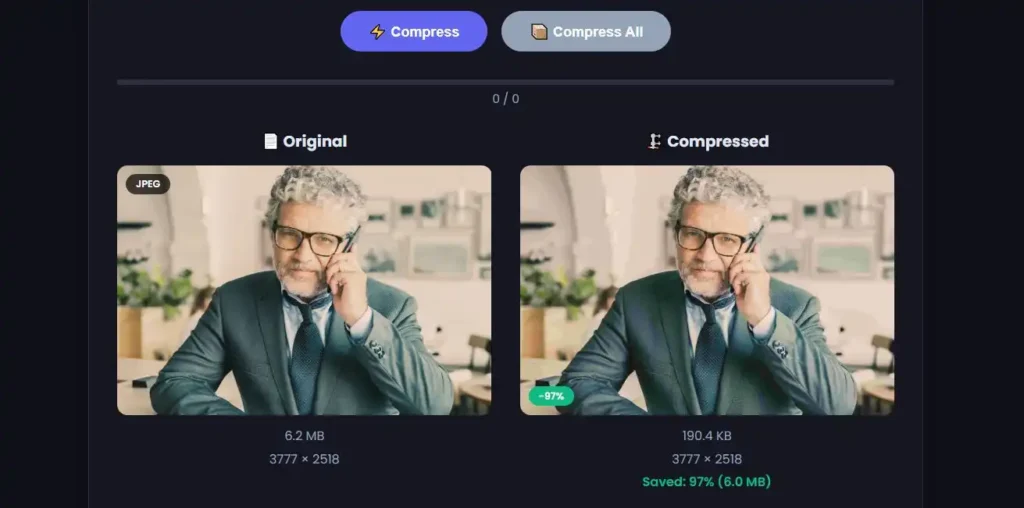
You can compress an image without converting it to a different format. A JPG can be re-compressed at a lower quality setting to produce a smaller JPG. A PNG can be optimized to remove unnecessary metadata and recompress its data more efficiently.
Re-compressing a JPG at a lower quality setting is a form of lossy compression. The image data is decoded and re-encoded with more aggressive compression. Each re-compression introduces additional quality loss, which is why repeated JPG compression should be avoided.
PNG compression is lossless. PNG optimization tools reorganize the compression data more efficiently without discarding any image information. The resulting file is smaller but visually identical to the original.
Compression within the same format is useful when you need to keep a specific file format but reduce its size. For example, if a website requires JPG images but your files are too large, compressing the JPGs is the appropriate solution.
Lossy vs Lossless Compression
Compression comes in two fundamental types, and understanding the difference is essential for making informed decisions about image quality.
Lossy compression permanently removes image data. The algorithm identifies details that are less visible to human eyes—subtle color variations, fine textures, high-frequency patterns—and discards them. The result is a smaller file, but the compression cannot be reversed. JPG and WebP use lossy compression by default.
Lossless compression reorganizes data more efficiently without discarding anything. The original image can be reconstructed exactly from the compressed data. PNG uses lossless compression. Lossless WebP is also available for situations where quality cannot be compromised.
The choice between lossy and lossless depends on your priorities. If file size matters more than perfect quality—common for web images—lossy compression is appropriate. If quality must be preserved exactly—common for graphics, logos, and archival images—lossless compression is required.
When to Convert vs When to Compress
Determining whether you need conversion or compression starts with identifying the actual problem you're trying to solve.
You need conversion when:
The file format is incompatible with your target platform or software. You need format-specific features like transparency or animation. You want to benefit from a more efficient format for web use. You're moving images between devices with different format defaults.
You need compression when:
The file size is too large for uploading, emailing, or web display. You need to stay in the same format but reduce storage or bandwidth usage. You're optimizing a website and need faster page load times. You have many images and need to reduce total storage requirements.
In some cases, you need both. Converting from PNG to JPG both changes the format and reduces file size. Converting from PNG to WebP changes the format, applies new compression, and produces a smaller file. The conversion accomplishes the compression as a side effect.
Can You Do Both at the Same Time?
Yes, and this is common in practice. When you convert from one format to another, the destination format's compression is applied as part of the conversion process. The question is whether this achieves your goals or whether additional steps are needed.
For example, converting a large PNG to JPG will reduce file size because JPG compression is more efficient for photographs. However, the resulting JPG might still be larger than you need. You could then apply additional JPG compression to reduce it further.
The order of operations matters. If you compress first and then convert, you may lock in quality loss from the compression before the conversion adds its own changes. If you convert first and then compress, you have more control over the final result.
For best results, start with the highest-quality source available. Convert to the target format at the highest practical quality setting, then apply additional compression if needed. This preserves the most detail throughout the process.
Quick Decision Guide: Convert or Compress?
The right choice depends on the problem you're trying to solve. Use this guide to determine your next step.
If you've determined that format conversion is what you need, use the MiniToolsPro image converter to change between JPG, PNG, WebP, and other common formats. For compression within the same format, you may need a dedicated image compression tool.
If your images have already been compressed multiple times and look slightly degraded, you may want to upscale your image online to improve clarity before applying further changes.
Related Image Optimization Guides
Image conversion and image compression are related but serve different purposes. Conversion changes an image from one file format to another, while compression focuses on reducing file size. For more information about changing image formats, see our Image Converter Guide. If your goal is to make images smaller without necessarily changing their format, explore our Image Compression Guide.
Frequently Asked Questions
Is converting an image the same as compressing it?
No. Conversion changes the file format, while compression reduces the file size. These processes often happen together, but they serve different purposes. A conversion may reduce file size as a side effect, but that is not the primary goal of conversion.
Does converting PNG to JPG reduce file size?
Yes, in most cases. JPG uses lossy compression that is more efficient for photographs than PNG's lossless compression. The file size reduction can be dramatic—often 80% or more—but some image detail will be permanently lost.
Can I compress an image without changing its format?
Yes. JPG images can be re-compressed at lower quality settings. PNG images can be optimized to remove unnecessary metadata and recompress data more efficiently. The format remains the same while the file size decreases.
Does compression always reduce image quality?
No. Lossless compression reduces file size without any quality loss. PNG uses lossless compression by default. Lossy compression—used by JPG and standard WebP—does reduce quality, but the loss may not be visible at moderate compression levels.
Should I convert or compress first?
Convert first, then compress if needed. Start with the highest-quality source, convert to the target format at high quality settings, then apply additional compression if the file is still too large. This preserves the most detail throughout the process.
Why did my image get bigger after conversion?
This happens when converting from a lossy format like JPG to a lossless format like PNG. PNG preserves every pixel exactly, including JPG compression artifacts, and stores that data without lossy compression. The result is a larger file with no visual improvement.
Can I undo image compression?
No. Lossy compression permanently removes image data that cannot be recovered. This is why it's important to keep original uncompressed images as backups when possible. Lossless compression, by contrast, can be fully reversed.
Share this article 👇


0 Comments