
Table of Contents
Why Use Excel for Age Calculation
Excel remains one of the most accessible tools for performing an age calculation on large datasets. HR professionals manage hundreds of employee records. School administrators track thousands of students. Using an age formula excel based solution saves hours of manual work. You enter the formula once, then drag it down. Every row updates instantly. The accuracy of a properly written formula eliminates the human error that happens during manual age calculation.
Excel does not guess. It follows strict mathematical logic. When you need to calculate age from date of birth for official reports, Excel delivers consistent results. The formulas respect calendar rules, including leap years. Whether you need a simple chronological age in years or a full breakdown showing age in years, months, and days, Excel has the functions to handle it. This tutorial assumes you are a beginner. You do not need advanced spreadsheet knowledge to follow along. You only need a date of birth column and a willingness to learn one proven formula.
Understanding Date Functions in Excel
Before writing the formula, you must understand how Excel sees dates. Excel stores dates as serial numbers. January 1, 1900 is represented as 1. January 2, 1900 is 2. Today's date is a number well over forty thousand. This system makes date arithmetic possible. When you subtract one date from another, Excel returns the number of days between them. This is the foundation of every age formula.
The TODAY() function returns the current date. It updates automatically each time you open the workbook. This function is essential for calculating a birthday age that stays current. The YEARFRAC function returns the fraction of a year between two dates. The INT function rounds a number down to the nearest integer. The DATEDIF function calculates the difference between two dates in various units. Combining these functions allows you to calculate age precisely. You do not need to memorize every function. You only need to understand how they work together.
The Basic Age Formula Excel Users Need
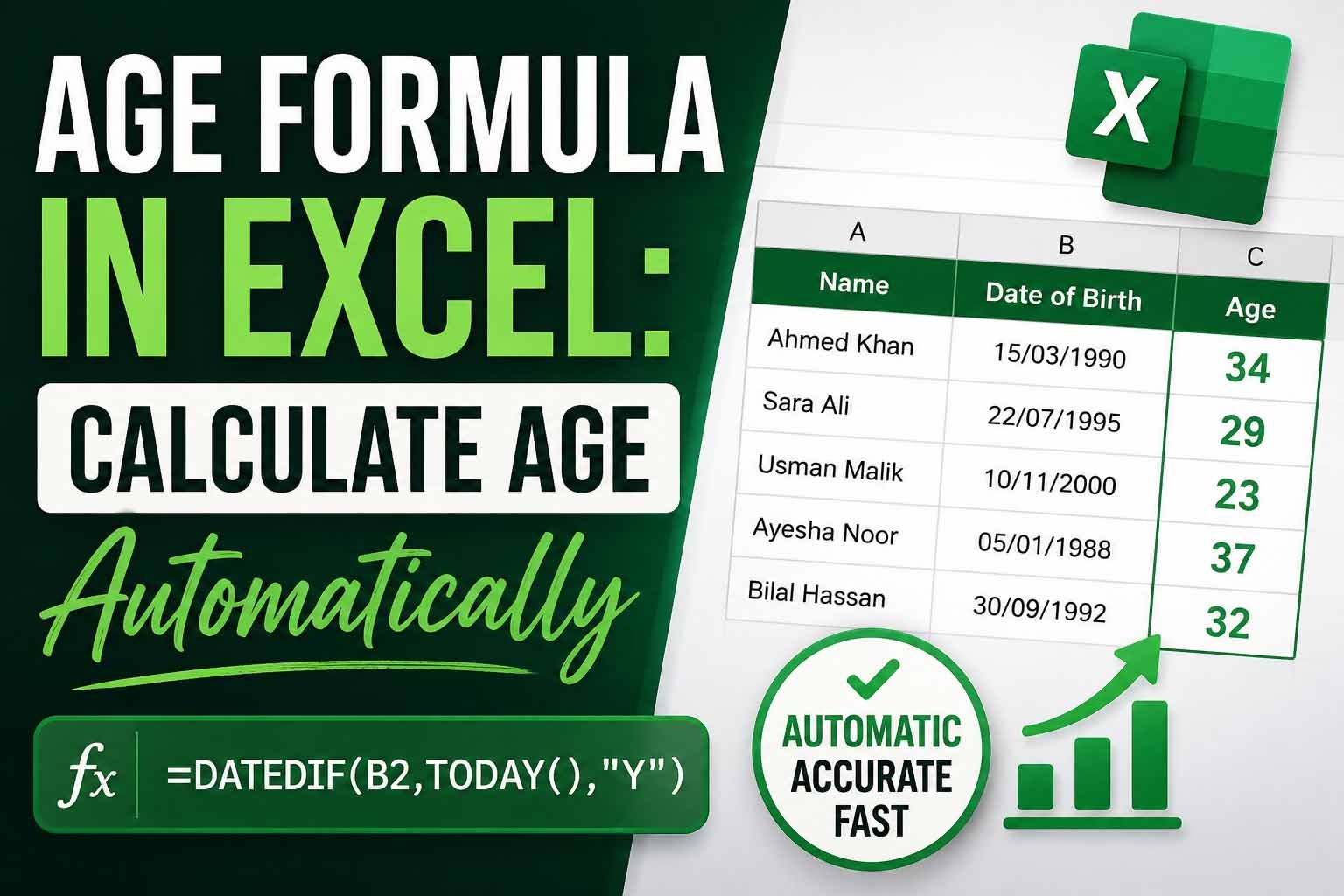
The simplest way to calculate age in years uses the YEARFRAC function combined with INT. Assume cell A2 contains a date of birth. The formula looks like this. You type it into cell B2. Press Enter. The result is the person's age in completed years. This single line performs an exact age calculation. It accounts for the current date automatically through the TODAY() function.
Let us break down what happens inside the formula. TODAY() grabs the current system date. Excel subtracts the birth date in A2 from today's date. The result is the number of days lived. YEARFRAC converts that day count into a year fraction. Someone born 25 years and 6 months ago produces 25.5. The INT function removes the decimal portion. 25.5 becomes 25. This gives you the completed years. This matches the legal definition of chronological age used on official documents.
Using DATEDIF to Calculate Age from Date of Birth
For greater flexibility, the DATEDIF function is the preferred tool among experienced Excel users. Microsoft does not document this function in the formula autocomplete list. It remains available and fully functional in all modern versions of Excel. The function takes three arguments. The first is the start date. The second is the end date. The third is a unit code enclosed in quotation marks. To calculate age from date of birth in years, the unit code is "Y".
Assume the birth date sits in cell A2. You want the age by date of birth using today's date. The formula is simple. Type it into cell B2. The "Y" tells Excel to return the number of complete years between the two dates. Unlike the YEARFRAC method, DATEDIF with "Y" does not require the INT function. It already counts only full years. This is closer to how humans think about birthday age. A person is not a year older until the exact anniversary of their birth arrives. The DATEDIF function respects this real-world logic perfectly.
Step-by-Step Examples
Let us work through a concrete example. Imagine an employee named Maria. Her date of birth is stored in cell A2. The value is July 14, 1985. You are calculating her age on today's date. In an empty cell, you enter the formula. Excel internally subtracts July 14, 1985 from the current date. It counts the full years elapsed. If today is March 10, 2026, Maria has not yet reached her birthday. The formula correctly returns 40 years, not 41.
Now consider another employee, James, born on January 5, 1980. His birth date sits in cell A3. You enter the same formula in cell B3. This time, January 5 has already passed in the current year. The formula returns 46 years. The beauty of using cell references is that you never need to rewrite the formula. You enter it once in B2, then drag the fill handle down column B. Excel automatically adjusts the reference for each row. One hundred employee ages calculated instantly. This is why the age formula excel approach is indispensable for business.
For a future age calculation, suppose you want to know how old Maria will be on January 1, 2030. Instead of TODAY(), you use a specific date. Type that target date into cell C2. Then use DATEDIF with A2 as the start date and C2 as the end date. The formula becomes a fixed age difference calculator. Maria will be 44 years old on that date. The underlying logic does not change.
Calculating Age in Years, Months, and Days
A single number in years often does not tell the full story. Parents track a child's age in months. Medical forms request an exact age calculation down to the day. To extract age in years, months, and days using Excel, you combine multiple DATEDIF functions. You still need only one birth date in cell A2. The formula for years remains the same. For months, you use the unit code "YM". This returns the remaining months after the full years are counted. For days, you use "MD". This returns the remaining days after the full months are counted.
Here is how the three-part system works. In cell B2, you place the years formula. In cell C2, you place the months formula. In cell D2, you place the days formula. If Maria was born on July 14, 1985, and today is March 10, 2026, the results display as 40 years, 7 months, and 24 days. You can concatenate these into a single text string for a cleaner report. The formula for the combined output uses the ampersand operator. This presents a human-readable chronological age in one cell.
How to Calculate Age in Months Only
Some applications demand the age in months exclusively. Pediatric growth charts use months. Infant development assessments use months. Immigration forms for young children often request total months lived. DATEDIF handles this with a simple unit change. Instead of "Y", you use "M". Assume the birth date is in cell A2. The formula counts every full month between the birth date and today. A child born 3 years and 2 months ago registers as 38 months. This method avoids the common mistake of multiplying years by twelve and forgetting the extra months. The DATEDIF function performs the total month calculation in one step.
How to Calculate Age in Days Only
For detailed record-keeping or scientific observation, you might need the age in days. Lifespan studies, project timelines, and certain legal documents require total days elapsed. Change the DATEDIF unit code to "D". The formula is placed in cell B2. This returns the exact number of days since birth. Excel automatically accounts for every leap year within the span. This eliminates the tedious task of manually counting 365 or 366 days for each year. The result is precise and verifiable.
How to Calculate Age in Weeks
Calculating age in weeks is slightly less direct because DATEDIF does not offer a "W" unit code. The cleanest method uses simple arithmetic on the total days. First, you calculate the age in days using the "D" unit in DATEDIF. Then you divide the result by seven. Wrap the whole expression in the INT function to return only full weeks. The formula assumes the birth date is in A2. This method is useful for pregnancy tracking, infant development logs, and training program durations. It provides an integer number representing completed weeks.
How Leap Years Affect Excel Age Formulas
A common concern is whether an age formula excel function correctly handles February 29. The answer is yes. Excel's internal date engine fully recognizes leap years. The serial number system accounts for the extra day. When DATEDIF compares dates, it knows whether a specific February 29 exists in the range. If you calculate age in days for someone born on February 29, 2000, through today, Excel counts the six leap days that occurred. You do not need to write conditional logic. The software handles the Gregorian calendar rules automatically.
What about a person born on February 29 in a non-leap year? Excel treats the date as March 1 for calculation purposes when the birth year is adjusted. However, the date you enter remains February 29. In practice, if you are calculating age by date of birth for someone born on a leap day, DATEDIF still returns the correct number of completed years. The birthday age increments on March 1 in non-leap years within the spreadsheet's logic. This aligns with common legal conventions. Your leap year age calculation requires no manual override.
Calculating Age Between Two Specific Dates
Real-world scenarios often require an age difference between two historical dates. You might need to verify a person's age on a specific hiring date. You might calculate a deceased person's age at the time of a historical event. The DATEDIF function adapts perfectly. Instead of TODAY(), you reference a cell containing the end date. Suppose the birth date is in A2 and a specific event date is in B2. The formula calculates the exact age on that day. This turns Excel into a powerful historical research tool. The same logic works for calculating future ages, as shown earlier. You simply ensure the end date reference is a future date.
Common Excel Age Calculation Mistakes
Even with a proven formula, users make predictable errors. The most common is using simple subtraction and dividing by 365. This ignores leap years entirely. Over a lifetime, a simple division by 365 drifts by several weeks. The result is an inaccurate chronological age. Another frequent mistake is forgetting to lock cell references when using a fixed end date. If you want all rows to compare against a single date in cell C1, you must write the reference as an absolute reference. Otherwise, dragging the formula down shifts the end date.
Using the wrong DATEDIF unit code also causes trouble. Confusing "M" for total months with "YM" for remaining months leads to absurd results. Some users inadvertently leave the end date argument blank or reference an empty cell. Excel then interprets the date as zero, producing a bizarrely large year count. A formatting issue occurs when the cell containing the formula is set to Date format. The output number looks like a date from the year 1900. Setting the cell format to General or Number fixes this instantly. Finally, users sometimes try to use DATEDIF in Google Sheets and find it works differently. Stick to Excel for the exact behavior described here.
Frequently Asked Questions
What is the best age formula Excel offers?
The DATEDIF function provides the most accurate and flexible solution. It calculates complete years, months, and days between two dates without needing the INT function or complex leap year adjustments.
How do I calculate age from date of birth in Excel?
Place the birth date in a cell. In another cell, use the DATEDIF formula with that cell reference as the start date and TODAY() as the end date. Use "Y" as the unit to get complete years.
Does Excel account for leap years automatically?
Yes. Excel's date engine recognizes every valid leap year according to Gregorian calendar rules. The DATEDIF and YEARFRAC functions include the extra day without any extra input from you.
Why is my DATEDIF formula showing an error?
The most common cause is placing the end date before the start date. DATEDIF requires the start date to be earlier. Check that your birth date cell is indeed before the end date cell. Also ensure the cells are formatted as actual dates, not text strings.
How do I calculate age in months in Excel?
Use the DATEDIF function with the unit code "M". This returns the total number of full months between the start date and the end date. It counts every month across all years in the range.
Can Excel calculate age in years, months, and days in one cell?
Yes. You can concatenate three DATEDIF functions together. Use "Y" for years, "YM" for remaining months, and "MD" for remaining days. Join them with ampersands and text strings to produce a readable output like "40 years, 7 months, 24 days".
Why does my formula show a date instead of a number?
Excel sometimes automatically formats formula results as dates. Select the cell, right-click, choose Format Cells, and set the category to Number or General. The age will display as an integer.
How do I calculate age between two specific dates instead of today?
Replace the TODAY() function with a cell reference containing your end date. The DATEDIF function works identically with any valid date reference as the end point.
Is DATEDIF an official Excel function?
It is an undocumented but fully supported legacy function. It exists in all current versions of Excel and continues to work reliably. Microsoft has not removed it.
Can I use an online age calculator instead of Excel?
Yes, for single calculations, an online tool is faster. However, Excel excels when you have multiple records to process. You can calculate hundreds of ages simultaneously with a single formula drag.
Related Age Calculation Guides
If you're calculating age in Excel, you may also want to understand how age is calculated outside of spreadsheets. See our Age Calculator Explained guide for an overview of the calculation process, or learn the underlying method in our Age Calculation Formula Explained guide. For a broader overview of age calculations, visit our Age Calculator Guide.
Conclusion
Mastering an age formula Excel solution transforms how you handle date data. You no longer need to perform tedious manual age calculations. The DATEDIF function gives you the power to produce exact age calculation results in years, months, days, and weeks. You now understand how to handle leap years, how to concatenate output for reports, and how to avoid the most common spreadsheet errors. This skill is directly transferable to HR dashboards, student databases, and personal records management.
Excel is powerful, but it requires setup. You must format cells correctly, type formulas accurately, and drag them properly. If you need a single quick result without opening a spreadsheet, there is a simpler way.
Try a Free Online Age Calculator
If you'd rather skip spreadsheet setup, you can use our free Age Calculator to instantly calculate your exact age in years, months, weeks, and days. The tool handles every date complexity automatically. It is ready whenever you need a fast, verified chronological age.
Use the Free Age Calculator Now
Editor's Picks
Suggested References
- Microsoft Office Support for official Excel function documentation.
- National Institute of Standards and Technology (NIST) for calendar and time standards.
- Khan Academy for foundational mathematics concepts.
Share this article 👇
0 Comments