
Table of Contents
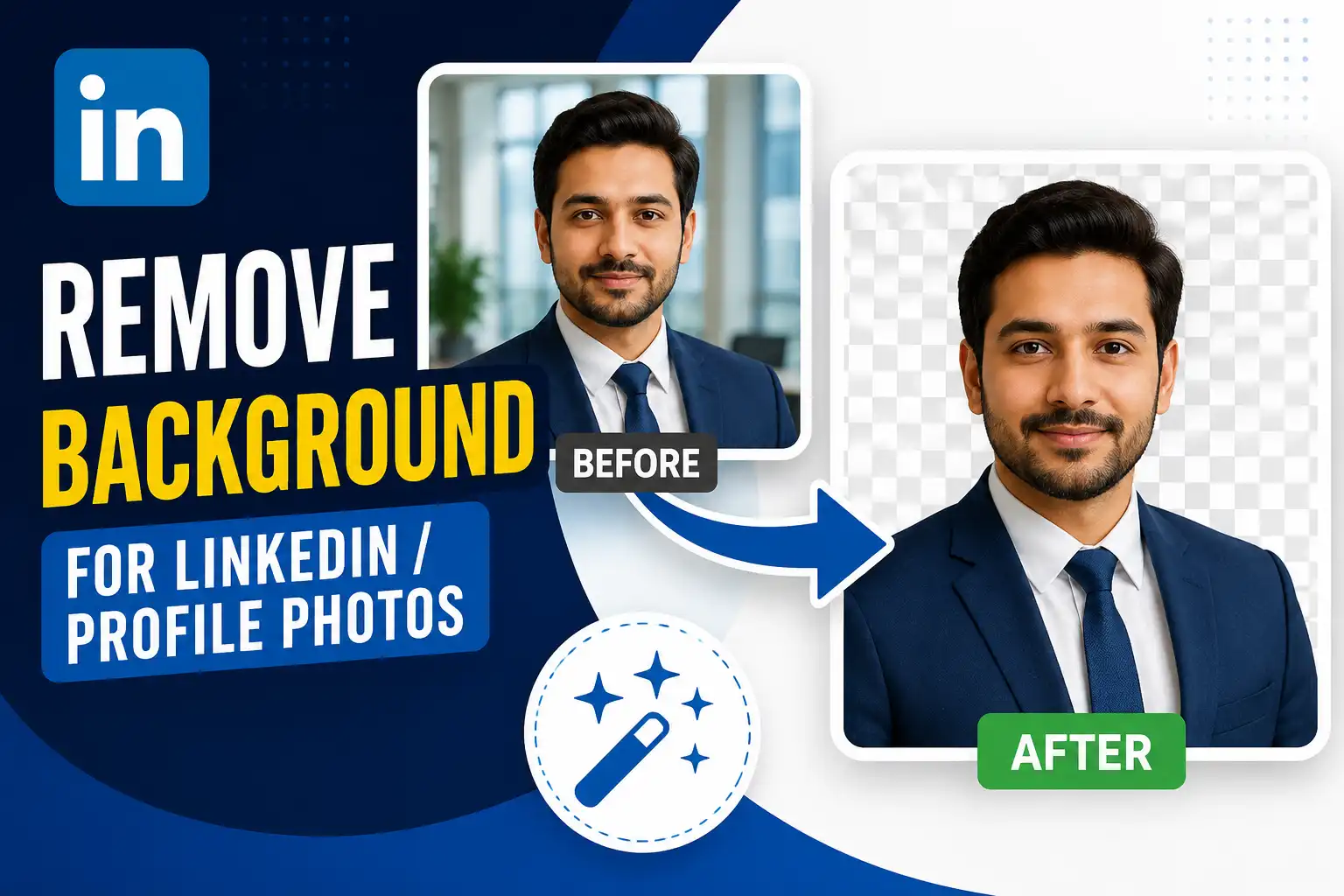
Remove background for LinkedIn profile:
Your LinkedIn profile photo is the first thing recruiters, clients, and colleagues see. A clean, professional headshot with a neutral or subtle background makes a stronger impression than a busy photo taken in a coffee shop or at a wedding. Removing the background lets you replace it with something clean, consistent, and appropriate for a professional context.
This guide walks through why background removal matters for profile photos, how to do it step by step, and what background choices work best for LinkedIn and other professional platforms.
Why Your Profile Photo Background Matters
LinkedIn profiles with professional photos get significantly more views and connection requests than those without. But it's not just about having a photo — the quality and composition of that photo matters too. A distracting background pulls attention away from your face and can make you appear less professional.
Common background problems in profile photos include:
- Cluttered rooms or offices with visible mess
- Other people in the frame
- Busy outdoor scenes with competing visual elements
- Inappropriate settings like parties or casual gatherings
- Backgrounds that clash with your clothing or skin tone
Removing the background solves all of these problems at once. You isolate yourself from the original setting and place your headshot on a clean, professional background that puts the focus entirely on you.
What Makes a Good LinkedIn Profile Photo
Before you remove a background, make sure the source photo itself is worth using. A good LinkedIn profile photo has these characteristics:
- Clear view of your face: Your face should fill roughly 60% of the frame.
- Good lighting: Even, natural-looking light with no harsh shadows across your face.
- Sharp focus: Your eyes should be crisp and clear.
- Professional expression: A genuine smile or confident neutral expression works best.
- Appropriate attire: Wear what you'd wear to work in your industry.
- Recent photo: It should look like you today, not five years ago.
If your current photo doesn't meet these standards, consider taking a new one before investing time in background removal. A background remover can't fix poor lighting, blur, or an unprofessional expression.
How to Remove the Background from Your Profile Photo
The process is straightforward, especially with modern online tools.
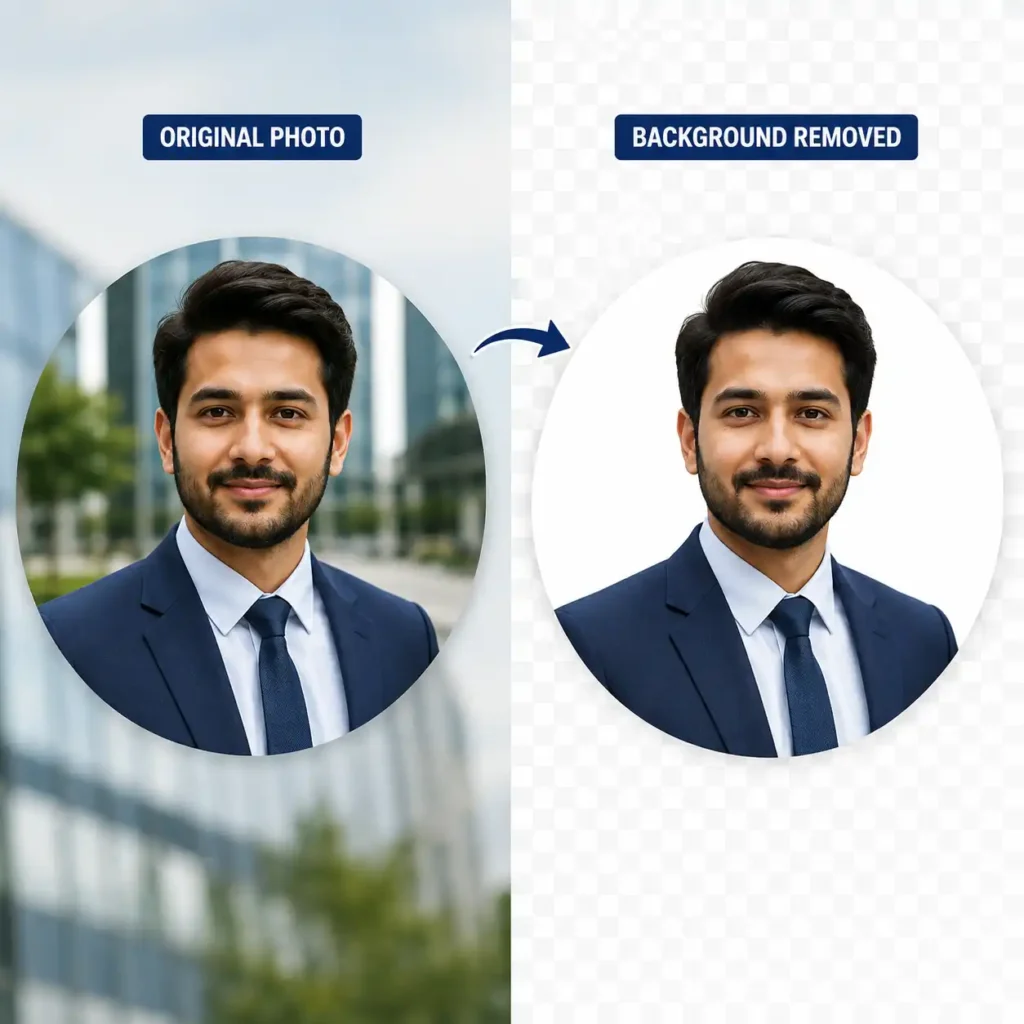
Step 1: Choose a suitable photo
Select a photo where you're the only person in the frame and your face is clearly visible. The best results come from photos with contrast between you and the background. A photo of you against a plain wall works better than one where you blend into a busy scene.
Step 2: Upload to a background remover
Use a free online background remover to process your photo. Upload the image and let the tool detect your face and body as the foreground subject.
Step 3: Review the result
Check the edges around your hair, shoulders, and clothing. Headshots are relatively easy for background removal tools because people are a common subject, but flyaway hair and complex clothing edges can still cause issues.
Step 4: Download as PNG
Always download as PNG. This preserves the transparent background, which gives you flexibility to place your headshot on any background you choose. JPG doesn't support transparency and will fill the background with white automatically.
Step 5: Add a new background
Open the transparent PNG in any design tool and add a new background layer. Choose a color or gradient that looks professional and complements your skin tone and clothing.
Best Background Choices for LinkedIn
Once you've removed the original background, you have complete control over what replaces it. Here are the most effective options.
Clean white or light gray
White and light gray are the safest choices. They're neutral, professional, and work with almost any photo. White backgrounds are common in corporate headshots and convey a polished, put-together image. Light gray adds a touch of warmth without feeling too stark.
Soft neutral tones
Light beige, soft blue, or muted green backgrounds add personality while remaining professional. These work particularly well if your industry has a creative or approachable culture. Avoid anything too saturated, which can look unprofessional.
Subtle gradients
A gentle gradient from light gray to white or from one neutral tone to another adds depth without distracting. Gradients can make your profile photo stand out slightly while keeping the focus on your face.
Corporate brand colors
If you're job hunting in a specific industry or representing a company, using a subtle version of the brand color can signal alignment. Keep it muted — a soft version of the brand color works better than a saturated one.
What to avoid
Stay away from busy patterns, bright neon colors, or backgrounds that clash with your clothing. Avoid dark backgrounds unless your photo was specifically shot for that look. And don't use transparent backgrounds directly on LinkedIn — the platform will render transparency as black in some contexts.
Common Problems with Profile Photo Background Removal
Hair edges look jagged or unnatural
Flyaway hair is the most common challenge. If the automatic tool leaves rough edges, you can clean them up in a design tool with a soft eraser or by applying a slight feather to the selection. Alternatively, choose a source photo where your hair is neatly styled and contrasts with the background.
Parts of your clothing or shoulders were removed
This happens when your clothing blends into the original background. If you're wearing a dark shirt against a dark background, the tool may struggle to distinguish between the two. Choose a photo with better contrast or manually restore the missing areas.
The result looks cut out or unnatural
A cut-out look often comes from a hard edge between you and the new background. Add a subtle drop shadow or slightly blur the edge transition to make the composite look more natural. Even a one-pixel feather can make a noticeable difference.
Skin tone looks different after background replacement
If the new background color affects how your skin tone appears, try a different background shade. Warm backgrounds can make skin look warmer; cool backgrounds can make it look cooler. Choose a background that doesn't distort your natural coloring.
Optimizing Your Photo After Background Removal
Background removal is one step in the profile photo process. After you've placed yourself on the new background, take these additional steps.
Crop to the right dimensions
LinkedIn displays profile photos as a square. Crop your headshot so your face is centered and fills about 60% of the frame. Leave some space above your head and around your shoulders.
Check the resolution
LinkedIn recommends profile photos of at least 400×400 pixels, though larger is better. The platform supports images up to 7680×4320 pixels. A higher-resolution photo looks sharper on high-DPI displays.
Compress the file
Large image files slow down page loads and may be rejected by some platforms. Compress your profile photo to reduce file size without visible quality loss. Your photo should load quickly while remaining sharp.
Preview on multiple devices
Check how your photo looks on desktop and mobile. LinkedIn crops photos differently in different contexts — your profile page, search results, connection suggestions, and comment sections all display your photo at different sizes. Make sure your face remains clear and centered in each context.
Beyond LinkedIn: Using Your Profile Photo Elsewhere
The same background-removed headshot can be used across your professional presence:
- Email signature: A clean headshot on a neutral background looks professional in email signatures.
- Company website: Team pages benefit from consistent headshots with matching backgrounds.
- Professional social media: Twitter/X, GitHub, and industry-specific platforms all use profile photos.
- Resume and portfolio: Some industries expect a headshot on resumes or portfolios.
- Speaking engagements: Conference speakers often need headshots for promotional materials.
Creating one clean, professional headshot with the background removed gives you a versatile asset you can reuse everywhere. When you need a different background for a specific context, you can simply place the same transparent PNG on a different color — no re-shoot needed.
Frequently Asked Questions
Can I remove the background from my LinkedIn photo for free?
Yes. Free online background removers handle headshots well, especially when the subject is clearly separated from the background. Upload your photo, download the transparent PNG, and add a new background in any design tool.
What background color is best for LinkedIn?
White, light gray, and soft neutral tones are the safest choices. They're professional, work with most photos, and keep the focus on your face. Avoid busy patterns, bright colors, and dark backgrounds unless your photo was shot specifically for that look.
Should I use a transparent background on LinkedIn?
No. LinkedIn doesn't display transparency properly and may render transparent areas as black. Always place your headshot on a solid background before uploading.
How do I fix rough edges around my hair after background removal?
Use a design tool with a soft eraser or feather selection to smooth rough edges. For best results, start with a photo where your hair is neatly styled and contrasts with the original background.
What resolution should my LinkedIn profile photo be?
LinkedIn recommends at least 400×400 pixels. Higher resolutions up to 7680×4320 are supported and display better on high-DPI screens. Aim for 1000×1000 or larger if possible.
Can I use the same background-removed photo for other platforms?
Yes. Once you have a transparent PNG of your headshot, you can place it on different backgrounds for different platforms. The transparent version is your master file — keep it safe and create platform-specific versions as needed.
Should You Use a Transparent or White Background?
After removing the original background, the next choice is what to use instead. A transparent image gives you more flexibility for designs, while a white background can give a professional profile photo a cleaner appearance. See our guide to transparent PNG vs. white background for a closer comparison.
Creating a Profile Photo That Works
Your LinkedIn profile photo is a small image with outsized impact. Taking the time to remove a distracting background and replace it with something clean and professional signals that you care about your professional presentation. It's a small effort that pays dividends in first impressions.
Start with the best source photo you have, remove the background with a free online tool, add a professional background, and optimize the final image. The result is a headshot you can use confidently across LinkedIn and every other professional platform.
Pay particular attention to hair, glasses, clothing edges, and other fine details. If the cutout looks rough around these areas, our guide to background remover settings for hair and fine edges can help you improve the result.
Share this article 👇


0 Comments