
Table of Contents
JPG vs PNG vs WebP
Choosing the wrong image format can slow down your website, make your graphics look blurry, or create files that are unnecessarily large. The problem isn't that one format is universally better—it's that each format solves different problems. JPG remains the most compatible and widely understood format. PNG preserves quality perfectly and supports transparency. WebP offers superior compression for web use. Understanding when to use each one will save you time, storage space, and frustration. This guide breaks down the practical differences between these three formats and helps you decide which one you should be using for your specific situation. If you need to convert existing images, you can use a free image converter to switch between formats quickly.
Understanding the Three Main Image Formats (JPG vs PNG vs WebP)
Before comparing these formats directly, it helps to understand what each one was designed to do.
What Is JPG?
JPG (or JPEG) is the most widely used image format in the world. It uses lossy compression, which means it permanently removes some image data to reduce file size. The compression algorithm is specifically designed for photographs and complex images with smooth color transitions.
The key advantage of JPG is its balance between file size and visual quality. A properly compressed JPG photograph can look nearly identical to the original while being significantly smaller. The format achieves this by discarding details that human eyes are less likely to notice.
JPG does not support transparency. Any transparent areas in an image will be filled with a solid color—usually white—when saved as JPG.
What Is PNG?
PNG was designed as a lossless format, meaning it preserves every pixel of the original image exactly. Nothing is discarded during compression. This makes PNG the standard choice when image quality cannot be compromised.
PNG also supports full alpha transparency. A PNG image can have soft edges, semi-transparent areas, and complex transparency that blends smoothly with any background. This capability makes PNG essential for logos, icons, and graphics that need to sit on different backgrounds.
The trade-off is file size. Because PNG preserves all image data, PNG files are typically much larger than JPG files for the same photograph. For graphics with limited colors, PNG compression works efficiently. For photographs, PNG file sizes become impractical.
What Is WebP?
WebP is a modern image format developed by Google. It supports both lossy and lossless compression, along with transparency and animation. The format was specifically engineered for web use, with compression algorithms that often produce files 25-35% smaller than comparable JPG files at the same visual quality.
WebP lossy compression works similarly to JPG but uses more advanced techniques to retain detail at smaller file sizes. WebP lossless compression typically produces files 26% smaller than PNG files with identical visual results.
The main limitation of WebP has been browser and software support. That situation has improved dramatically, but some older tools and platforms still have compatibility issues.
Key Differences Between JPG vs PNG vs WebP
The fundamental differences between these formats come down to compression type, transparency support, and file size characteristics. Understanding these differences will help you make the right choice for each use case.
Compression type determines whether image data gets permanently removed. JPG always uses lossy compression. PNG always uses lossless compression. WebP can use either, giving it flexibility that neither of the other two formats offers.
Transparency support determines whether images can have transparent backgrounds. JPG does not support transparency at all. PNG provides full alpha transparency. WebP supports transparency in both lossy and lossless modes.
File size efficiency varies depending on the image type. For photographs, JPG and WebP compete closely, with WebP usually producing smaller files. For graphics and screenshots, PNG and lossless WebP are the relevant comparison, with WebP typically achieving smaller sizes.
JPG vs PNG vs WebP Explained
JPG
PNG
WebP
When to Use Each Format
The right format depends on what you're creating and where it will be used. Here's how to think about each scenario.
Photos and Complex Images
Photographs and complex images with many colors and gradients are best served by lossy compression. The human eye rarely notices the subtle details that lossy compression removes, and the file size savings are substantial.
For photographs that will be shared online, displayed on websites, or sent through email, JPG remains a reliable choice. It's universally compatible and produces acceptable file sizes with good visual quality.
WebP is the better choice when website performance matters and you're not worried about compatibility with older tools. WebP photographs are typically 25-35% smaller than equivalent JPG files, which means faster page loading and reduced bandwidth usage.
PNG should generally be avoided for photographs. The lossless compression preserves every detail, but the resulting files are often 5-10 times larger than JPG or WebP equivalents. That file size penalty rarely justifies the marginal quality improvement.
Graphics, Logos, and Screenshots
Graphics with flat colors, sharp edges, text, or transparency requirements need a different approach. These image types compress poorly with lossy algorithms because the compression creates visible artifacts around edges and text.
PNG has traditionally been the standard for logos, icons, interface elements, and screenshots. The lossless compression preserves crisp edges and text, while alpha transparency allows graphics to work on any background.
WebP lossless mode now offers the same quality as PNG with smaller file sizes. If your audience uses modern browsers, lossless WebP is a strong alternative. However, many design tools and content management systems still default to PNG for graphics.
Screenshots of interfaces and documents also benefit from PNG or lossless WebP. Text in screenshots becomes blurry with JPG compression, making the content harder to read.
Website Images and Performance
Website images present a unique challenge: they need to be small enough to load quickly but high-quality enough to look professional.
For most website photographs, WebP offers the best performance-to-quality ratio. Modern browsers all support WebP, and the file size savings directly translate to faster page loads and better Core Web Vitals scores.
JPG remains a solid fallback for websites that need to support older browsers or when images will be downloaded and used in other applications. Many WordPress sites use JPG by default for this reason.
PNG should be reserved for website elements that need transparency or perfect clarity—logos, icons, and graphics that overlay other elements. For photographs displayed on web pages, PNG's file size penalty makes it a poor choice.
File Size and Quality Comparison
File size differences between these formats can be dramatic, but the impact depends heavily on the image content. A photograph and a logo will produce very different results in each format.
For a typical photograph, a high-quality JPG might be 200-500 KB. The same image as a PNG could easily reach 2-5 MB, while a WebP version might be 150-350 KB. These differences become significant when multiplied across dozens of images on a single web page.
For graphics with flat colors and text, the situation reverses. A PNG logo might be 50-100 KB, while a JPG version of the same logo would be larger and visibly degraded around the edges. A lossless WebP version might be 35-70 KB—similar in size to PNG but smaller.
Quality comparisons are more nuanced. PNG always preserves the exact original image. JPG and WebP can both be adjusted to different quality levels, trading file size against visual fidelity. At equivalent file sizes, WebP typically retains more detail than JPG because of its more advanced compression algorithms.
Browser Compatibility in 2024
Compatibility concerns have largely disappeared for WebP in the last few years. All major browsers—Chrome, Firefox, Safari, Edge, and Opera—now support WebP across desktop and mobile platforms.
The remaining compatibility gaps exist in older software and specific workflows. Some older versions of Microsoft Office and Adobe applications may not open WebP files directly. Some email clients and social media platforms may convert WebP uploads to other formats automatically.
JPG and PNG remain universally compatible across every platform, application, and device. If your images need to work everywhere without exception, JPG and PNG are the safest choices. If your primary use case is web display, WebP is now safe to use.
Converting Between Formats: What You Need to Know
Converting between formats is common, but it's important to understand what happens during conversion. Not all conversions preserve quality equally.
Converting JPG to PNG does not improve quality. The detail lost during JPG compression cannot be recovered. The resulting PNG will be larger but will look identical to the JPG. This conversion only makes sense if you need transparency or need to edit the image without further quality loss.
Converting PNG to JPG permanently removes transparency and applies lossy compression. The resulting file will be smaller but will lose any transparent areas and may show compression artifacts. This conversion makes sense for photographs that were accidentally saved as PNG.
Converting JPG or PNG to WebP can reduce file size without visible quality loss when using appropriate settings. This is the most beneficial conversion for web use. However, re-converting a JPG to WebP means the image has now been compressed twice, which can compound quality loss.
Converting WebP to JPG or PNG may be necessary for compatibility with older software. The conversion itself doesn't degrade quality, but the destination format's limitations will apply.
If you need to convert between any of these formats, use the MiniToolsPro image converter to handle the conversion quickly without installing any software.
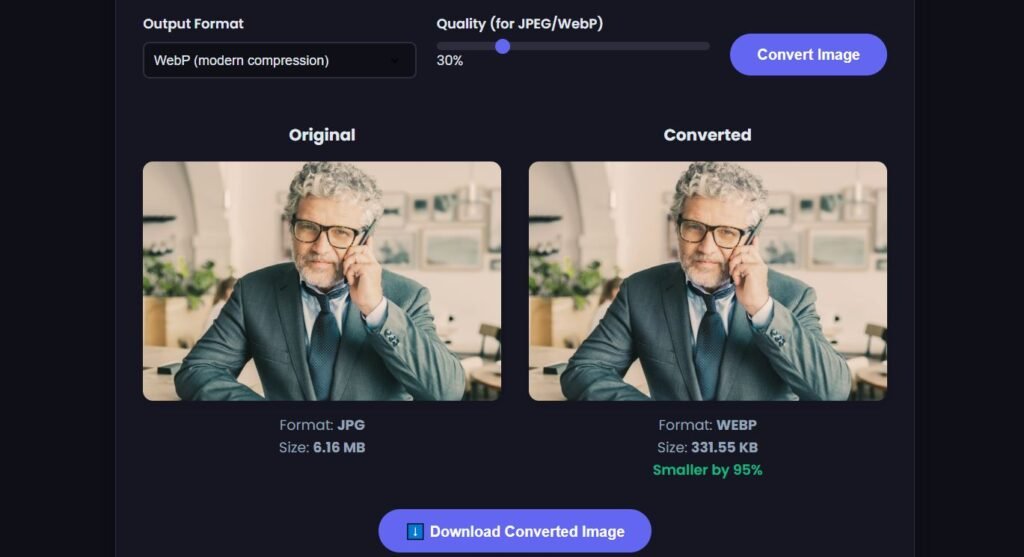
If you're working with a low-resolution image that looks blurry or pixelated after conversion, you may want to upscale your image online to improve its clarity and resolution before saving it in your chosen format.
Related Image Format Guides
JPG, PNG, and WebP each have different strengths depending on image quality, transparency, compatibility, and file size. For a broader comparison of modern image formats, see our Image Formats Explained guide or explore the best image format for websites. If you're comparing newer formats, see WebP vs AVIF. For the complete conversion process, visit our Image Converter Guide.
Quick Decision Guide: Which Format Should You Choose?
There's no single image format that works best for every situation. The right choice depends on whether you're prioritizing compatibility, transparency, image quality, or file size.
Whichever format you choose, the goal is the same: the smallest file size that meets your quality and compatibility requirements. If you have images in the wrong format, convert your images to any format quickly with the MiniToolsPro image converter.
If you're working with a low-resolution image that looks blurry or pixelated after conversion, you may want to upscale your image online to improve its clarity and resolution before saving it in your chosen format.
Share this article 👇
0 Comments