
Table of Contents
Choosing the right image format feels like picking the wrong door in a maze. One wrong step and your website slows down, your logo looks fuzzy, or your photo won't open. The reality is simpler. Each image format exists to solve a specific problem. The key is knowing which problem you're dealing with.
This guide explains the major image formats, how they differ in quality and file size, where each one works best, and which format you should actually choose for your project.
The Modern Image Format Landscape
Before diving into specific files, it helps to understand that image formats generally fall into two camps: raster images made of pixels, and vector images made of mathematical paths. Most everyday photos and web graphics are raster files. The fundamental trade-off inside a raster file is always between quality, file size, and compatibility.
A large, unoptimized photo can silently crush page performance. A highly compressed graphic can look like a mosaic. The image formats below each handle this balance differently.
JPG (JPEG): The Universal Standard
JPG, standing for Joint Photographic Experts Group, is the closest thing to a universal image language. It uses lossy compression, meaning it intelligently discards visual data that the human eye is less sensitive to in order to shrink the file size. This makes it the default choice for complex images with smooth color transitions, like digital photographs.
However, that efficiency comes with a cost. JPG does not support transparency. If you need a logo that sits perfectly on a colored background, JPG is the wrong tool. Furthermore, every single time you resave a JPG, you introduce new compression artifacts. Generational loss is real. For archiving master copies, you want a lossless fallback, but for sharing a photo or displaying a product image online, a high-quality JPG is often indistinguishable from the original file at a fraction of the size.
PNG: Clarity and Transparency
PNG, or Portable Network Graphics, handles something JPG simply cannot: crisp, lossless detail and alpha-channel transparency. It was designed to improve upon and replace the dated GIF format for non-animated images. Think of PNG as the format of choice for anything that isn't a photograph. Interface screenshots, line art, logos, and icons look razor-sharp here because the compression doesn't blur the edges.
PNG-24 supports millions of colors and variable transparency, allowing for smooth drop shadows against any background. The downside is purely practical: file size. A complex photo saved as a PNG will be drastically larger than a JPG, sometimes ten times the size. Using a PNG for a full-width hero image is usually a performance mistake. Reserve it for graphics where sharpness and transparency are non-negotiable.
WebP: The Versatile Web Format
Developed by Google, WebP is a modern format designed as a versatile web image format that can cover many use cases traditionally handled by JPG, PNG, and GIF. It supports both lossy compression (like JPG, but often more efficient) and lossless compression (like PNG, but typically tighter). It also handles transparency and animation within a single file.
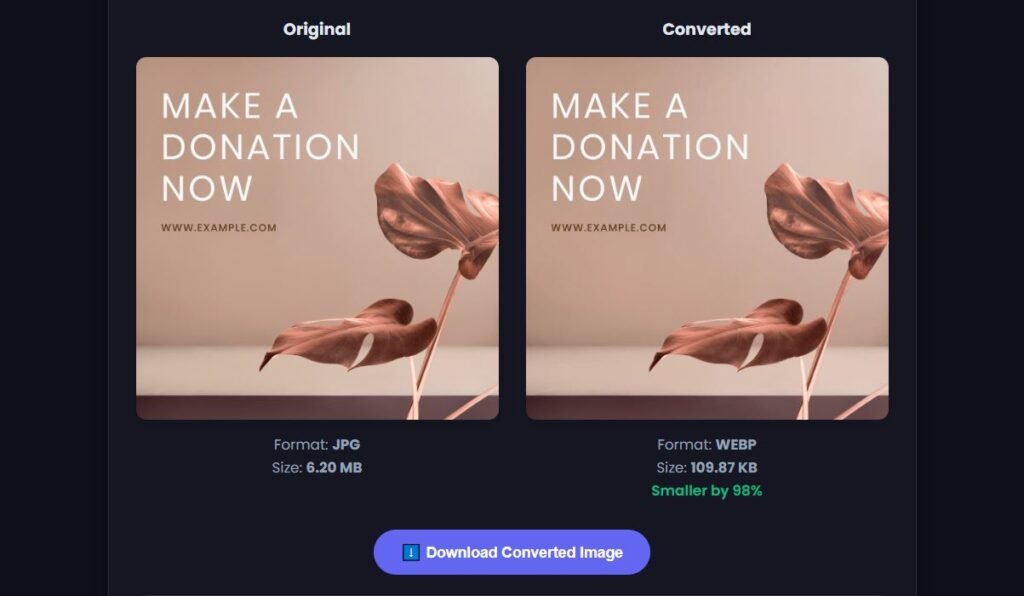
In practice, converting a JPG to lossy WebP can produce a visually similar image at a noticeably smaller file size. Converting a transparent PNG to lossless WebP often reduces the file size considerably. These savings compound across a page. The barrier has always been compatibility, but that barrier has largely crumbled. Today, every major modern browser handles WebP without complaint. If your workflow supports it, there is rarely a reason not to serve WebP to your visitors.
AVIF: Next-Generation Efficiency
AVIF (AV1 Image File Format) is a newer format that can offer excellent compression efficiency. It often produces smaller files than WebP while retaining impressive detail, especially in lossy mode. It also handles high dynamic range (HDR) content and wide color gamuts, making it well-suited for modern displays.
The trade-off is maturity. Encoding AVIF can be more computationally demanding than WebP or JPG, and while browser support is strong, the ecosystem of image editing software isn't quite as seamless. You might not be able to double-click an AVIF and preview it natively on your desktop OS yet. If minimizing file size while keeping high visual quality is your main goal, AVIF is worth considering. WebP, however, remains more widely supported across tools and platforms.
HEIC: The Apple Default
If you have an iPhone, your photos are probably HEIC files. HEIC uses the HEIF (High Efficiency Image File Format) container and offers efficient compression, often taking up roughly half the space of a comparable JPG while maintaining similar or better quality. The container can store more than a simple still image, including image bursts, depth maps, and live photo data.
The friction appears when you leave the Apple ecosystem. Sending a raw HEIC photo to a Windows user or uploading it to many older websites often results in a compatibility error. This is why HEIC to JPG conversion remains one of the most common workflows. The format is efficient for capturing memories, but JPG remains a more practical format for sharing photos universally online.
GIF: Animation with Limits
GIF is a format that refuses to disappear, kept alive largely by simple animation. As a static image format, it's limited: it maxes out at 256 colors, creates banded gradients, and produces larger files than PNG for the same content. PNG replaced its static duties long ago.
For short, looping animations, however, GIF remains embedded in internet culture. The reality is that video codecs baked into HTML5 video tags are much more efficient than GIFs, and both animated WebP and AVIF offer better visual quality at a smaller file size. Still, for quick, silent, auto-playing loops that need to work on virtually any device or email client, GIF continues to serve a purpose due to its extremely broad compatibility.
SVG: The Scalable Vector
SVG breaks the pixel-based mold entirely. Rather than a grid of colored squares, an SVG file is plain text describing lines, curves, and shapes. This means it scales infinitely. An SVG logo rendered at one inch wide is mathematically identical to the same logo rendered on a fifty-foot billboard. It will always be pin-sharp.
This is the definitive format for icons, logos, and illustrations. Because the file is text-based, it's often minuscule and can be edited directly with code. It is entirely unsuitable for photos, however. A photograph would have to be decomposed into countless vectors, which is computationally impractical. If you are working with a graphic that was born inside Adobe Illustrator or Figma, SVG is likely its native tongue.
Less Common but Still Relevant Formats
Beyond the usual suspects, you'll occasionally encounter TIFF and BMP. TIFF is a flexible, often lossless container popular in print and scanning. It preserves maximum quality and handles layers and multiple pages, but the files are enormous and unsupported by browsers. BMP is a raw, uncompressed raster format from the early days of Windows. There is almost no scenario where a BMP isn't better off being converted to a lossless PNG for web use or a high-quality JPG for photos.
RAW camera files deserve a special note. Unlike a JPG, a RAW file is not a viewable image. It is a data dump from a camera's sensor. Files like CR3 (Canon), NEF (Nikon), and ARW (Sony) are proprietary digital negatives. They require specialized software to develop and then export to a standard format like JPG or TIFF for editing and sharing. For most websites, you should keep RAW files as your original masters and export web-friendly copies in JPG, WebP, or AVIF.
Which Image Format Should You Use?
If you need a quick answer, this table cuts straight to the practical recommendation for common situations.
Head-to-Head Format Comparison
To see the practical differences side by side, here is how the main raster and vector formats stack up across the features that matter most.
JPG
PNG
WebP
AVIF
HEIC
SVG
* Support depends on the specific encoding, software, browser, or implementation.
This illustrates why your approach must be fluid. A site logo likely belongs as an SVG or lossless PNG. A blog post photo likely belongs as a lossy WebP or AVIF. The image format is dictated by the content of the image, not a blanket setting in your software.
Choosing the Right Format for Your Task
Stop thinking about which format is "best" and start thinking about what you're making. The decision tree is fairly direct.
- You are taking a photo on an iPhone. Let it stay as HEIC. The storage savings are significant. Convert a copy to JPG or WebP only when you need to share it with non-Apple users or upload it to a web server.
- You are uploading a product photo to Shopify or WooCommerce. Use WebP or AVIF. If your platform doesn't support those, a high-quality JPG saved at a progressive encoding setting is the pragmatic fallback.
- You are designing a logo with a transparent background. Export as SVG. It scales for retina screens, standard screens, and print without a single change. Provide a fallback PNG for email clients that strip SVG.
- You are saving a screenshot of a UI element. Use lossless PNG or lossless WebP. JPG will introduce soft, muddy artifacts around text that make it hard to read. Sharpness matters here more than file size.
- You are creating a looping cinematic meme. Do not use an actual GIF. Encode an MP4 video and embed it, or use an animated WebP. The quality gain and bandwidth reduction are enormous.
Where things get tricky is with RAW camera files. If you shoot on a Canon, Nikon, or Sony camera, you are dealing with a digital negative, not a viewable picture. The data from a CR2, NEF, or ARW sensor dump must be interpreted. You will typically convert these to TIFF for archival high-end editing, or to JPG for immediate sharing. You don't host the RAW on your website; you host the processed result.
How to Change an Image to Any Other Format
Knowing which image format you need is the first step. The second step is changing your file into that format without a headache. It's not about knowing expensive software; it's about using the right conversion engine.
When you convert, a lossy format going to another lossy format introduces a slight quality dip. A lossless format converting to another lossless format usually is perfectly clean. Converting a transparent PNG to JPG will flatten the transparent areas to solid white or black. An informed conversion tool handles these nuances correctly without damaging your image.
If you need to convert a file from HEIC, RAW, PNG, WebP, or any other format to a standard target, the process should be instant. You can use the free MiniToolsPro Image Converter to transform your image to the right format right now. It handles the tricky technical mapping so you don't have to worry about accidentally losing your transparency or metadata.
Understanding Quality, Compression, and File Size
A common mistake is treating compression as a dirty word. It isn't. Poorly applied compression is the problem. Lossy compression works by analyzing the image and blending or simplifying pixels in ways that the human visual system often ignores. The difference between a 100% quality JPG and an 85% quality JPG is frequently invisible to the naked eye while yielding a large drop in download size.
Here is the critical rule: if you take a JPG and convert it to a PNG, the file size will balloon. You are instructing the computer to perfectly preserve every pixel of the lossy artifact. This gives you a very large, perfectly preserved, artifact-ridden image. That's a bad trade. More importantly, converting a JPG to PNG does not restore image quality that was already lost during the original JPG compression. PNG preserves the pixels that exist; it cannot reconstruct detail that was discarded earlier.
Conversely, if you take a crisp lossless PNG of a logo and convert it to a JPG, you have irreversibly introduced compression noise and removed the transparency. The original master should always remain lossless where possible.
Common Problems After Converting Images
Conversions go wrong for a few predictable reasons. Being aware of them prevents frustration.
The most frequent issue is a format that won't open. This usually means the destination software doesn't support that image file type. A default Windows photo viewer might refuse a raw HEIC file, while updated software or a simple online conversion handles it without trouble. Another problem is a mysterious color shift. If a vibrant red photo suddenly looks dull and purple after conversion, a mismatched color profile is the likely culprit. Converting to sRGB during export usually prevents this.
If your converted image suddenly has a blocky, pixelated backdrop in what used to be an empty space, you just flattened a transparent PNG into a JPG. Go back to the source and either keep the output as PNG, or use WebP to preserve transparency at a smaller file size. If a resized image looks soft, a poor-quality resampling algorithm was likely used during a format change. Using a reliable processing engine ensures the edges stay crisp.
Making Sense of Your Workflow
Image formats are practical tools, not abstract specifications. They exist to balance visible clarity against invisible loading times and storage costs. The image format you choose before uploading an asset has a direct, measurable impact on your website's performance and your visitor's patience.
Keep your workflow simple. Capture or create images in a high-fidelity, modern format. Keep that original master file safe. Export copies to the most efficient format your publishing destination supports. If you need to convert a batch of photos for a website migration, or a specific image file type that your current viewer won't open, the conversion should be the easiest step in your process. You can grab your file and use the free Image Converter to get the exact format you need without degrading the picture.
Understanding the formats is the essential first step. The second step is simply doing the work. If you find yourself with a pile of HEIC photos from an iPhone that need to become web-ready JPGs, don't overcomplicate it. You can convert HEIC images to JPG online in a few seconds. Once your files are in the right container, they become truly useful.
Related Image Format Guides
Understanding the differences between image formats makes it easier to choose the right format for each situation. For a direct comparison of popular formats, read our JPG vs PNG vs WebP guide or compare WebP vs AVIF. If you're choosing an image format for a website, see our guide to the best image format for websites. You can also learn how to convert between common formats in our Image Converter Guide.
Frequently Asked Questions
Which image format is best for a website background?
WebP or AVIF in lossy mode. They compress photographic detail more efficiently than JPG. If you need a repeating pattern with transparency, use lossless WebP or PNG. SVG is the best option if the background is a purely geometric pattern or gradient, as it stays sharp at every resolution.
Will converting a JPG to PNG improve the quality?
No. A PNG will perfectly preserve the JPG artifacts exactly as they are. The visual quality cannot improve, but the file size will multiply enormously. Only convert to PNG if you are starting from an already lossless source and require transparency.
How do I open a HEIC photo on Windows?
Microsoft provides an official HEIF Image Extensions codec through the Microsoft Store for supported Windows versions. If that doesn't work or isn't available, the quickest reliable method is to use an online image converter to change the HEIC file to a universally readable JPG or PNG.
Is GIF still useful for modern websites?
For simple, auto-playing loops that must work everywhere, GIF still delivers. However, a looping video file or an animated WebP is typically much smaller and displays more smoothly in modern browsers. GIF's main remaining advantage is its near-universal compatibility, including in email clients where modern animation tags may be stripped.
Why does my SVG logo look different from my PNG export?
SVG text and paths can render differently depending on system fonts and anti-aliasing settings. If perfect fidelity is required, outline all fonts to shapes before saving the SVG. A browser renders SVG in real-time, whereas a PNG is a static snapshot of a specific rendering state.
Can I convert a RAW file directly to WebP?
Technically yes, through a processing engine that can demosaic the RAW sensor data and then encode to WebP. However, you should usually process a RAW file in a photo editor first to adjust exposure and color. Direct batch conversion without editing will give you unoptimized, flat-looking results.
What is the safest image format to send a photo to someone else?
JPG remains the universal safe harbor. It opens on Windows, Mac, iOS, Android, and inside every browser without any additional software. Set the quality to around 85-90% for a balance of legibility and transfer speed.
Making Sense of Your Workflow
Image formats are practical tools, not abstract specifications. They exist to balance visible clarity against invisible loading times and invisible storage costs. The format you choose before uploading an asset has a direct, measurable impact on your website's conversion rate and your user's patience.
Keep your workflow simple. Capture or create images in a high-fidelity, modern format. Keep that original master file safe. Export copies to the most efficient format your publishing destination supports. If you need to convert a batch of photos for a website migration, or a specific file type that your current viewer won't open, the conversion should be the easiest step in your process. You can also use the free MiniToolsPro Image Converter to transform your image to the right format right now. It handles the tricky technical mapping so you don't have to worry about accidentally losing your transparency or metadata.
Understanding the formats is the essential first step. The second step is simply doing the work. If you find yourself with a pile of HEIC photos from an iPhone that need to become web-ready JPGs, don't overcomplicate it. You can convert HEIC images to JPG online in a few seconds. Once your files are in the right container, they become truly useful.
Share this article 👇
0 Comments