
Table of Contents
What Is a PDF Document Compressor? A Complete Beginner's Guide
If you've ever tried to email a large file only to see it bounce back, or struggled to upload a document to a website with a strict size limit, you've experienced the frustration of dealing with oversized PDFs. A pdf document compressor is the simple solution to this common problem. It's a tool that reduces the file size of a PDF document while keeping all the text, images, and formatting intact.
Think of it like packing a suitcase: you're not removing anything essential, just rearranging and compressing it so everything fits into a smaller space. This guide will explain everything you need to know about PDF compression, from why it matters to how to do it yourself, both manually and with powerful online tools. Whether you're a student, a professional, or just someone who wants to manage digital files better, you'll find clear, practical advice here.
Quick Answer: What Is a PDF Document Compressor?
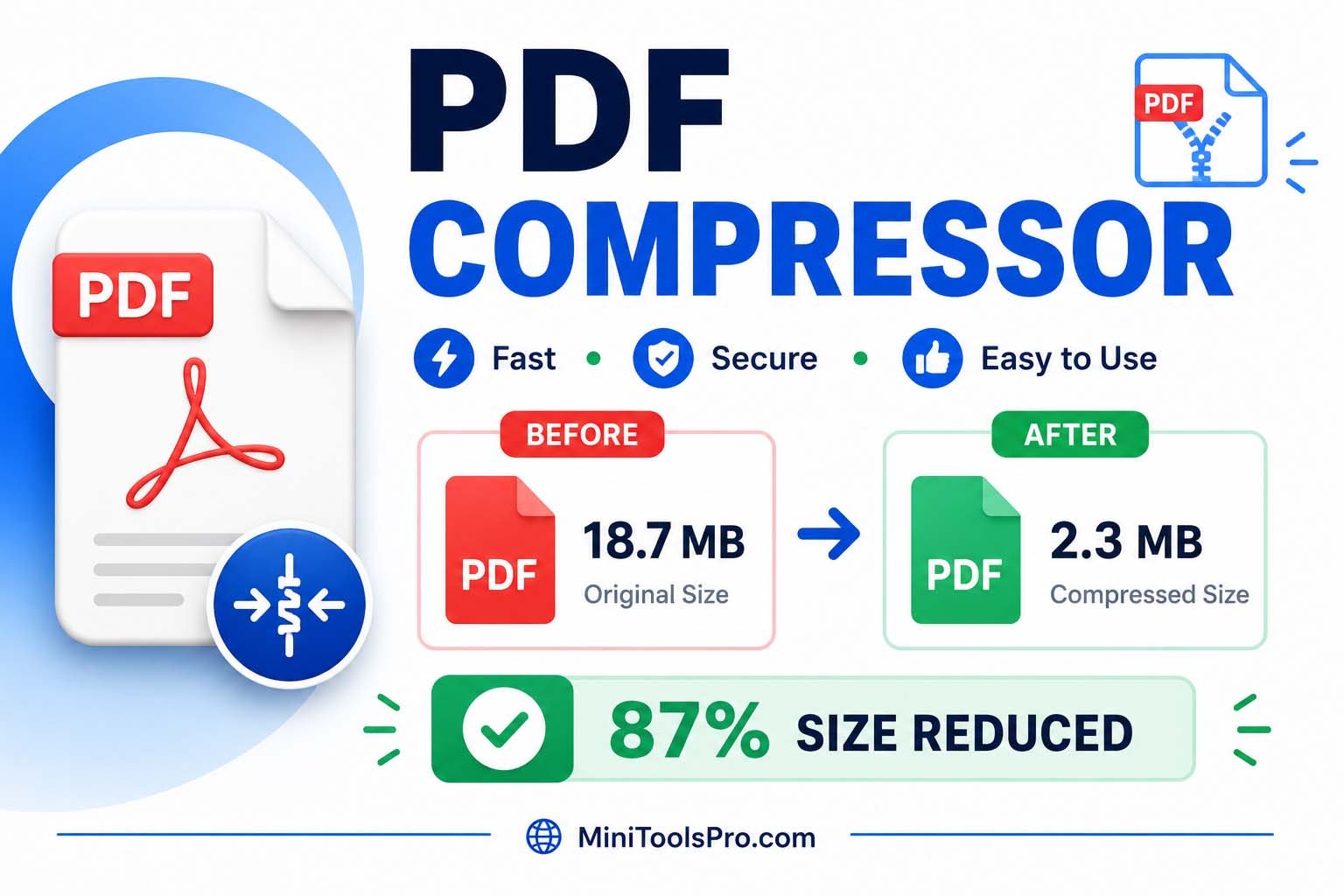
A PDF document compressor is a tool, software, or service that reduces the file size of a PDF. It achieves this by optimizing images, removing redundant metadata, and compressing the document's structure. The result is a much smaller file that is easier to share, upload, and store, while preserving the original content's quality.
What Is a PDF Document Compressor?
At its core, a PDF document compressor performs a simple but vital function: it takes a PDF file and makes it smaller. The official term for this process is PDF optimization or compression. The primary goal is to reduce pdf size to make the document more manageable for sharing via email, uploading to websites with file size limits, or simply saving storage space.
The compression process works by analyzing the PDF's internal structure and content. It then applies various techniques to reduce file size. This can include compressing images, which often take up the most space; removing hidden, unnecessary data (like old document metadata); and optimizing fonts and other embedded objects. Importantly, a good pdf document compressor does this without visibly degrading the quality of the text or images.
Why Using a PDF Document Compressor Matters
Oversized PDFs are more than just an annoyance; they can be a significant roadblock. Here's why knowing how to compress pdf document files is an essential skill.
Common Pain Points Solved by a PDF Compressor
- Email Attachment Limits: Most email providers cap attachments at around 25MB. A large PDF can easily exceed this, forcing you to use file-sharing services or split the document. A compressor makes the file small enough to send directly.
- Slow Uploads and Downloads: Large files take a long time to upload to cloud storage or download from a website. Compressing a PDF speeds up this process significantly, saving you and your recipients time.
- Storage Space Constraints: If you store many PDFs on your device or cloud storage, their size can add up quickly. Compressing them can free up valuable space.
- Website Performance: If you host PDFs on your website, large files can slow down page load times, harming user experience and SEO. Optimizing them ensures a faster, better experience for your visitors.
How a PDF Document Compressor Works
Understanding the mechanics of a PDF compressor can help you use it more effectively. The process isn't magic—it's a series of smart optimizations.
The Compression Process Explained Simply
Imagine a PDF is a folder containing all the elements of a document: text, images, fonts, and metadata. A pdf size shrinker goes into this folder and performs several actions to make it smaller.
- Image Compression: Images are often the biggest files in a PDF. The compressor reduces their size using different algorithms. A balance is struck between file size and image quality.
- Metadata Removal: PDFs can contain hidden metadata like author names, creation dates, and editing history. Removing this non-essential information can reduce file size without affecting the visible content. As noted in resources about reducing PDF file size, this can be a quick win for optimization [citation:1][citation:6].
- Font Optimization: Sometimes a PDF embeds a full font, even if only a few characters are used. The compressor can subset the font, embedding only the characters that are actually in the document, which saves space.
- Structure Optimization: The document's internal structure is streamlined by removing redundant or obsolete objects, making the file more efficient.
Technical Explanation (Optional)
For those who want a deeper dive, PDF compression often uses a combination of lossless and lossy compression algorithms. Lossless compression reduces file size without any loss of data (like when removing metadata). Lossy compression, often used on images, reduces file size by permanently eliminating some data (like slightly lowering image resolution). A sophisticated pdf document compressor will use both types intelligently to achieve the best balance of size and quality. The process can be further customized using profiles for specific purposes like web viewing or printing, as seen in advanced tools like the Pdftools SDK [citation:9].
Quick Reference: PDF Compression Methods Comparison
This table summarizes the most common ways to compress pdf document files, helping you choose the best option for your needs.
| Method | Best For | Pros | Cons |
|---|---|---|---|
| Online Tools | Quick, one-off compression for any user | No software to install; works on any device; often free | Privacy concerns (files are uploaded); internet required |
| Desktop Software | Frequent or high-volume compression | Powerful features; batch processing; works offline [citation:3][citation:10] | Requires installation; may be paid |
| Command-Line Tools | Technical users and automation | Maximum control; scriptable for batch processing [citation:4][citation:5] | Requires technical knowledge; less user-friendly |
| Built-in OS Features | Basic compression on Mac (Preview) or via print-to-PDF | No extra tools needed; simple | Less control over compression levels; limited features |
Step-by-Step Guide: How to Compress a PDF Document
Here's how you can compress pdf document files using different methods. We'll start with the simplest and move to more advanced options.
Method 1: The Easy Way – Using an Online PDF Document Compressor
This is the most common method for most people. Online tools are fast, free, and don't require any software installation.
- Go to a trusted website that offers a PDF compression tool, like the PDF Compressor on MiniToolsPro.com.
- Upload your PDF file by clicking the "Upload" button or dragging and dropping it into the designated area.
- Once uploaded, the tool will automatically start the compression process.
- After a few seconds, your compressed PDF is ready to download. Save it to your device.
Method 2: The Desktop Software Approach (Using Acrobat)
If you have Adobe Acrobat (the desktop version), it offers robust options for compression and optimization.
- Open the PDF in Acrobat.
- Select All tools from the toolbar and then choose Compress a PDF [citation:1].
- For more control, select Advanced Optimization from the same panel. This lets you adjust specific settings like image quality and font handling [citation:6].
- Choose your settings, click OK, and save the optimized file.
Method 3: The Technical Approach – Using Command-Line Tools
For developers and IT professionals, command-line tools offer powerful, scriptable compression. Tools like Ghostscript can be used for this purpose.
- Install Ghostscript: Download and install Ghostscript on your system.
- Use a wrapper: Tools like
gs-batch-pdfsimplify the process. You can compress multiple files with a single command [citation:4][citation:5]. - Run the command: For example,
gsb *.pdf --compresswill compress all PDFs in a folder using the default settings [citation:5].
Common Mistakes When Using a PDF Document Compressor
Even with the best tools, people sometimes get suboptimal results. Here are some common pitfalls to avoid.
Mistake 1: Expecting a 100% Size Reduction
The Problem: The amount a PDF can be compressed depends heavily on its content. A text-only file won't shrink as much as an image-heavy one.
The Solution: Have realistic expectations. While reductions of 70-80% are common for scanned documents, a native document may only see a 10-30% reduction.
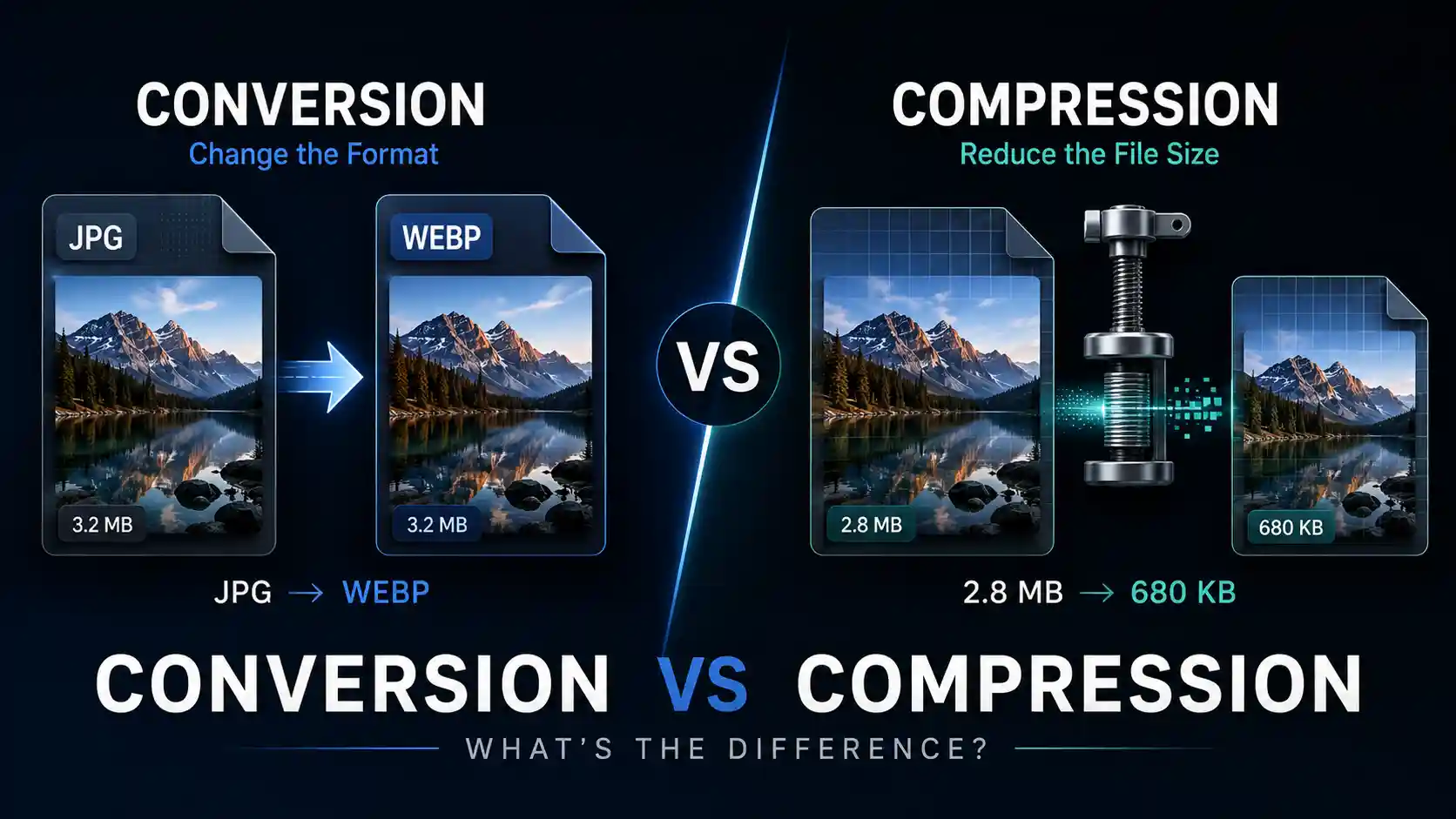
Mistake 2: Confusing Compression with a Different Process
The Problem: Some people confuse compressing a PDF with zipping it (which creates a .zip archive) or flattening it (which merges layers).
The Solution: Understand that compression reduces the size of the PDF itself, making it permanently smaller. Zipping is for packaging files for transfer, and flattening is for finalizing a document.
Mistake 3: Using the Wrong Compression Level for Your Needs
The Problem: A "high" compression setting might make an image-heavy PDF too blurry, while a "low" setting may not reduce the file size enough.
The Solution: Check the output quality. If the PDF is for print, you may need a lower compression. If it's for web sharing, a higher compression is often acceptable [citation:1][citation:9].
Real-World Use Cases for a PDF Document Compressor
Here are practical scenarios where a pdf document compressor is indispensable.
1. For Students
Online learning platforms like Blackboard or Canvas often have strict file size limits for assignments. A student can easily compress pdf document files of their research papers, presentations, or scanned notes before submitting them.
2. For Business Professionals
Emailing contracts, proposals, or reports that exceed attachment limits can stall workflows. A PDF compressor ensures these critical documents reach clients, partners, and colleagues without issues. This is especially helpful for professionals who regularly deal with a big pdf compressor scenario.
3. For Webmasters and Bloggers
Hosting large PDFs on a website can slow down loading times. By reducing pdf size, webmasters can improve Core Web Vitals, user experience, and SEO rankings.
4. For Government and Legal Offices
These offices often deal with massive scanned documents. Compressing them not only makes sharing faster but also drastically reduces storage costs. Offline tools that prioritize privacy, like the ones mentioned in the search results, are particularly valuable for this sector [citation:3][citation:10].
5. For Developers and IT Professionals
Developers can build custom workflows using APIs or command-line tools to automate the compression of generated reports or user-uploaded documents. The goal is to compress pdf to pdf format without manual intervention, saving significant time.
Simplify the Process with a Free Online Tool
As you can see, there are many ways to compress pdf document files. But for most people, the quickest, easiest, and most private solution is a free online tool.
Instead of downloading software, learning complex commands, or worrying about your files' security, you can use the MiniToolsPro PDF Compressor. This tool is designed to be incredibly simple:
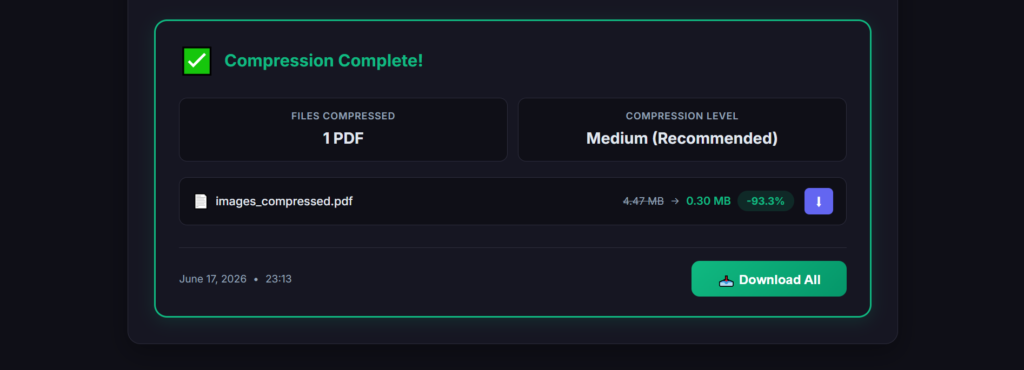
- Fast: Compresses your file in seconds.
- Private: All processing is done in your browser. Your files are never uploaded to our servers, keeping your data secure.
- Free: Use it as many times as you need with no hidden costs.
- User-Friendly: Just upload, compress, and download. That's it.
Whether you need to make pdf smaller on PC or Mac, this tool works seamlessly on any device with a modern browser.
Advanced Tips & Best Practices for PDF Compression
Once you're comfortable with the basics, these expert tips can help you get even more out of your pdf document compressor.
1. Know Your Output Goal
What will the PDF be used for? If it's for web viewing, you can be more aggressive with compression. If it's a print-ready file, prioritize quality. As noted, different software and SDKs offer profiles specifically for "Web," "Print," or "Archive" to help you achieve this balance [citation:9].
2. Consider Batch Processing
If you have to compress many files, desktop software or command-line tools are your best friend. They allow you to compress pdf document files in bulk, saving a tremendous amount of time. Some tools are specifically designed for this parallel processing [citation:4][citation:5].
3. Prioritize Privacy
For sensitive documents, choose a tool that processes files locally. Several options mentioned in this guide emphasize a privacy-first or offline-only approach, ensuring your data stays on your machine [citation:3][citation:10].
4. "Reduce Size" vs. "Advanced Optimization"
In desktop tools like Acrobat, you'll often see a quick "Reduce Size" option and a more advanced one. The quick option is great for most tasks, while the advanced one gives you granular control over images, fonts, and other elements [citation:1][citation:6]. Start with the quick option and only use advanced settings if you need a specific outcome.
Frequently Asked Questions
What is a PDF document compressor?
A PDF document compressor is a tool that reduces the file size of a PDF by optimizing images, fonts, and structure, making it easier to share and store.
How can I reduce PDF size for free?
You can use online tools like our free PDF Document Compressor to reduce PDF size quickly and securely without any software installation.
Does compressing a PDF reduce its quality?
A good PDF compressor balances size reduction with quality. While you can choose higher compression, modern tools minimize visible quality loss, making it unnoticeable for most documents.
How to make PDF smaller on PC?
You can use online tools that work in your browser, or desktop software like Adobe Acrobat. Online tools are easiest for quickly making a PDF smaller on PC without installing anything.
How to make PDF smaller on Mac?
Mac users can use the built-in Preview app to reduce file size, or use a reliable online PDF compressor. Our tool works seamlessly on any browser on Mac.
What is the difference between PDF compression and zipping?
Compression reduces the PDF's internal file size permanently. Zipping creates a package that contains the file, reducing the size for transfer, but the PDF must be unzipped to use and will be its original size.
Is it safe to use an online PDF compressor?
Yes, as long as you use a trusted tool. Look for tools that process files locally in your browser to ensure your data isn't uploaded to a server, which is a key privacy feature of our MiniToolsPro PDF Compressor.
Can I compress a scanned PDF document?
Yes, compressing scanned documents is one of the most common use cases for a PDF compressor. These image-heavy files often see the most significant size reduction.
What is the best PDF compressor?
The "best" depends on your needs. For a quick, free, and private online solution, our PDF Document Compressor is an excellent choice. For advanced, offline batch processing, you might prefer desktop or command-line tools.
How do I compress a PDF in Adobe Acrobat?
Open your PDF in Acrobat, go to All tools > Compress a PDF. For more options, select Advanced Optimization to customize settings for images and fonts [citation:1][citation:6].
Final Thoughts: The Power of a Small PDF
Learning how to use a pdf document compressor is a small skill that can have a big impact on your productivity. From unclogging email inboxes to speeding up your website, the benefits of smaller files are undeniable. You don't need to be a tech expert to do it. Whether you choose a simple online tool or a more advanced desktop application, you now have the knowledge to take control of your digital documents.
Start by trying the MiniToolsPro PDF Compressor—it's the simplest, most private way to get started. Upload your file, see the difference, and make sharing documents a breeze.
Related Tools You May Find Useful
- PDF Merger – Combine multiple PDF files into a single document for easier management.
- PDF Splitter – Extract pages or split a large PDF into smaller, more manageable files.
- Image Compressor – Optimize images before including them in your PDFs.
Share this article 👇
0 Comments