
Table of Contents
We've all been there. You're trying to send an important email, but it bounces back with the dreaded "attachment too large" error. Or maybe your beautifully crafted newsletter arrives in your recipient's inbox as a jumble of broken images and links, leaving them frustrated and closing the tab before reading. Learning how to reduce image size for email is one of the most valuable skills you can develop as a marketer, business owner, or anyone who sends images regularly.
In an era where 67% of emails are opened on mobile devices, image file size isn't just a technical detail—it's critical to your message being seen at all. When images are slow to load, engagement plummets. Large attachments can clog inboxes, trigger spam filters, and lead your recipients to abandon your email. That's why knowing how to reduce image size for email properly can make or break your email campaigns.
But here's the good news: you don't need to be a graphic designer or a tech wizard to reduce image size for email successfully. This guide walks you through the simplest, most effective steps to reduce image size for email, ensuring your photos and graphics load quickly and look great on any screen. Whether you're compressing product photos for a marketing campaign or resizing a logo for your signature, these techniques will help you reduce image size for email without sacrificing quality.
Table of Contents
- Why You Must Reduce Image Size for Email
- Understanding Email Attachment Limits
- How to Reduce Image Size: A 3-Step Framework
- The Most Common Mistake to Avoid
- Best Practices by Scenario
- Frequently Asked Questions
- Key Takeaways & Next Steps
Why You Must Reduce Image Size for Email
Imagine you're in a hurry to read an email on your commute. You tap it open, but the images take several seconds to load. The text is jerky, the layout is broken, and you give up after a few seconds. This is the fate of emails containing overly large images. When you reduce image size for email, you prevent this frustrating experience for your recipients.
Here are five concrete reasons why you need to reduce image size for email:
1. Avoid Email Provider Limits
Gmail, Outlook, and Yahoo have strict limits—usually between 20-25MB total per email. This limit is applied to the entire message, not just each attachment. If you exceed it, the email simply won't send. Learning to reduce image size for email helps you stay well within these limits.
2. Stop Bounce-Backs and Timeouts
A large file takes a long time to upload. If your email client times out before the upload finishes, the message will fail, and you'll have to start over. When you reduce image size for email, uploads complete quickly and reliably.
3. Don't Let the Spam Folder Be Your Destination
Emails with large attachments are often flagged as suspicious by spam filters, dramatically reducing your deliverability. This is another critical reason to reduce image size for email.
4. Mobile Loading Speed
Large images eat up data plans and take too long to load on a cellular connection. This leads to high bounce rates and low engagement. If you reduce image size for email, mobile users will thank you.
5. Inbox Clipping
Email providers like Gmail will automatically "clip" (truncate) messages that exceed a certain file size (around 102KB), hiding the rest behind a "View entire message" link. If your hero image is too big, your entire email might be clipped. That's why it's essential to reduce image size for email before sending.
Understanding Email Attachment Limits
Before you start compressing, it's helpful to know what you're up against. The file size limit is the total size of the email body plus all attachments. This limit varies by service, and knowing these limits helps you decide how much to reduce image size for email.
| Email Provider | Attachment Limit |
|---|---|
| Gmail | 25 MB total (auto-converts larger attachments to Google Drive links) |
| Outlook / Hotmail | 20 MB total |
| Yahoo Mail | 25 MB total |
| Corporate Exchange | 10-15 MB (often more restrictive) |
Crucial Tip: Email attachments are encoded in Base64 for transmission, which adds about 33% to the file size. This means a 20MB limit only allows for files totaling around 15MB. So, always aim to reduce image size for email attachments well below 20MB to ensure deliverability.
How to Reduce Image Size: A 3-Step Framework
Optimizing an image for email isn't about using a single magic button. It's a simple, three-step framework that yields the best results: Resize, Format, Compress. Follow these steps every time you need to reduce image size for email.
Step 1: Resize the Image to its Final Display Size
The most common cause of oversized images is failing to resize them. An image from a modern smartphone can be 4000×3000 pixels (roughly 3-5MB), but if it's going to be displayed at 600 pixels wide in an email, you're sending 90% more data than you need to. The first thing to do when you reduce image size for email is to resize the pixel dimensions.
Here's the best practice:
- Aim for 600–800 pixels wide. This ensures the image will look sharp on a desktop and won't be blurry on mobile. For full-width images, use a width of 600–640 pixels.
- Maintain aspect ratio: When you change the width, the height should automatically adjust to preserve the image proportions.
You can resize images using basic apps like Microsoft Photos (Windows) or Preview (Mac), or by using online tools. Resizing is the first critical step to reduce image size for email effectively.
Step 2: Choose the Correct Image Format
Not all image formats are created equal. Choosing the right one can save you 80% of file size in a single click. When you reduce image size for email, format selection makes a huge difference.
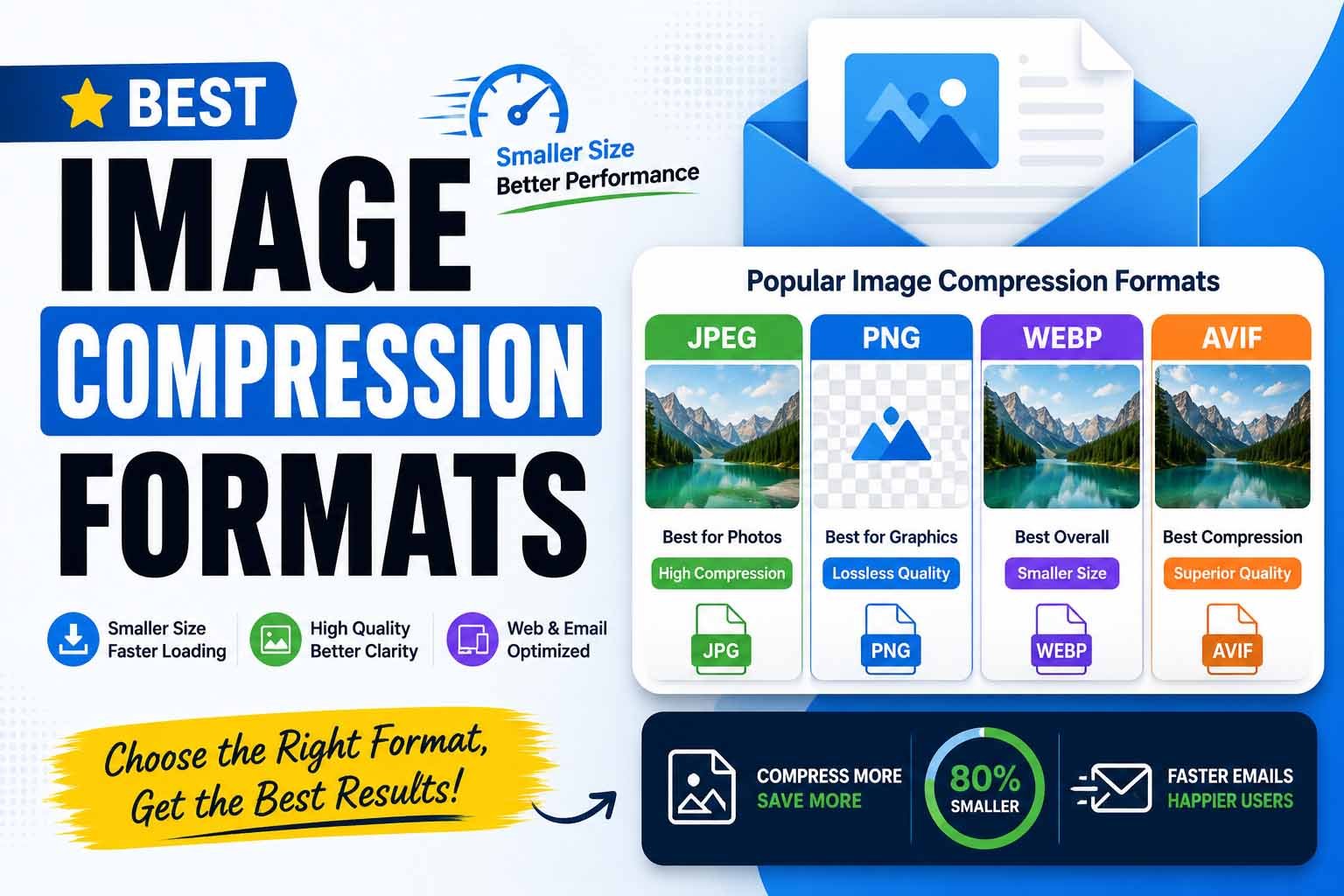
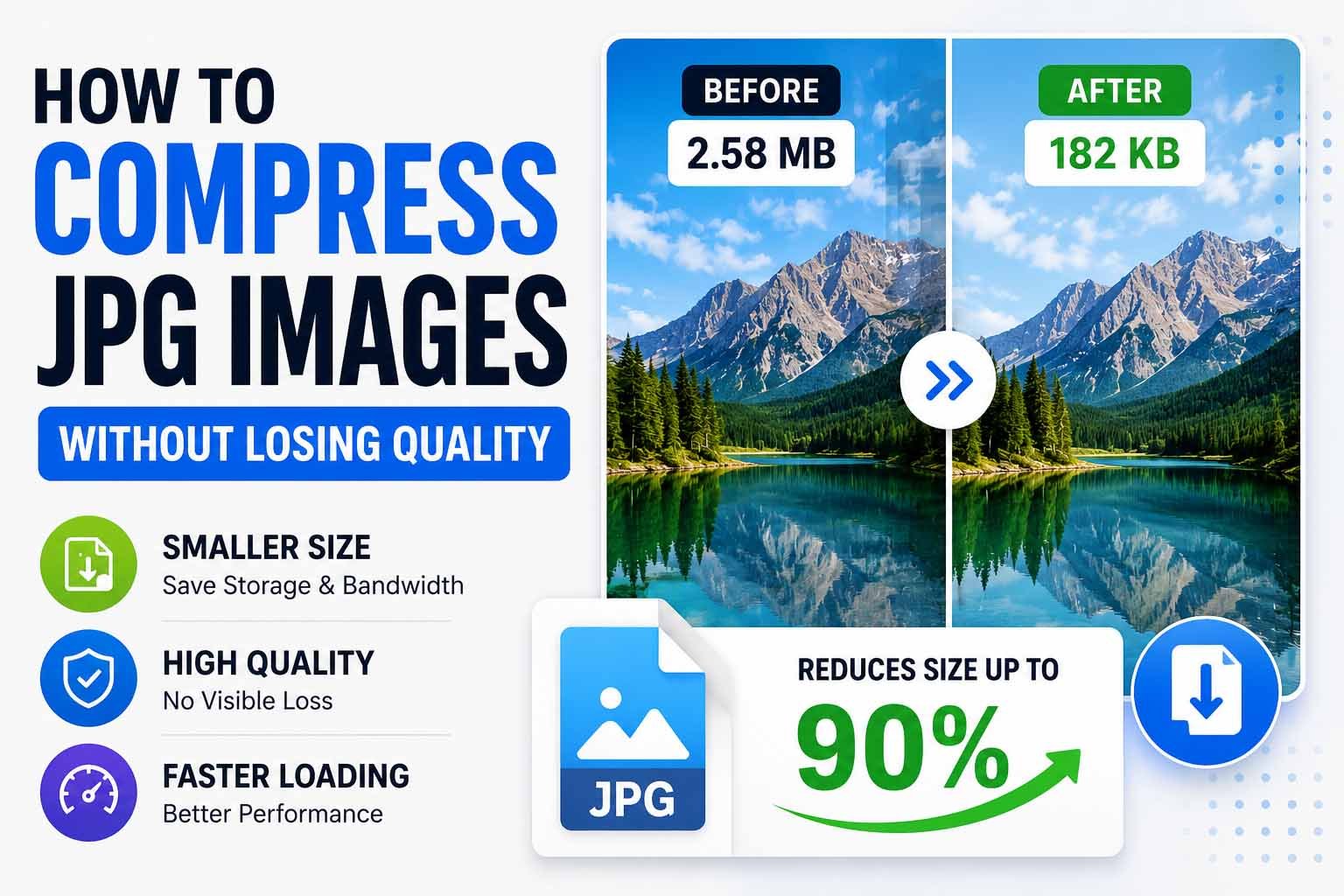
- JPEG (or JPG): This is your go-to for any image without transparency, like photos, screenshots with gradients, and product images. JPEG compression can drastically reduce file size with very little loss in quality. This is usually the best format to reduce image size for email.
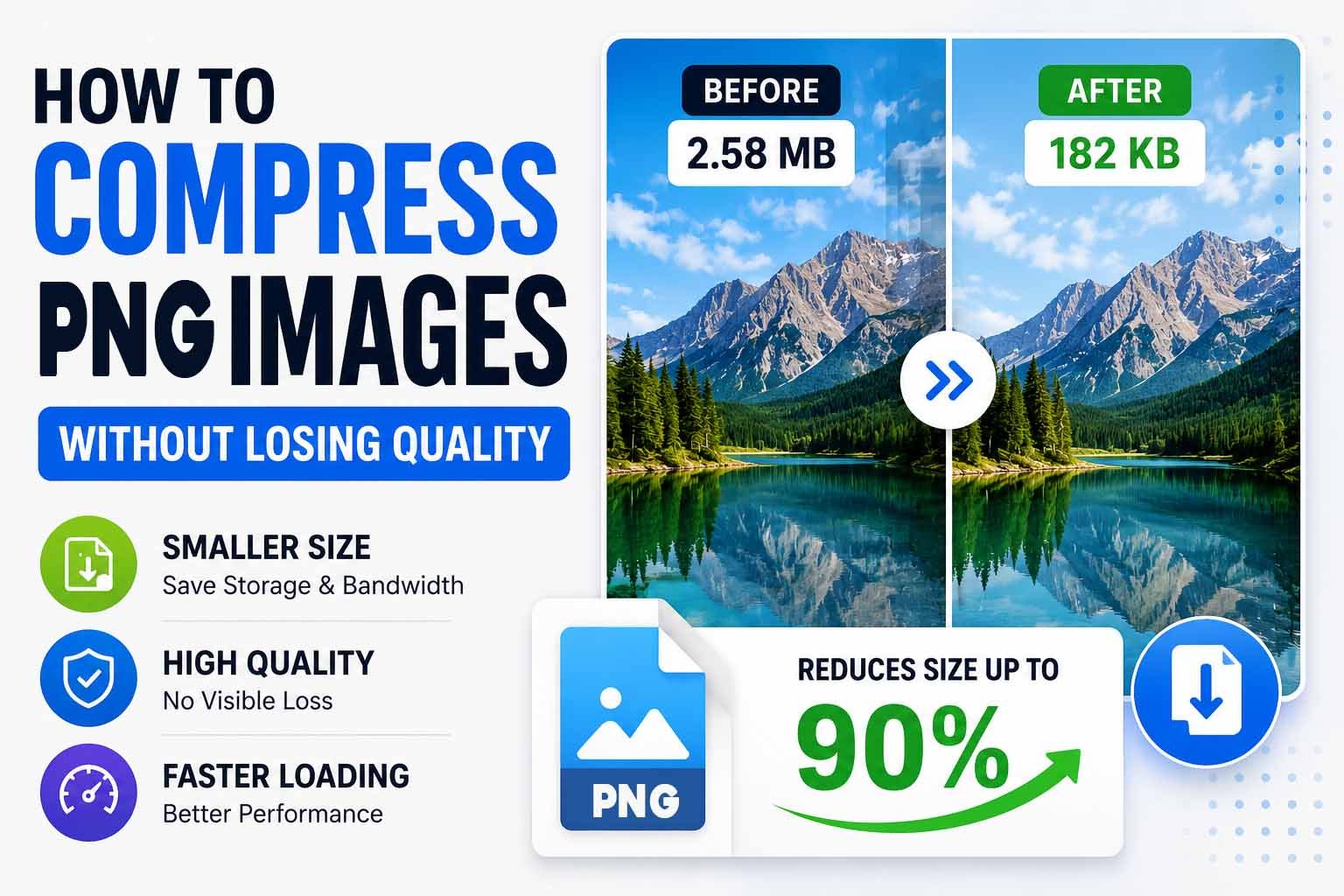
- PNG: This format is larger because it supports transparency and lossless compression. Only use PNG for images that need a transparent background, like logos, icons, or graphics with crisp text.
- WebP: A modern format that offers superior compression. Check if your email provider supports it first.
- HEIC: This is Apple's default format. It's small, but often incompatible with Windows or Android recipients. Convert these to JPEG before sending.
Step 3: Compress the Image
After you've resized and selected the correct format, it's time to compress. Compression removes redundant visual data that our eyes can't readily perceive. This is where most of the file size savings happen—often 60-80% smaller files with no noticeable quality loss. When you compress, you reduce image size for email dramatically.
For most email images, a compression quality of 70-75% is the sweet spot. It drastically reduces the file size while maintaining image quality. This is the final and most impactful step to reduce image size for email.
How to compress for free:
The MiniToolsPro Image Compressor offers a fast, private, and effective way to reduce image size for email. You don't need to install any software or create an account. It's perfect for getting your email images down to the perfect size so you can reduce image size for email in seconds.
The Most Common Mistake to Avoid
The single biggest mistake people make when they try to reduce image size for email is compressing before resizing.
This is a classic case of doing work in the wrong order. If you have a 4000×3000 pixel image and you compress it to 70% quality, you'll be left with a lower-quality version of a still-massive image. The total file size will still be too big for email. This approach doesn't truly reduce image size for email effectively.
Always resize first, then compress. This simple workflow ensures you're only optimizing the data that's actually needed for the final display size. Following this order will help you reduce image size for email correctly every time.
Best Practices by Scenario
Here's how to apply this advice to the most common email image scenarios. Each scenario requires a slightly different approach to reduce image size for email.
Email Signature
Target File Size: Under 30 KB
Best Practice: Keep it extremely light. It should load instantly for every person you email.
- Format: Use PNG if the logo has a transparent background. Use JPEG if it's a rectangular photo or text on a solid background.
- Dimensions: Resize to the exact pixel dimensions that the signature will appear at (often around 100-200px wide).
Newsletter Banner
Target File Size: 80 KB to 250 KB
Best Practice: This image is the first thing a reader sees. It must load fast, so you must reduce image size for email aggressively.
- Format: Always use JPEG for photos, PNG only if there is text overlaid on a transparent background.
- Dimensions: Exactly 600-640 pixels wide.
- Compression: Aim for 70-75% quality to balance speed and clarity.
Product Photos in Marketing Emails
Target File Size: Under 500 KB per image
Best Practice: The image should be clear enough to show product detail but light enough to load. Reduce image size for email without making products look pixelated.
- Format: JPEG.
- Dimensions: 600-800 pixels wide.
- Compression: 70-75% quality.
Frequently Asked Questions
1. What is the best resolution for images in an email?
The best resolution is 72 DPI. The width is more important: aim for 600-800 pixels wide for images that will appear in the body of the email. This will help you reduce image size for email while maintaining quality.
2. How do I reduce image size for email without losing quality?
The "lossless" approach is to resize the image first (to the pixel dimensions it will be displayed at) and then use a compression tool. Most compression tools have a "quality" slider; starting at 70-75% usually has no perceivable quality loss on a screen. This is the best way to reduce image size for email safely.
3. What is the maximum file size for an email attachment?
Gmail and Yahoo allow up to 25 MB. Outlook/Hotmail allow up to 20 MB. Corporate email accounts (Microsoft Exchange) often have a 10 MB default limit. Always reduce image size for email to stay under these limits.
4. Why can't I send large files as attachments?
Servers place size limits to prevent overload. Additionally, to be transmitted safely, attachments are encoded, which increases their size. A 20MB file might actually take up 26MB of data to transmit, so your email server limits the incoming file size before encoding. That's why you must reduce image size for email.
5. How to reduce image size for email on iPhone?
Your iPhone can help you reduce image sizes. Before you send a file, many email apps have an option to select "Small," "Medium," or "Large" for image quality. Alternatively, you can use apps or online tools to resize or compress images before adding them to your email to reduce image size for email on the go.
6. What is the difference between JPEG and PNG for email?
JPEG is a "lossy" format. It compresses the file by discarding some visual data. This makes it excellent for photographs and complex images, resulting in much smaller files. Use JPEG when you need to reduce image size for email significantly.
PNG is a "lossless" format. It retains all the original image data, leading to larger files. It's best used for images with transparency or solid blocks of color (like logos or diagrams).
7. How do I reduce image size for email in Gmail?
Gmail doesn't have built-in compression. You will need to resize and compress the image on your computer or with an online tool like the MiniToolsPro Image Compressor before attaching it. This is the most reliable way to reduce image size for email in Gmail. If your file is over 25 MB, Gmail will automatically upload it to Google Drive and share a link instead.
8. Should I reduce the pixel dimensions of images or just file size?
You should do both. Reducing the pixel dimensions (resizing) is the first step, and then you compress the file. Resizing removes unnecessary pixels, while compression removes unnecessary data from those remaining pixels. Both are essential to reduce image size for email effectively.
9. Why is my small image still a large file?
This is almost always because of the image format. If your 600px-wide image is a PNG file, it will be significantly larger than a JPEG of the same size. If the image contains no transparency, convert it to JPEG to reduce image size for email. You can convert the image for free using the Image Converter tool.
10. Does an email's total size include its images?
Yes. The attachment size limit applies to the entire email. This includes the HTML text, coding, and every image, whether embedded in the body or attached separately. This is a key reason to reduce image size for email and keep all your images under 200-300 KB.
11. What is a good total size for an email?
A good total email size (including all text and images) is under 1 MB, with 2 MB being a reasonable upper limit. This ensures it will load quickly and completely for every recipient, even those on older mobile connections. To achieve this, you must reduce image size for email aggressively.
12. Can I reduce image size for email without any software?
Yes. Many online tools like the MiniToolsPro Image Compressor allow you to reduce image size for email directly in your browser without installing anything. These tools are free, fast, and privacy-focused.
13. How much can I reduce image size for email on average?
Most images can be reduced by 60-80% in file size without noticeable quality loss when resized and compressed properly. If you know how to reduce image size for email, you can shrink a 5MB photo down to under 300KB.
14. Will reducing image size for email affect print quality?
No. The images you send via email are for screen viewing only. When you reduce image size for email, you're optimizing for digital display at 72 DPI. Print requires 300 DPI and is not relevant for email attachments.
15. How do I reduce image size for email on a Mac?
On a Mac, you can use Preview to resize images: Open the image, go to Tools > Adjust Size, and enter your desired dimensions. Then export as JPEG to reduce image size for email. Alternatively, use online tools to compress further.
Key Takeaways & Next Steps
Reducing image size for email doesn't have to be a headache. By following this simple framework—Resize, Format, Compress—you can ensure your messages are delivered, opened, and read. Remember: always resize first, then compress to reduce image size for email effectively.
Your Next Step: Don't let a "file too large" error slow you down again. The MiniToolsPro Image Compressor is the fastest, easiest way to reduce image size for email.
Try the MiniToolsPro Image Compressor Now
Additional Resources
- PNG Specification (W3C Recommendation): Official W3C specification for the Portable Network Graphics format, defining the technical standards for PNG files.
- Image SEO Best Practices (Google Search Central): Google's official documentation on optimizing images for search engines, covering technical requirements and best practices.
- Improve Image Delivery (Chrome for Developers): Google's performance guide covering image compression, modern formats (AVIF, WebP), and responsive image strategies.
- Responsive Images Guide (MDN Web Docs): Comprehensive documentation on implementing responsive images using srcset, sizes, and the <picture> element.
Share this article 👇
0 Comments